
Hi, I’m Jimmy, a computer technician. I help people fix everyday Windows problems, and today I’ll show you how to speed up a slow PC.
Quick Answer
If your Windows computer feels slow, the most common reasons are too many startup programs, not enough free disk space, outdated drivers, or too many apps running at the same time. If you are wondering how to speed up a slow Windows PC, the good news is that most problems can be fixed with a few simple steps. If your Windows computer feels slow, the most common reasons are too many startup programs, low disk space, outdated drivers, or too many apps running at the same time.
Table of Contents
Common Causes of a Slow Windows PC (and Why It Happens)
Before learning how to speed up a slow Windows PC, it’s important to understand what usually causes the slowdown. Before we fix the problem, it helps to understand why computers slow down. Here are the most common reasons.
Too many startup programs
Many apps automatically start when Windows boots. Over time, this can slow down the entire system.
Too many background apps
Some programs keep running even when you are not using them.
Low disk space
Windows needs free space to run smoothly. If the drive is almost full, everything becomes slower.
Outdated or missing drivers
Drivers help Windows communicate with your hardware. When they are outdated, performance problems can appear.
Old temporary files and junk data
Windows and many programs create temporary files that slowly pile up over time.
If you’re wondering why your computer became slow in the first place, you can also read our guide: Why Is My Computer So Slow? 6 Easy Fixes for Windows
Now let’s fix these step by step.
Fix 1 Restart Your Computer
It sounds simple. But it works surprisingly often.
When a computer runs for many days without restarting, memory becomes cluttered with background processes.
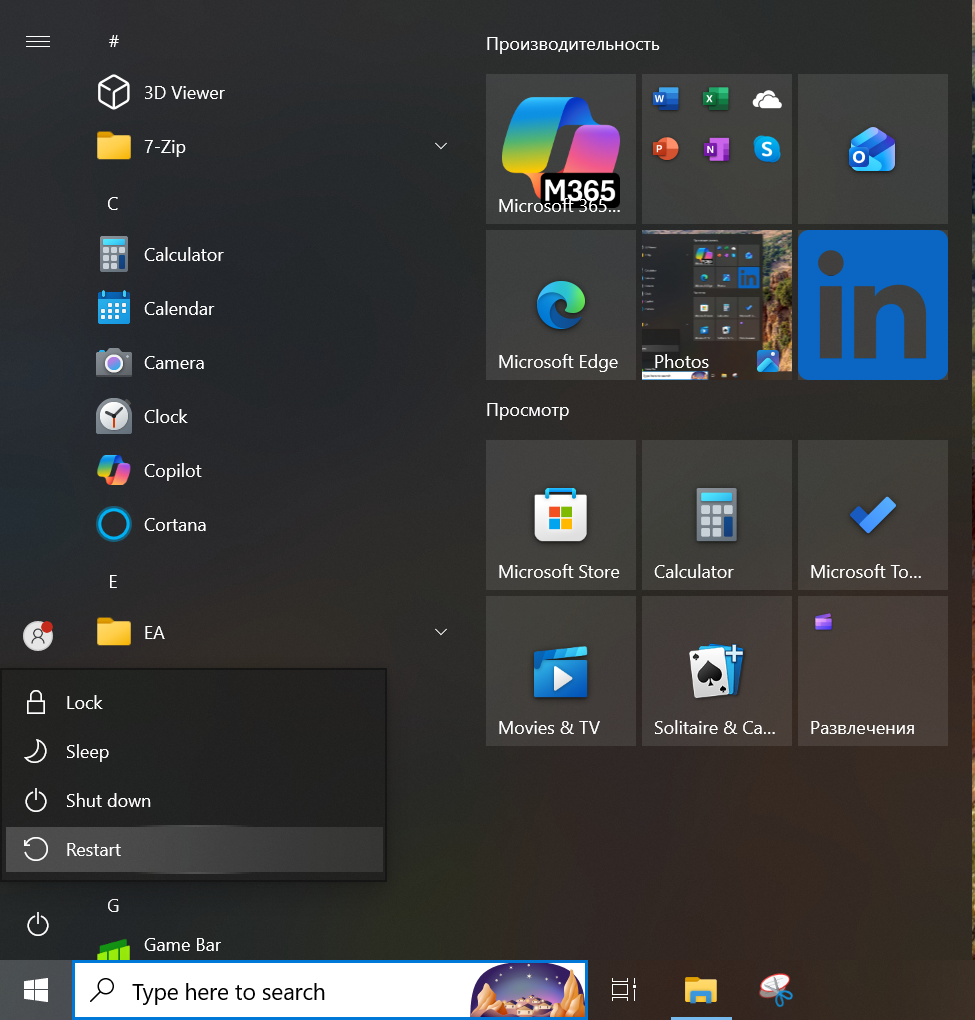
How to restart your PC
- Click the Start menu
- Click the Power icon
- Select Restart
After restarting, check if your PC feels faster.
Pro Tip
Many people only put their computer to sleep. A full restart once in a while can noticeably improve performance.
Fix 2 Disable Unnecessary Startup Programs
Startup apps are one of the biggest reasons Windows becomes slow over time. Many programs quietly add themselves to startup without asking.
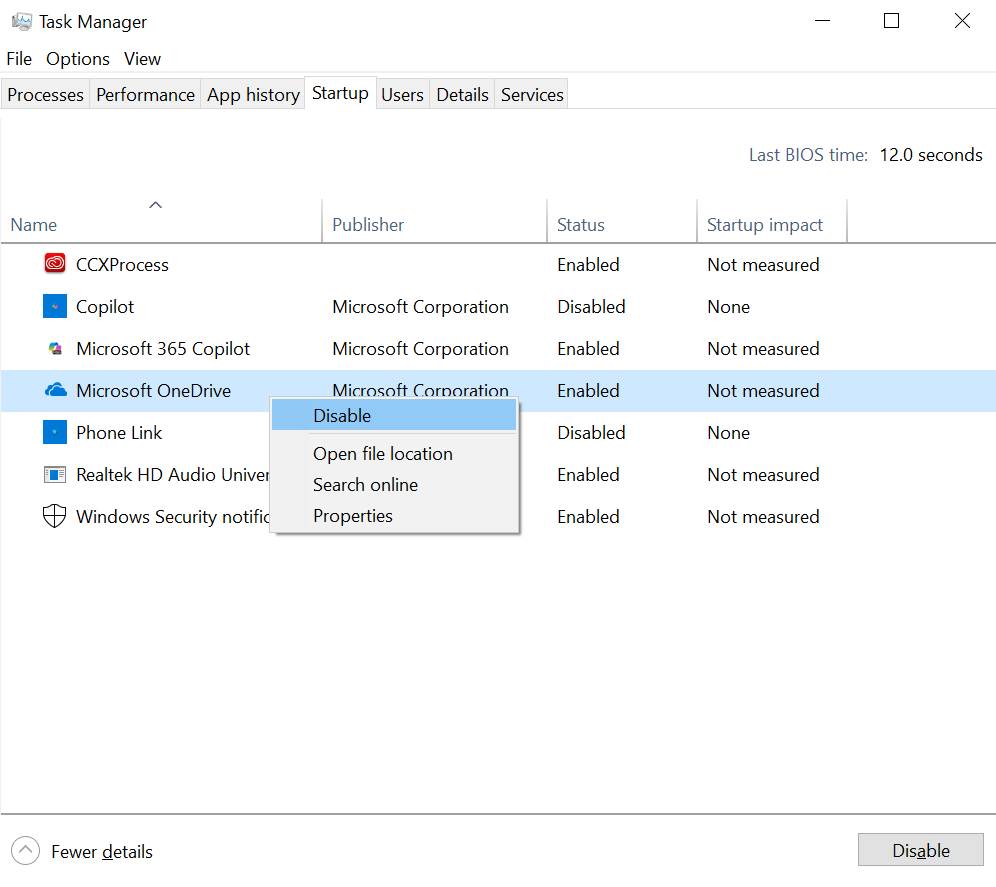
How to disable startup apps
- Right-click the Taskbar
- Click Task Manager
- Go to the Startup tab
- Look for apps you don’t need when Windows starts
- Right-click the app
- Select Disable
This does not uninstall the program. It simply stops it from launching automatically.
After disabling a few startup apps, restart your PC again.
Fix 3 Close Unused Programs
Sometimes the problem is simply too many apps running at once. Browsers are often the biggest culprit, especially if many tabs are open.
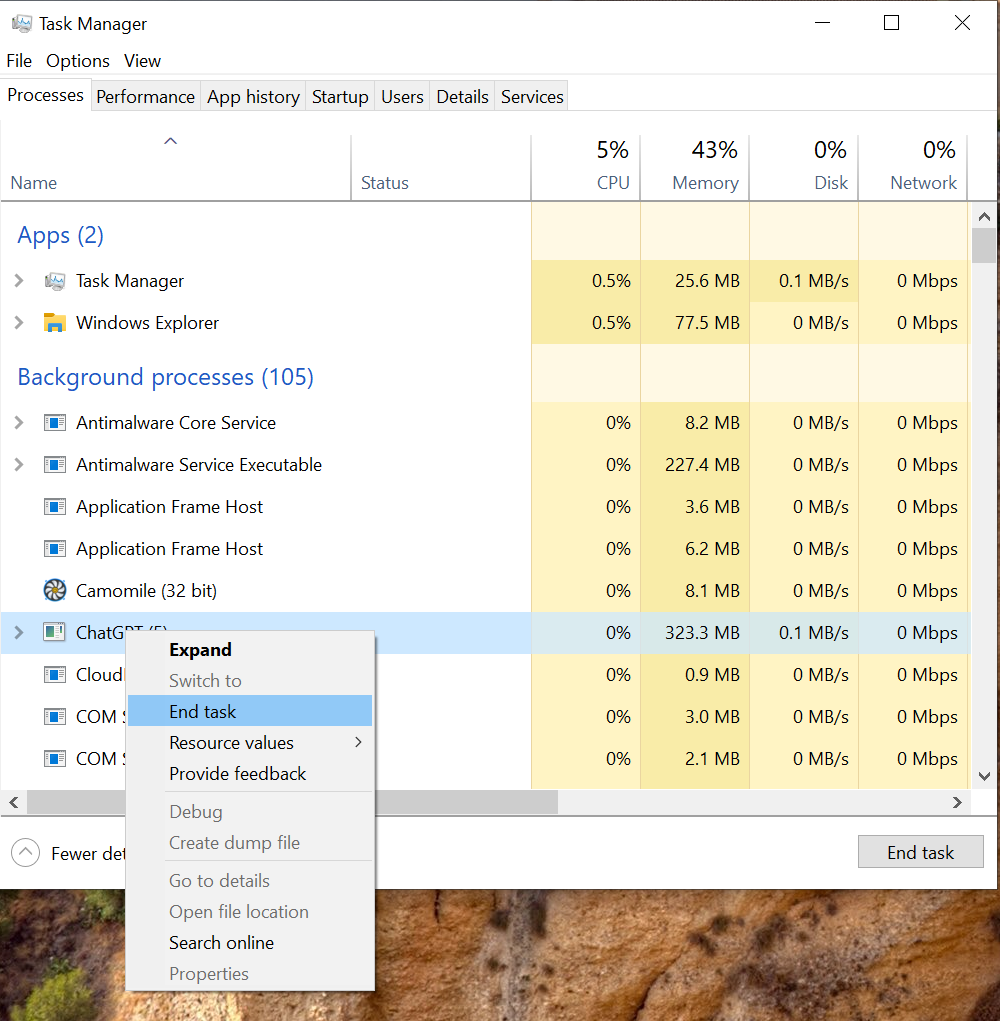
How to check running programs
- Press Ctrl + Shift + Esc to open Task Manager
- In the Processes tab, look for apps using a lot of CPU or Memory
- Select the app
- Click End Task
Safety Note
Only close programs you recognize. Avoid ending system processes if you are not sure what they do.
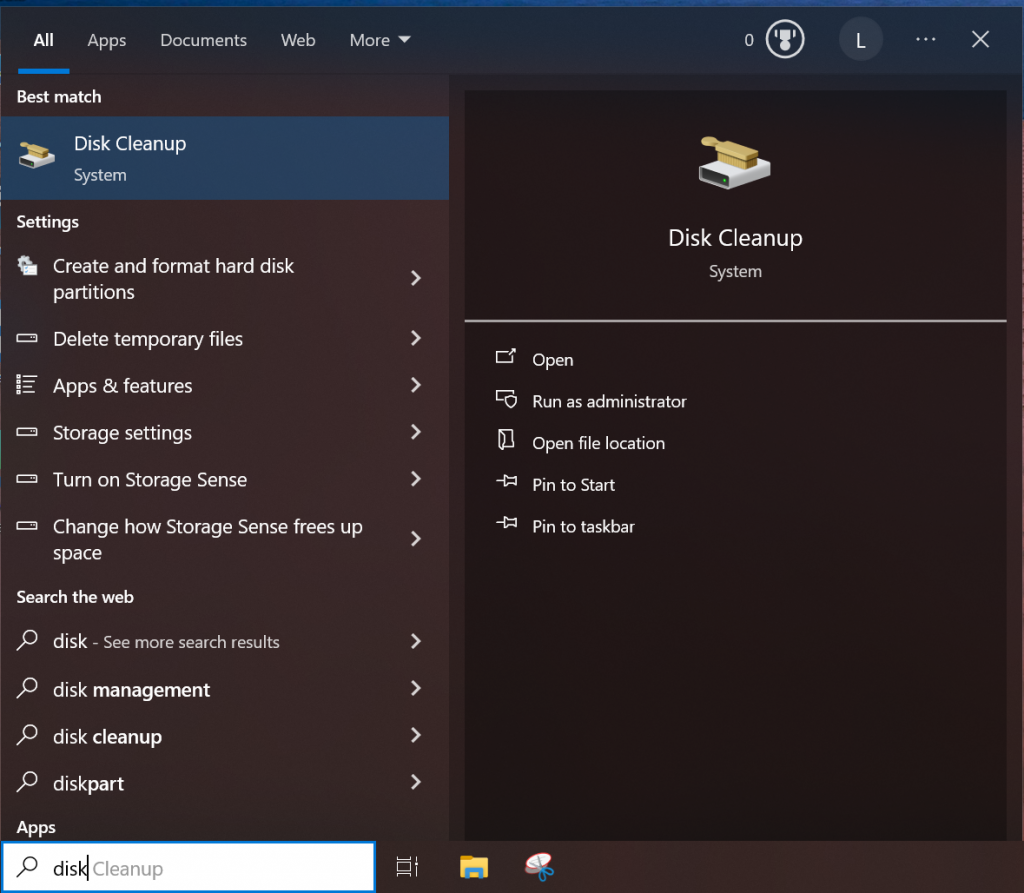
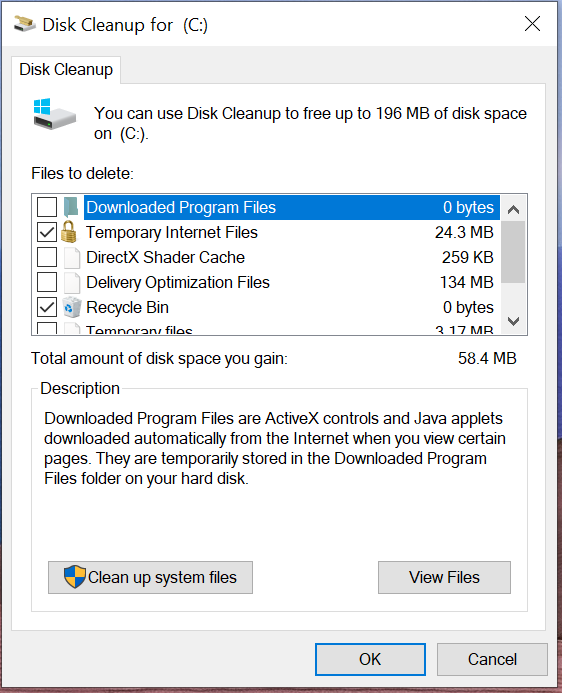
Fix 4 Free Up Disk Space
Windows works best when your main drive has plenty of free space. If the disk is nearly full, Windows has less room for temporary files and updates.
How to free up space
- Open File Explorer
- Right-click your C: drive
- Click Properties
- Select Disk Cleanup
- Choose the files you want to remove
- Click OK
You can safely remove temporary files, thumbnails, and old update files.
Pro Tip
Uninstalling programs you no longer use can free up a surprising amount of space.
Fix 5 Update Windows
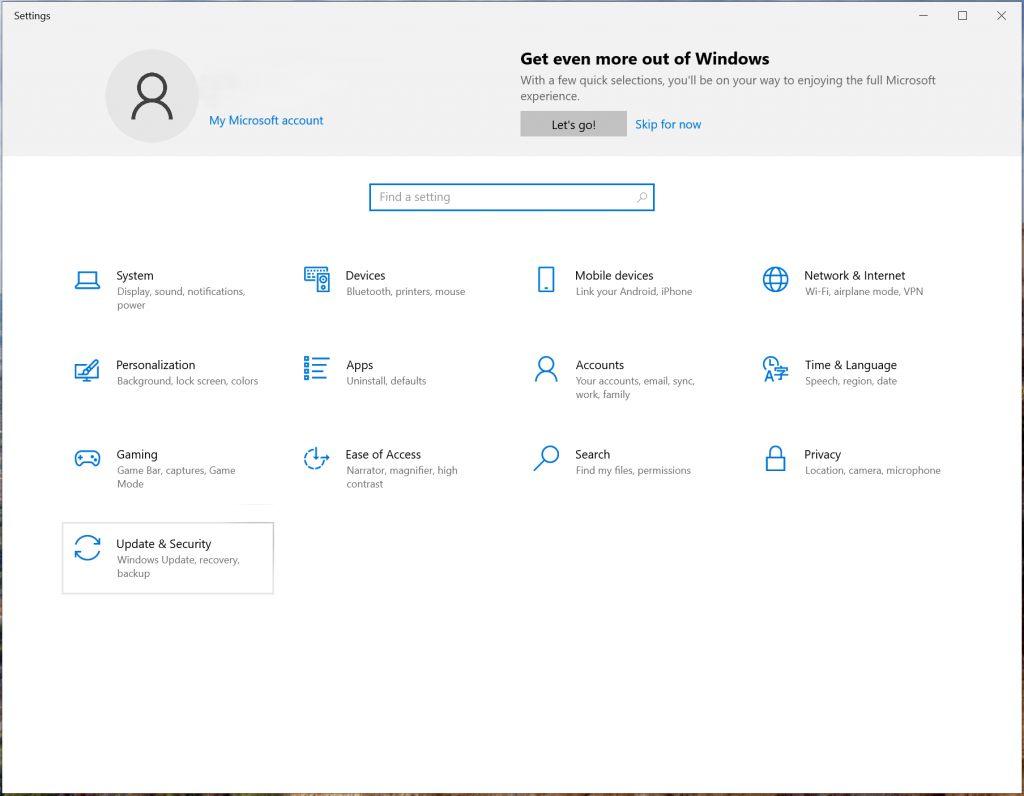
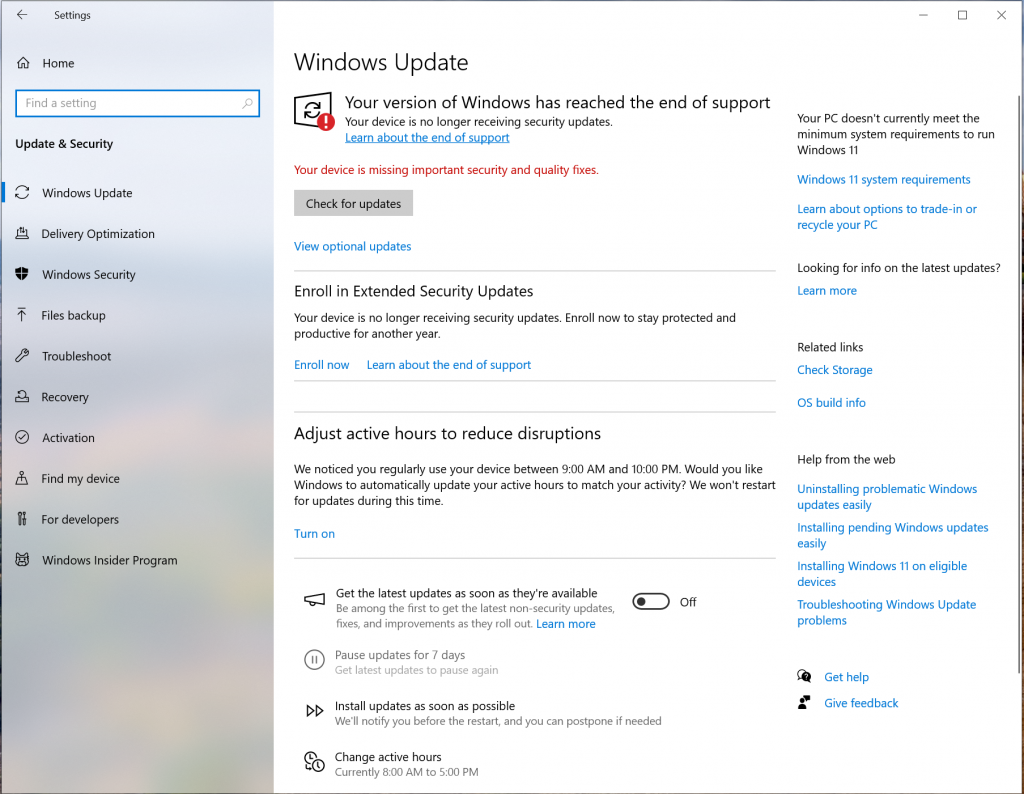
Windows updates often include performance improvements and bug fixes. If your system has not been updated in a long time, it may run slower.
How to check for updates
- Open Settings
- Click Windows Update
- Select Check for updates
Install any available updates and restart your computer.
Fix 6 Update Your Drivers
Drivers control how your hardware works with Windows. When drivers are outdated, devices may run inefficiently.
Common drivers that affect performance include:
- Graphics drivers
- Chipset drivers
- Audio drivers
- Network drivers
Update Drivers
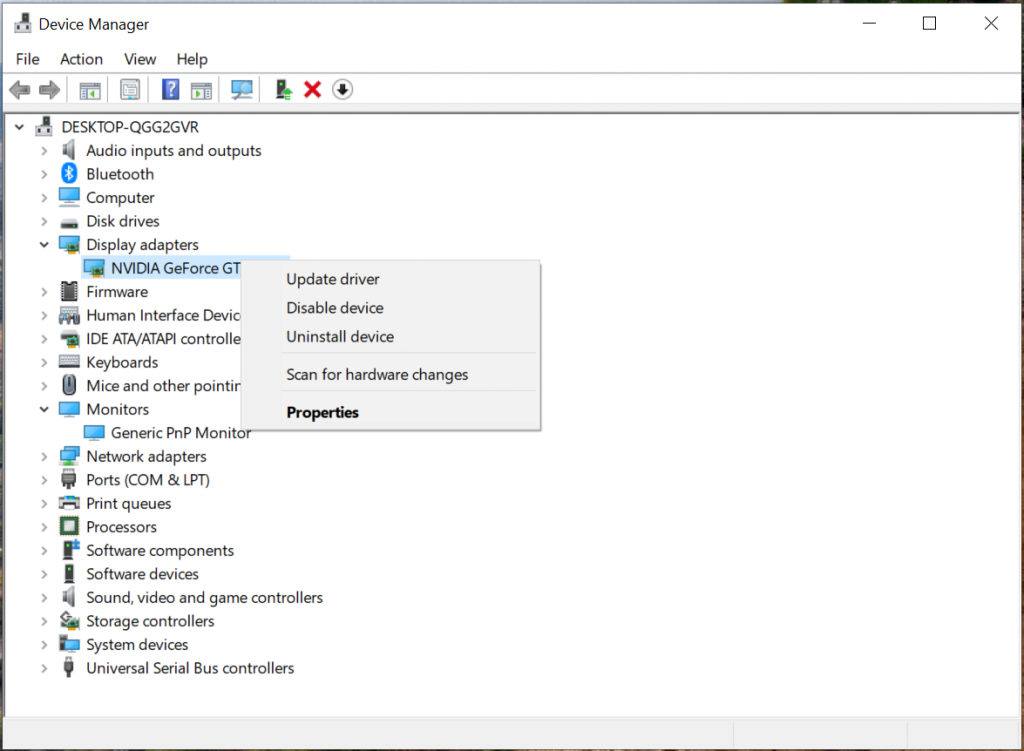
You can update drivers through Device Manager:
- Right-click the Start button.
- Open Device Manager.
- Expand a device category.
- Right-click the device.
- Choose Update driver.
Updating drivers can sometimes fix slow performance, random freezes, or device errors
Fix 7 Reduce Visual Effects
Windows includes visual effects such as animations and shadows. They look nice, but they also use system resources. Turning some of them off can help older PCs run faster.
How to adjust visual effects
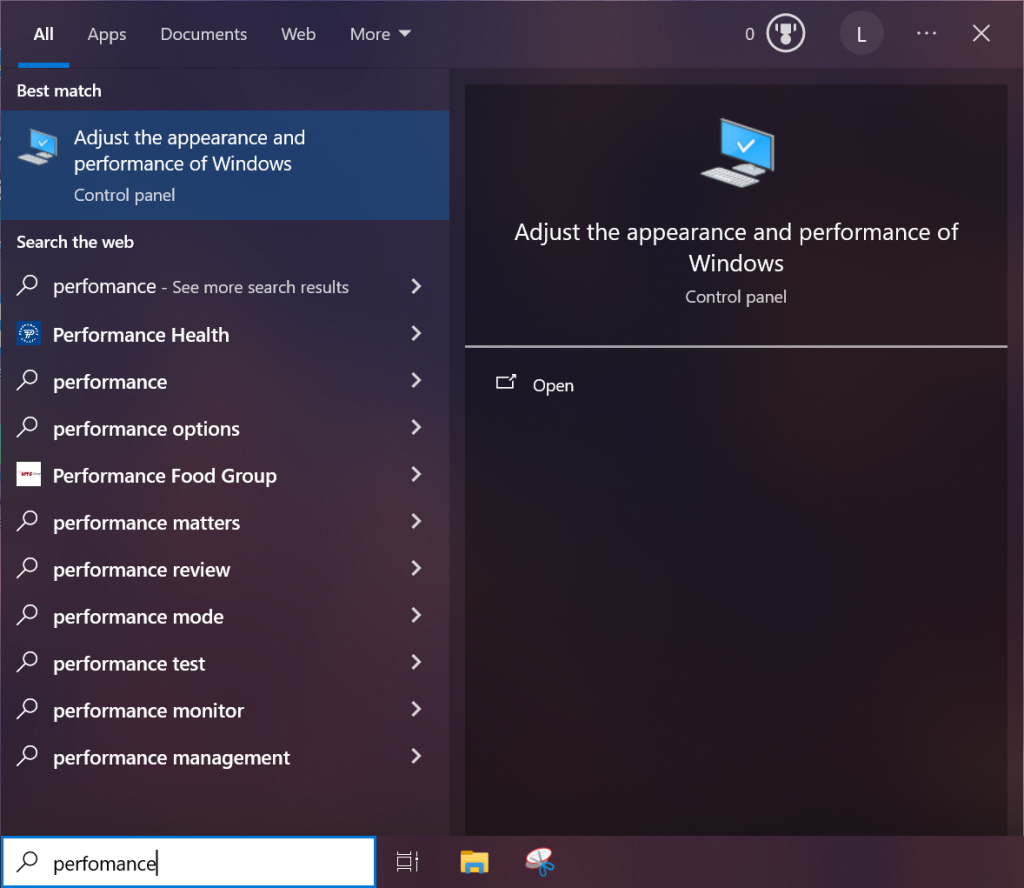
- Press Windows + S
- Search for Performance
- Click Adjust the appearance and performance of Windows
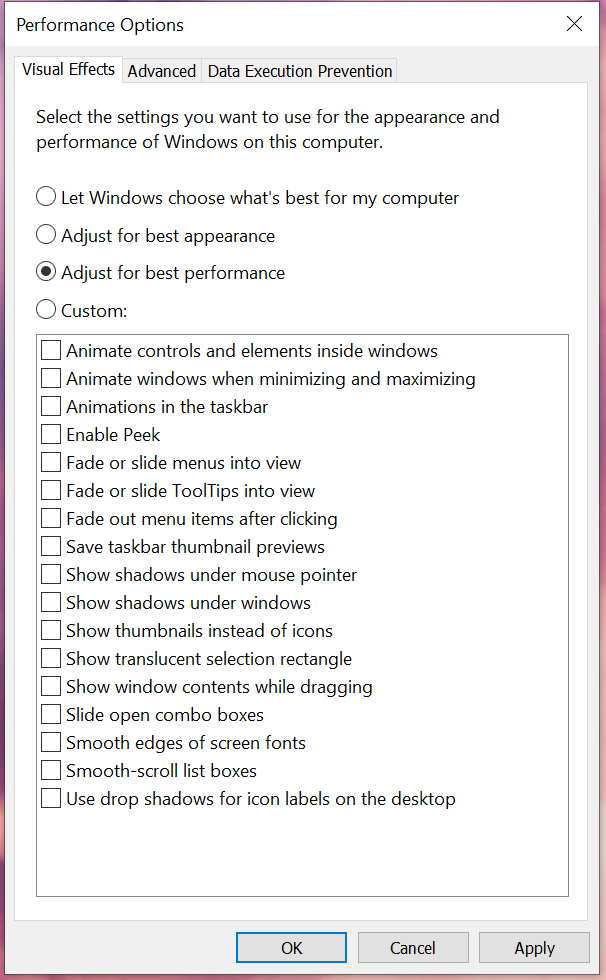
- Select Adjust for best performance
You can also manually choose which effects to keep.
When a Slow PC May Be a Hardware Issue
Sometimes the problem is not software. Older computers with very little RAM or traditional hard drives can struggle with modern software.
Two upgrades that make a big difference:
- Installing an SSD drive
- Adding more RAM
These upgrades can make even an older computer feel much faster.
Final Thoughts
Slow computers are very common, and most of the time the fix is easier than people expect. Try the steps above one by one, and you will often notice a big improvement. Now you know how to speed up a slow Windows PC using several simple fixes that anyone can follow. If your computer feels slow, learning how to speed up a slow Windows PC can save you a lot of frustration and make your system feel new again.
Microsoft also explains performance improvements in Windows here:
Tips to improve PC performance in Windows
Thanks for reading, and I hope your PC is running much faster now. If it still feels slow, don’t worry — there is almost always a solution.

I’m a computer technician who helps people fix everyday Windows problems, driver issues, and device errors.I focus on simple step-by-step solutions designed for beginners and people who are not very confident with computers.My goal is to make computer troubleshooting clear, practical, and easy for everyone.