
Need to update drivers Windows but not sure where to start?
Hi! I’m Jimmy, a tech specialist who helps people fix everyday computer problems. Let me show you a few simple ways to update drivers on Windows.
Quick Answer
You can update drivers on Windows using Device Manager, Windows Update, or by downloading the driver from the device manufacturer’s website. Drivers are small pieces of software that allow Windows to communicate with hardware like your graphics card, printer, or sound device. Keeping them updated can fix bugs, improve performance, and solve hardware problems.
In most cases, you only need a few minutes to update drivers Windows and fix many common device problems.
Table of Contents
Common Causes
Drivers usually need updating for a few common reasons.
New Windows updates.
Sometimes Windows updates change how the system works. Older drivers may stop working properly.
Hardware problems.
If your sound stops working, Wi-Fi disconnects, or your printer refuses to print, an outdated driver might be the cause.
New hardware installation.
When you install a new device like a graphics card or webcam, Windows may install a basic driver. Updating it can unlock full features.
Performance issues.
Graphics drivers especially get frequent updates that improve gaming performance and fix visual glitches.
Method 1: Update Drivers Windows Using Windows Update
This is the easiest method. It works well for most devices.
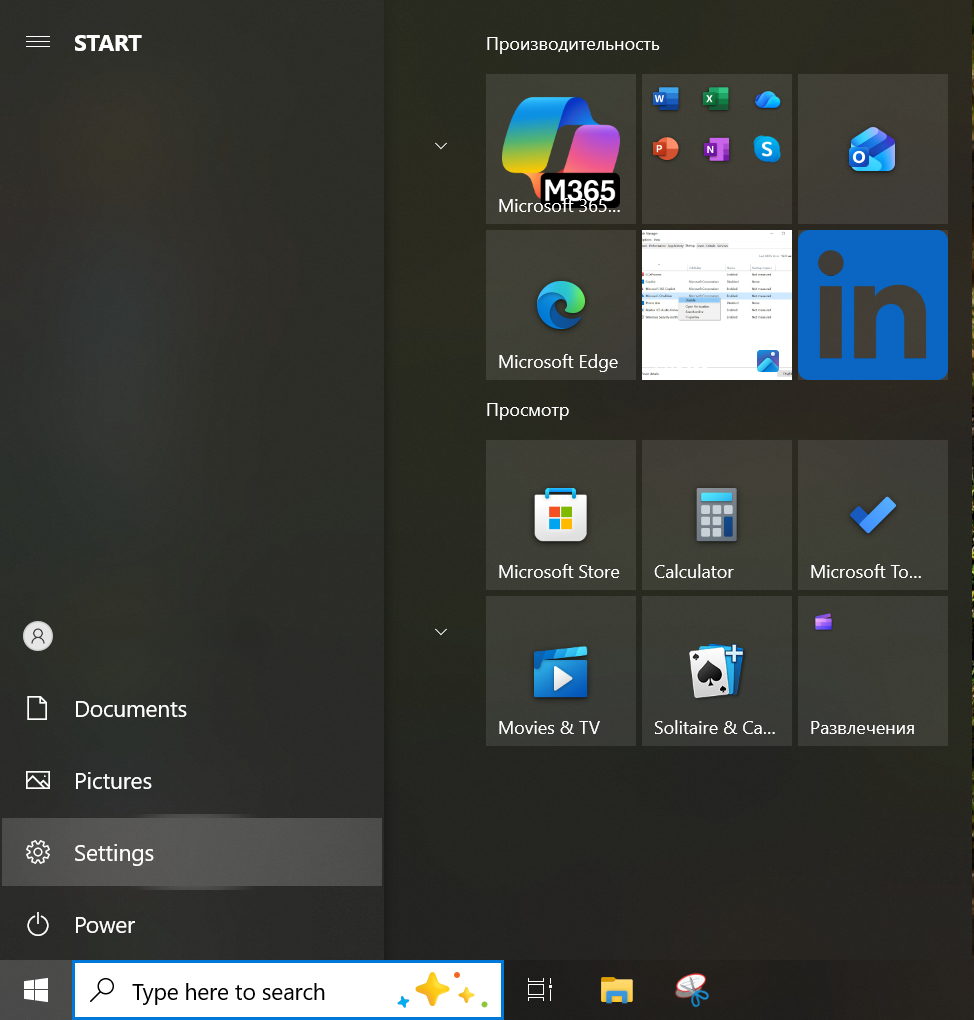
- Click the Start menu.
- Open Settings.
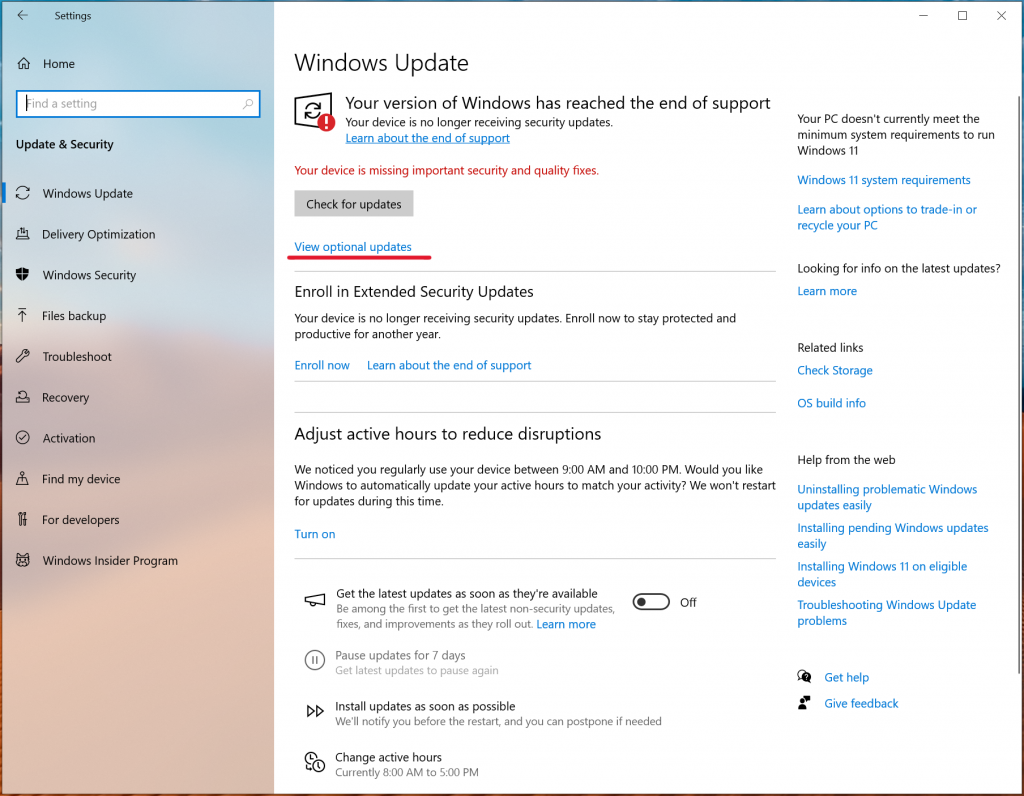
- Click Windows Update.
- Select Check for updates.
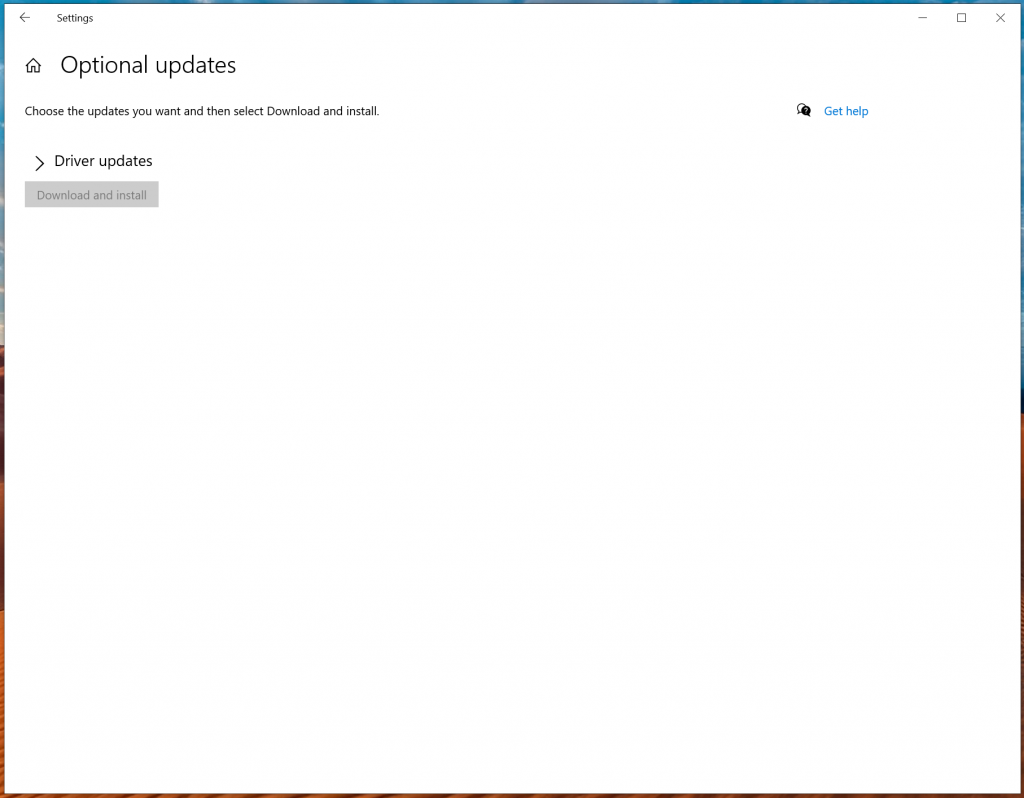
- Install any updates listed under Driver updates.
Windows will automatically download and install the latest compatible drivers.
Pro Tip
Sometimes driver updates appear under Optional Updates in Windows Update. Many people miss this section.
Method 2: Update Drivers Using Device Manager
Device Manager lets you update a specific device.
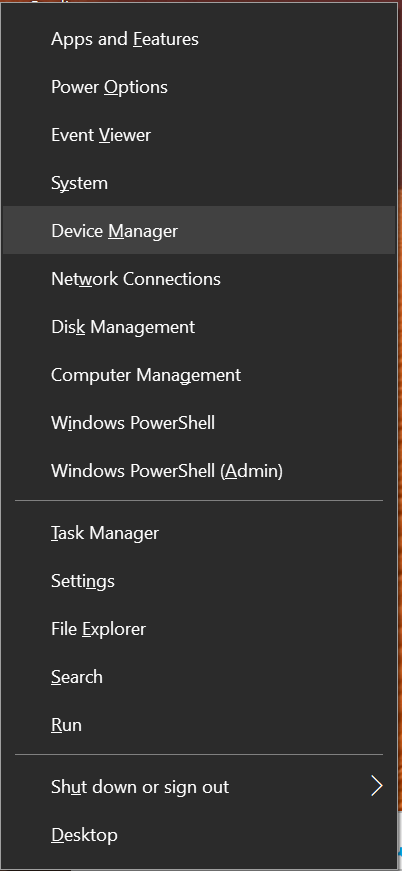
- Press Windows key + X.
- Click Device Manager.
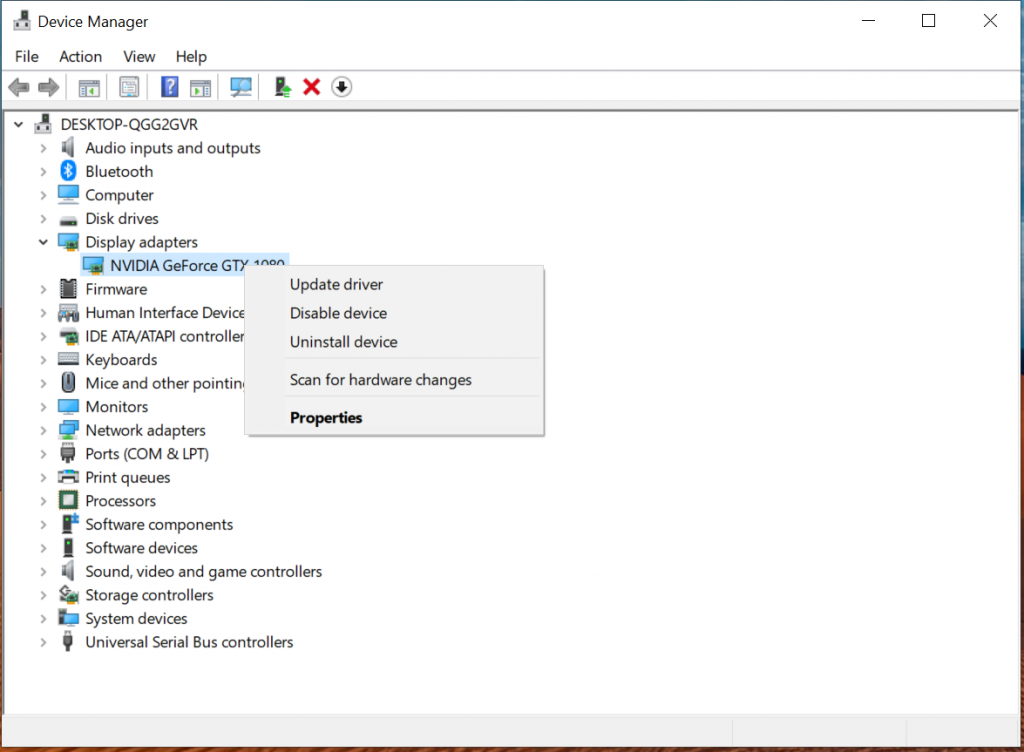
- Find the device you want to update.
- Right-click the device.
- Select Update driver.
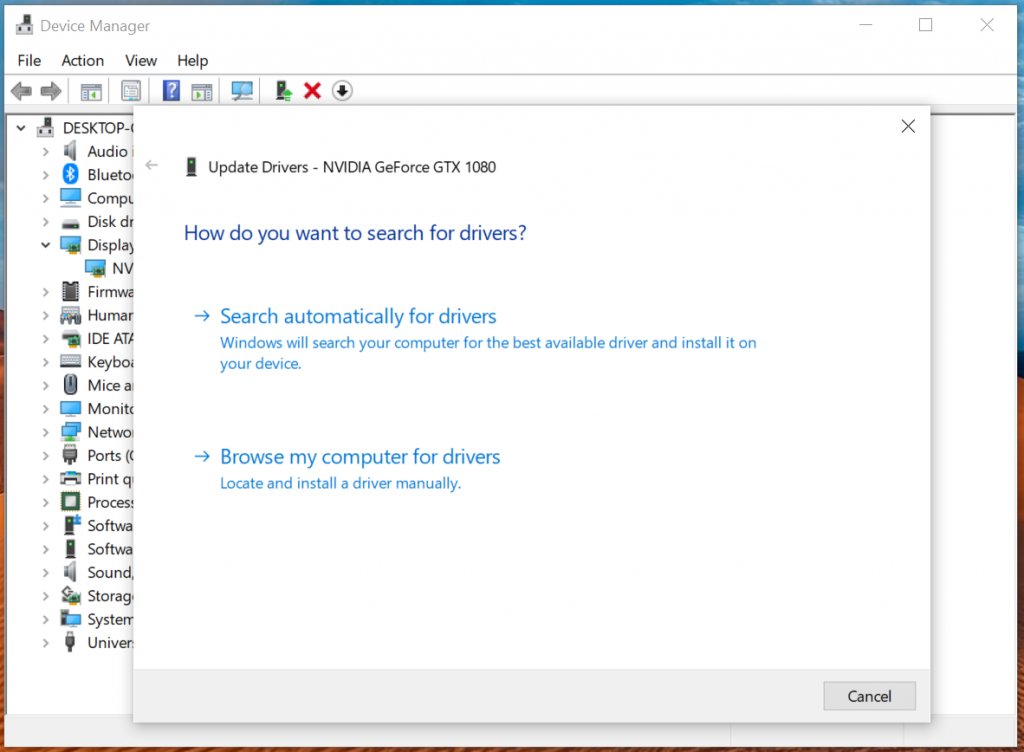
- Choose Search automatically for drivers.
Windows will search its driver database and install a newer version if available.
Safety Note
Do not uninstall drivers unless you know what you are doing. Removing the wrong driver can temporarily disable the device.
Method 3: Download Drivers From the Manufacturer
Sometimes the newest drivers are only available on the manufacturer’s website.
For example:
- NVIDIA or AMD for graphics cards
- Realtek for audio devices
- Intel for Wi-Fi and chipset drivers
First Find the Exact Device Model
Before downloading a driver, you need to know the manufacturer and the exact model of your device.
Many devices have this information printed directly on the back or bottom.
Here is an example.
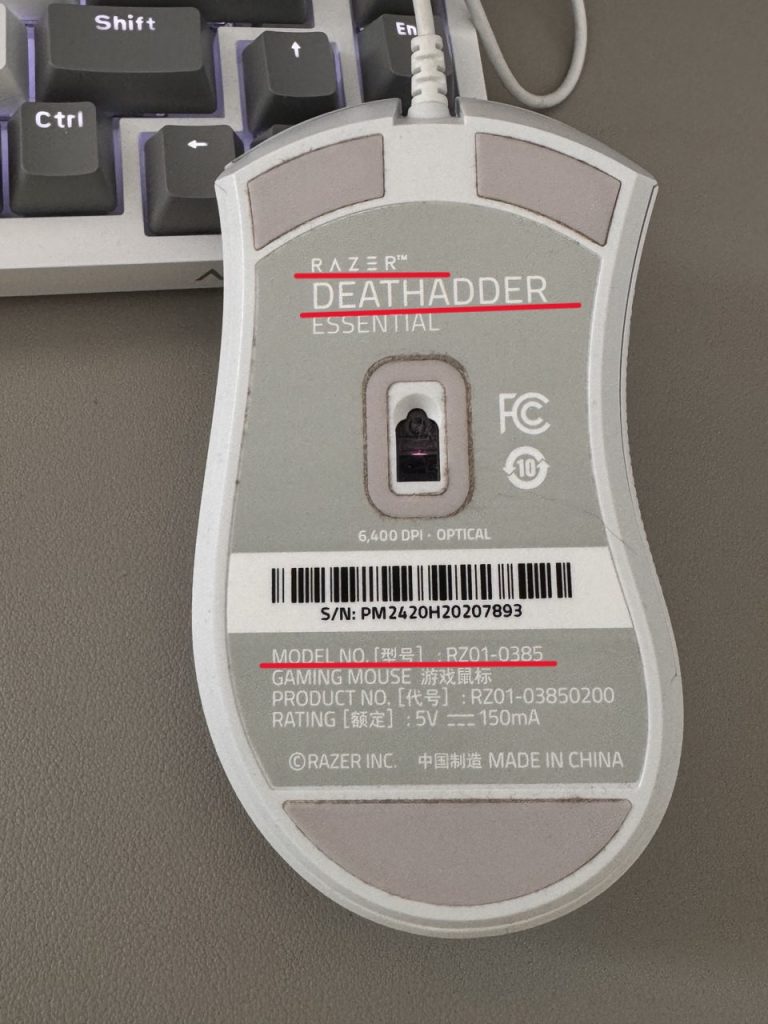
On this mouse you can see:
- Manufacturer: Razer
- Model: DeathAdder Essential
- Model Number: RZ01-0385
This information is usually enough to find the correct driver.
Then go to the official Razer website, open the Support section, and download the driver for your version of Windows.
Steps to Install the Driver
- Find the exact model of your device.
- Visit the official manufacturer website.
- Open the Support or Drivers section.
- Download the driver for your version of Windows.
- Run the installer and follow the instructions.
Pro Tip
If you are not sure which device you have, you can also check it in Device Manager. Windows often shows the device name there.
Signs Your Drivers Might Be Outdated
Here are a few common signs.
- No sound from speakers or headphones
- Wi-Fi keeps disconnecting
- Printer is not detected
- Games run poorly after a Windows update
- Devices appear with a yellow warning icon in Device Manager
I see this all the time when helping people with their PCs. A quick driver update often fixes the problem in minutes.
Outdated drivers can also make your computer run slower than usual.
If your PC feels slow, you can also read my guide on how to fix a slow Windows computer.
When You Do Not Need to Update Drivers
Not every driver needs constant updates.
If your computer is working perfectly and you are not experiencing issues, updating drivers is optional. Many people only update graphics drivers regularly.
Windows is already pretty good at keeping most drivers updated automatically.
Final Thoughts
Updating drivers on Windows is usually quick and safe, and it can solve many common PC problems. If something on your computer suddenly stops working, checking the drivers is always a good first step.
Good luck, and remember — most computer problems have simple fixes once you know where to look.

I’m a computer technician who helps people fix everyday Windows problems, driver issues, and device errors.I focus on simple step-by-step solutions designed for beginners and people who are not very confident with computers.My goal is to make computer troubleshooting clear, practical, and easy for everyone.