
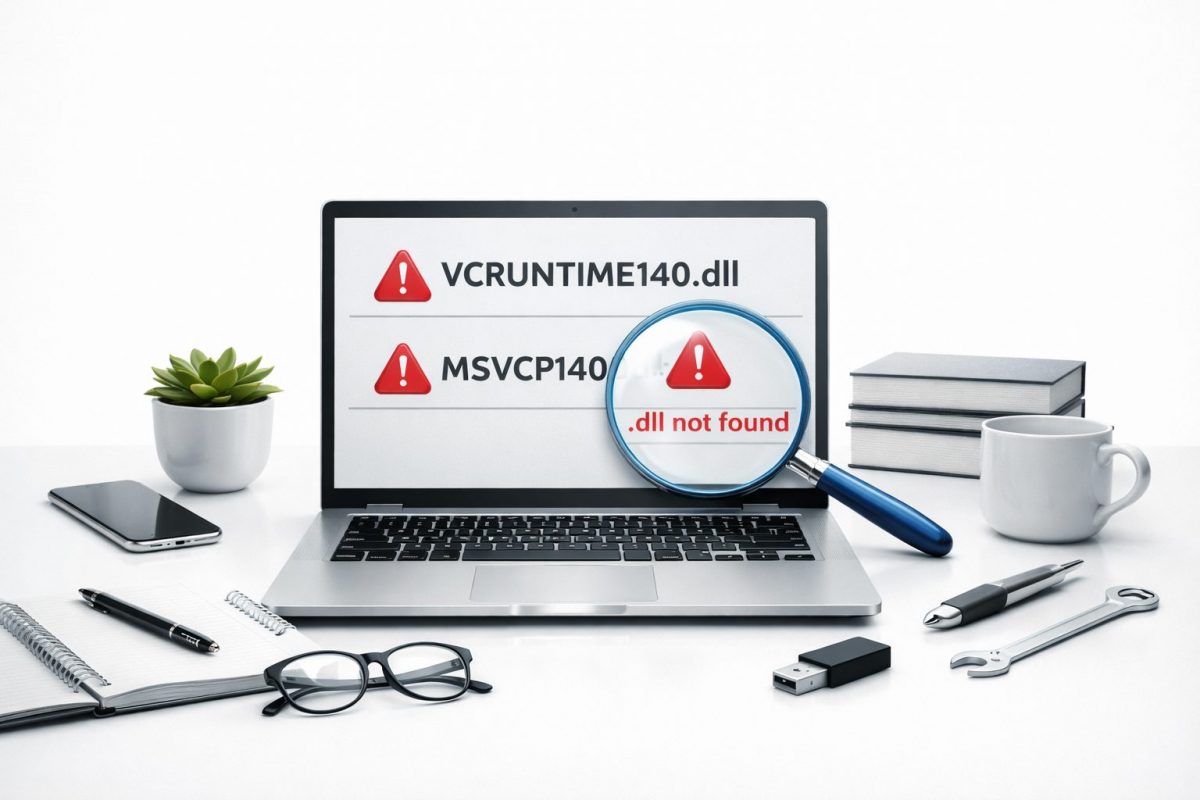
Hi, I’m Jimmy, a tech specialist, and today I’ll help you fix the VCRUNTIME140.dll missing error in Windows, which often appears together with the MSVCP140.dll missing message.
Quick Answer
The VCRUNTIME140.dll missing error usually appears when Windows cannot find important system files that programs need to run.
You can fix the problem by reinstalling the Microsoft Visual C++ Redistributable package, repairing system files, or reinstalling the program that shows the error.
Table of Contents
Common Causes of VCRUNTIME140.dll Missing Error
Before fixing the problem, it helps to understand why it happens.
These errors appear when Windows cannot find important system files that many programs need to run.
The most common reasons are:
- Microsoft Visual C++ Redistributable is not installed
- The files were deleted by mistake
- Windows update removed or replaced system files
- Antivirus software blocked the file
- The program was installed incorrectly
- System files became corrupted
This sounds scary, but the fix is usually simple.
Let’s go step by step.
Fix 1 — Install Microsoft Visual C++ Redistributable (Most Important Fix)
In most cases, this alone solves the problem.
Many programs need Microsoft Visual C++ components to run.
If they are missing, Windows shows VCRUNTIME140.dll or MSVCP140.dll errors.
Step 1
Go to the official Microsoft website and download both versions:
- x64 version
- x86 version
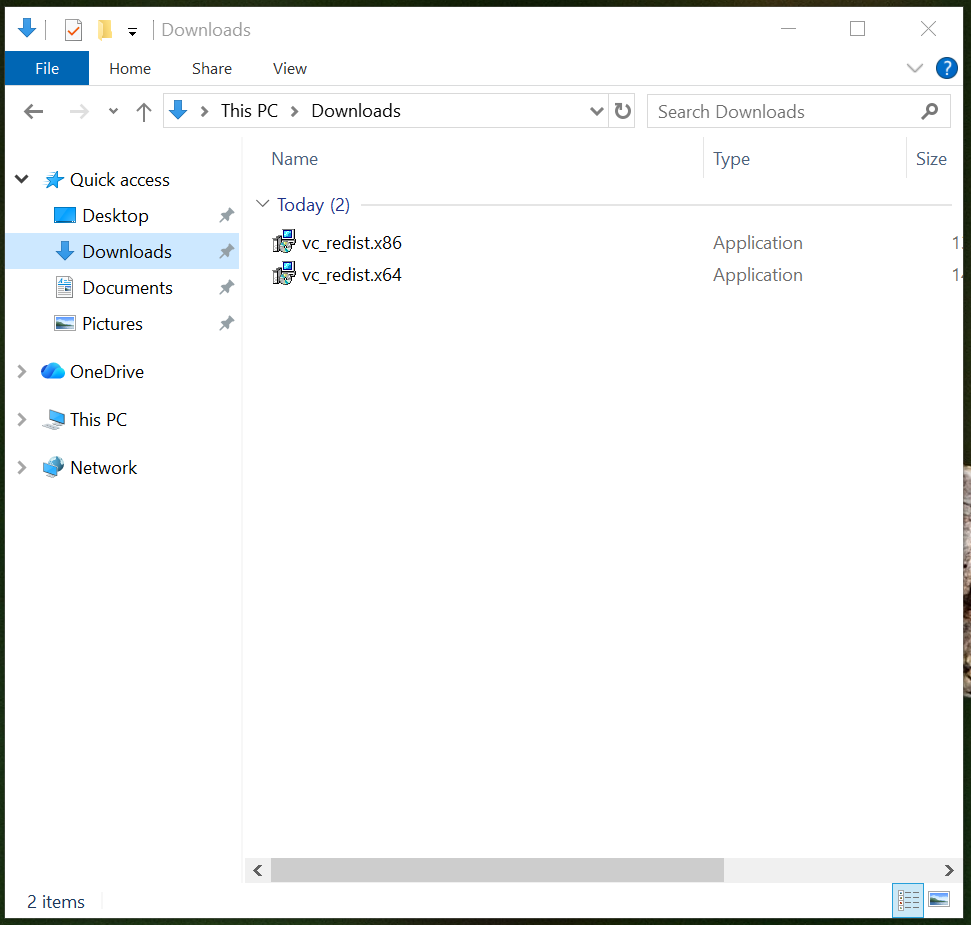
Step 2
Run the installer.
Click Install or Repair if it is already installed.
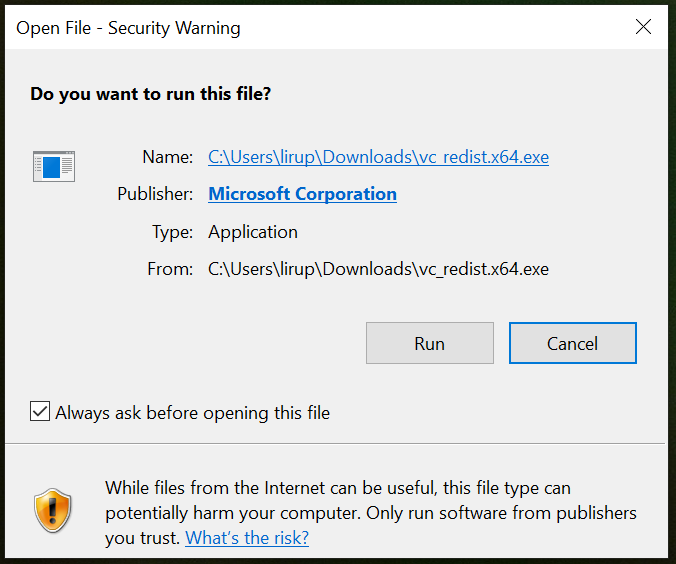
Step 3
Restart your computer. Then try opening the program again.
Pro Tip
Even on 64-bit Windows, you should install both x64 and x86 versions. Many programs still need the 32-bit files.
Fix 2 — Repair System Files Using SFC Scan
Sometimes the DLL files exist but are damaged. Windows has a built-in tool to fix this.
Step 1
Click Start
Type: cmd
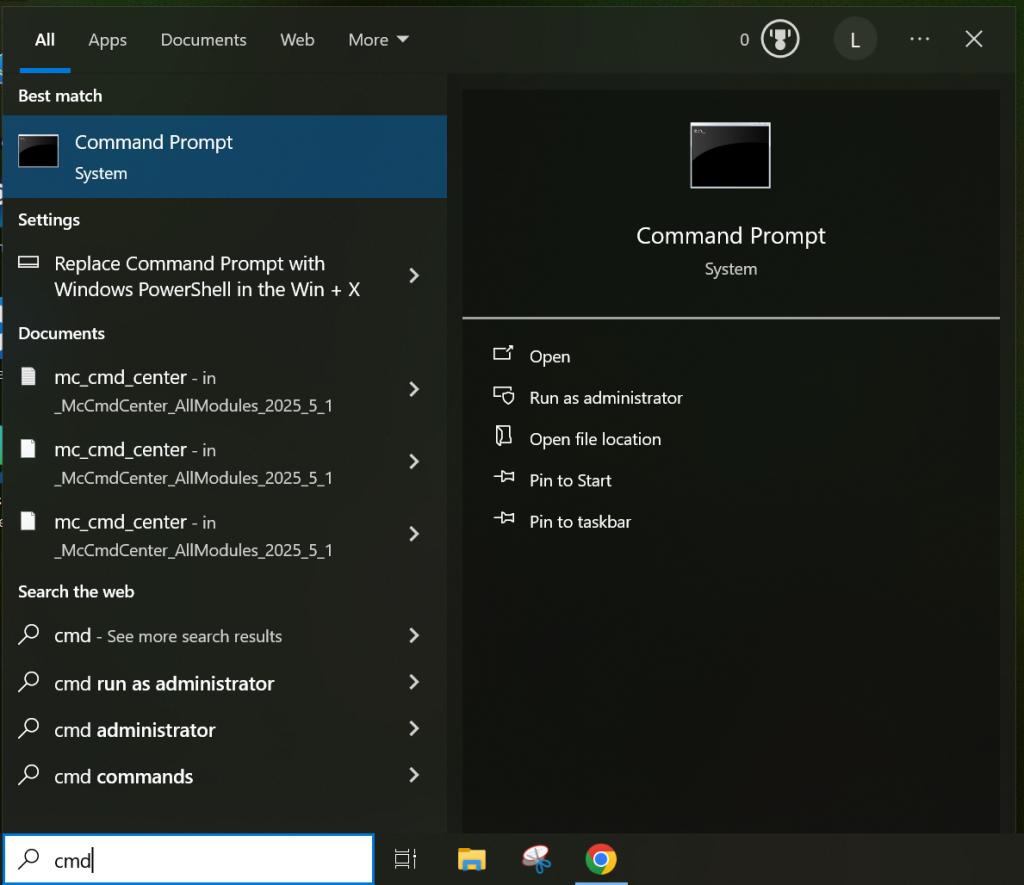
Right-click Command Prompt and choose Run as administrator
Step 2
Type this command: sfc /scannow
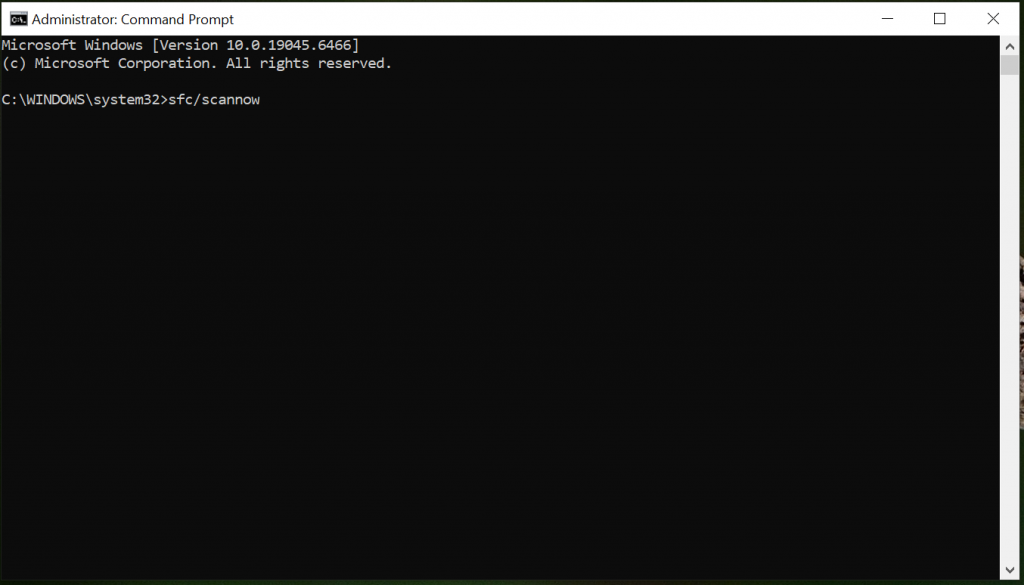
Press Enter.
Wait until the scan finishes. It may take several minutes.
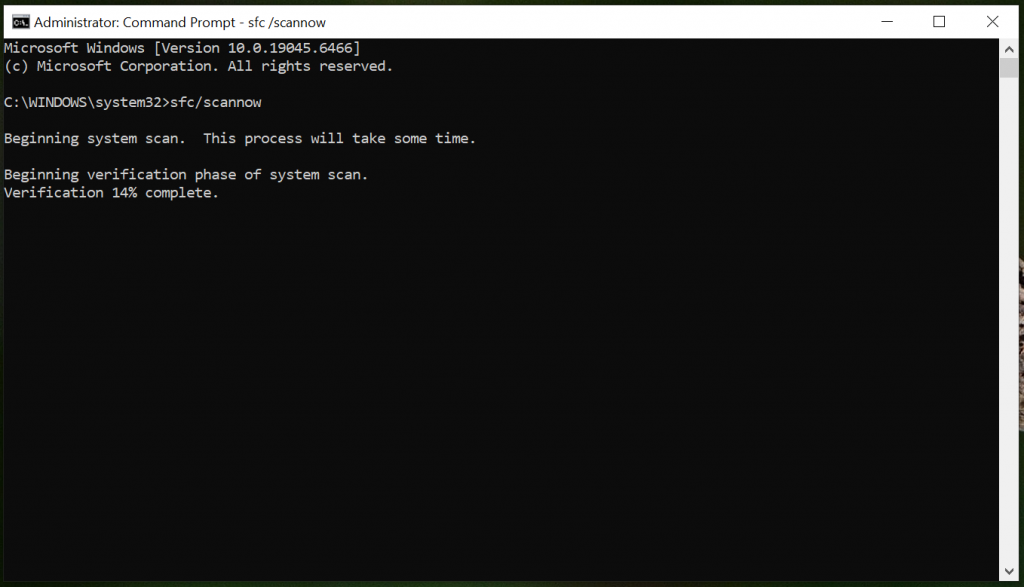
Step 3
Restart your PC after the scan. Try running the program again.
Safety Note
Do not close the Command Prompt while the scan is running. This can cause system problems.
Fix 3 — Reinstall the Program That Shows the Error
Sometimes the problem is not Windows. Sometimes the program itself was installed incorrectly.
Step 1
Open Settings → Apps
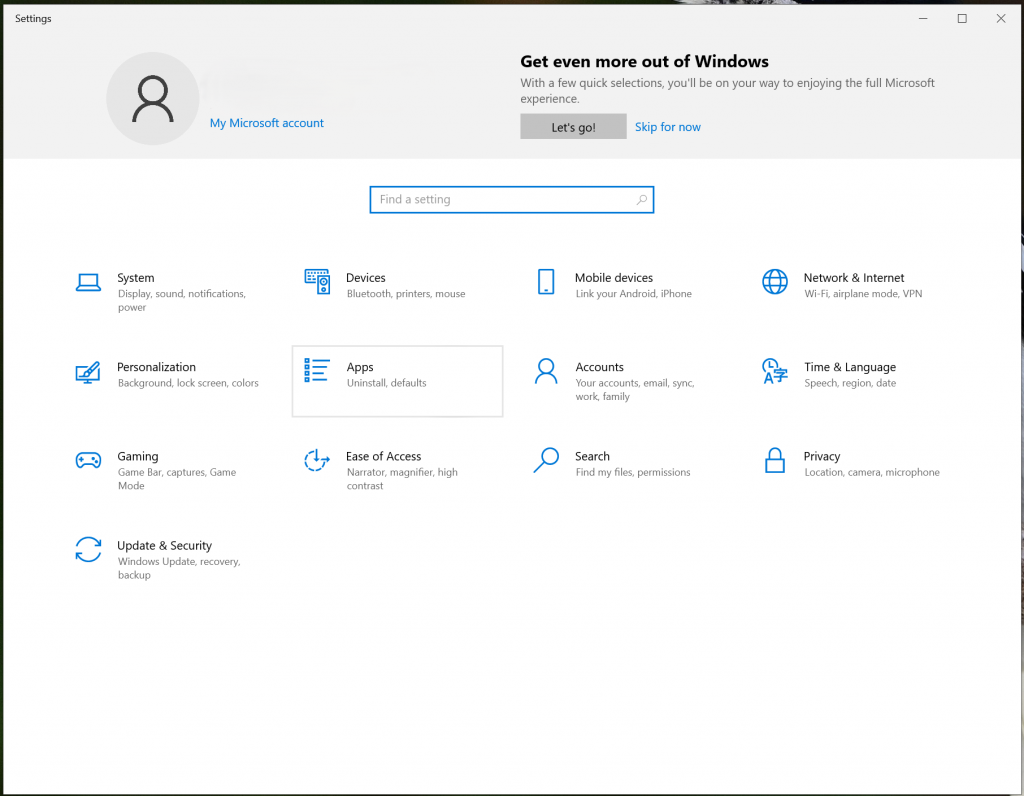
Step 2
Find the program that shows the error.
Click Uninstall
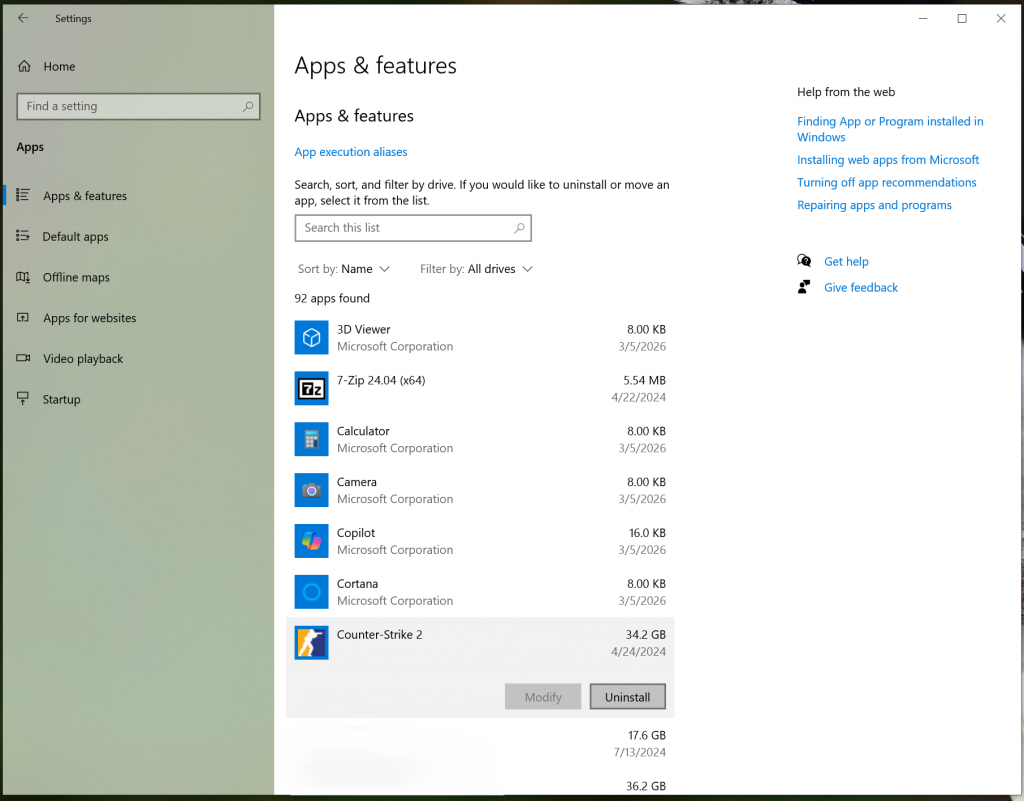
Step 3
Restart the computer.
Step 4
Download the program again from the official website and install it.
Small real-world note
I see this error very often after people install games from old installers or copy programs from another PC.
If the error started after installing new hardware or drivers, you may also want to read our guide on how to update drivers on Windows.
Fix 4 — Check Windows Update
Windows updates often install required system libraries.
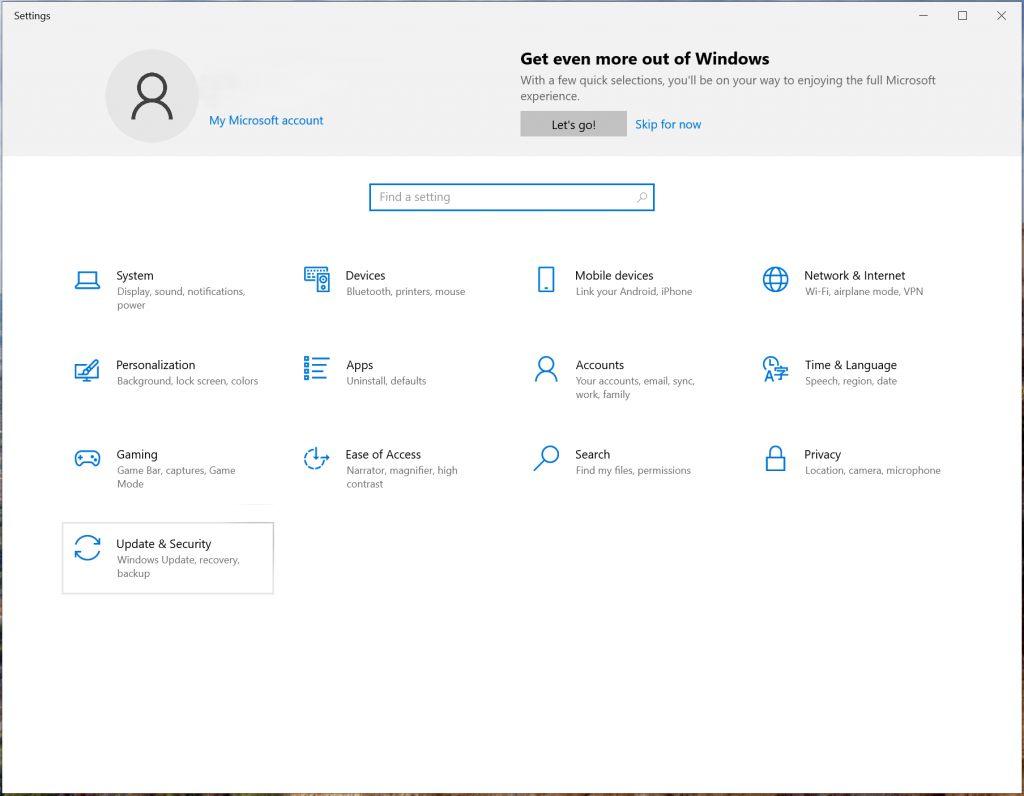
Step 1
Open Settings → Windows Update
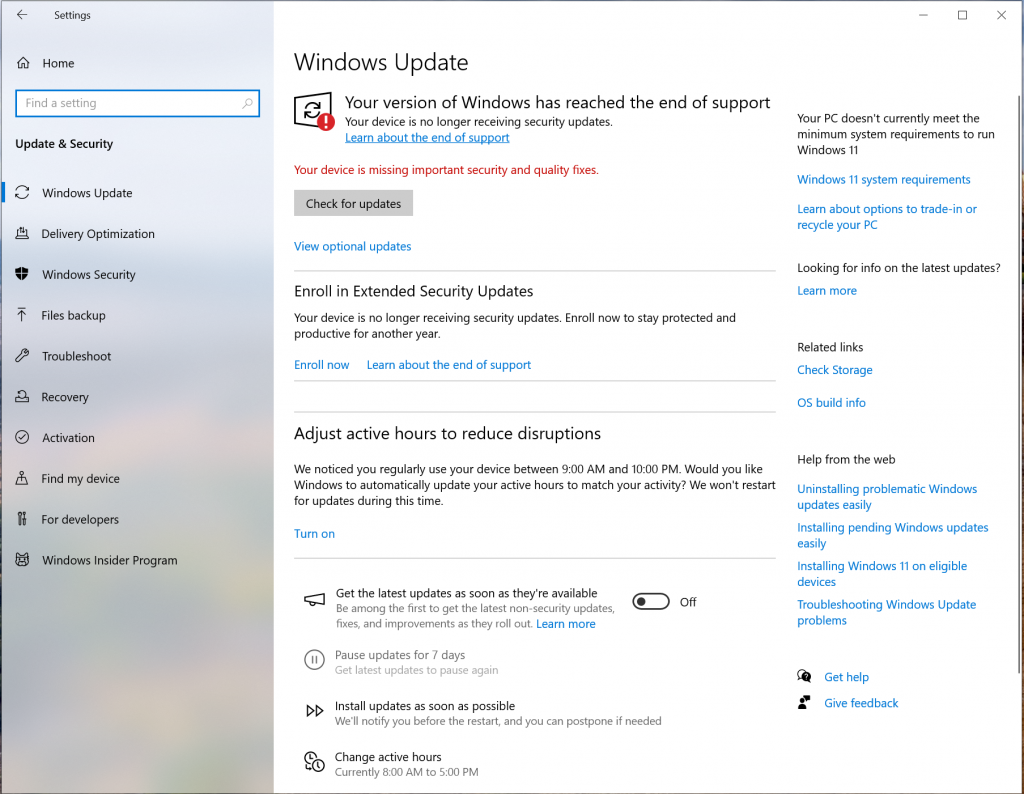
Step 2
Click Check for updates
Step 3
Install all available updates Restart your PC after the update finishes.
Fix 6 — Reinstall Visual C++ Completely (Advanced but Safe)
If the error keeps coming back, reinstall all Visual C++ packages.
Step 1
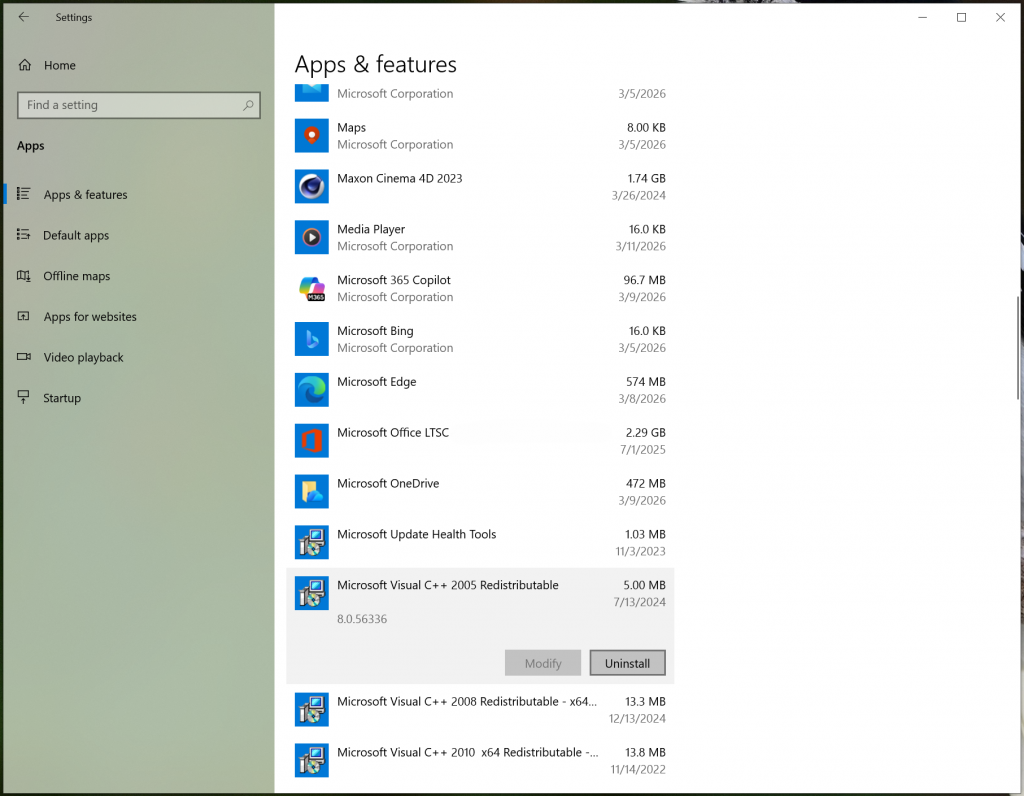
Open Settings → Apps
Step 2
Remove all items called: Microsoft Visual C++ Redistributable
Step 3
Restart the computer
Step 4
Download and install the latest versions again from Microsoft This often fixes stubborn DLL errors.
Final Thoughts
DLL errors like VCRUNTIME140.dll missing or MSVCP140.dll missing look serious, but they are very common and usually easy to fix. If the VCRUNTIME140.dll missing error keeps appearing, reinstalling Visual C++ and repairing Windows files usually fixes the problem.
Follow the steps slowly, and your program should start working again.

I’m a computer technician who helps people fix everyday Windows problems, driver issues, and device errors.I focus on simple step-by-step solutions designed for beginners and people who are not very confident with computers.My goal is to make computer troubleshooting clear, practical, and easy for everyone.