
Hi, I’m Jimmy, a computer technician who helps people fix everyday Windows problems.
If your sound stopped working, the Realtek Audio Driver is often the reason, and in this guide I will show you how to download, install, and fix Realtek Audio Driver issues on Windows.
Quick Answer
The Realtek Audio Driver controls how your Windows computer communicates with speakers and headphones. If the Realtek Audio Driver is missing or outdated, you may get no sound or audio errors. Updating or reinstalling the Realtek audio driver usually fixes the problem.
Table of Contents
Common Causes
Sound problems related to Realtek drivers usually happen for a few simple reasons.
1. The driver is outdated
Windows updates can sometimes change how devices work. If the Realtek driver is old, it may stop working properly.
2. The driver became corrupted
Drivers are small pieces of software. Sometimes they get damaged after updates, crashes, or incomplete installations.
3. Windows installed a generic audio driver
Sometimes Windows replaces the Realtek driver with a basic audio driver. The sound may still work, but features like headphone detection or sound enhancements may stop working.
4. The audio device is disabled
In some cases the Realtek audio device gets disabled in Windows settings or Device Manager.
The good news is that these problems are usually easy to fix.
How to Download the Realtek Audio Driver
The safest way to download the driver is from the official website of your computer or motherboard manufacturer.
Here are some common places where you can find the driver:
Search for your computer model on the manufacturer’s support page, then look for Audio Driver or Realtek High Definition Audio Driver.
Pro Tip
If you are using a laptop, always download drivers from the laptop manufacturer’s website. They are tested for that exact model.
How to Install Realtek Audio Driver on Windows
Installing the Realtek audio driver is usually simple, but sometimes the download comes as an archive with many files. This can confuse beginners, so follow the steps carefully.
Step 1. Download the driver
Download the Realtek audio driver from official website. In many cases, the driver comes as a ZIP file, not a single installer.
Step 2. Extract the archive
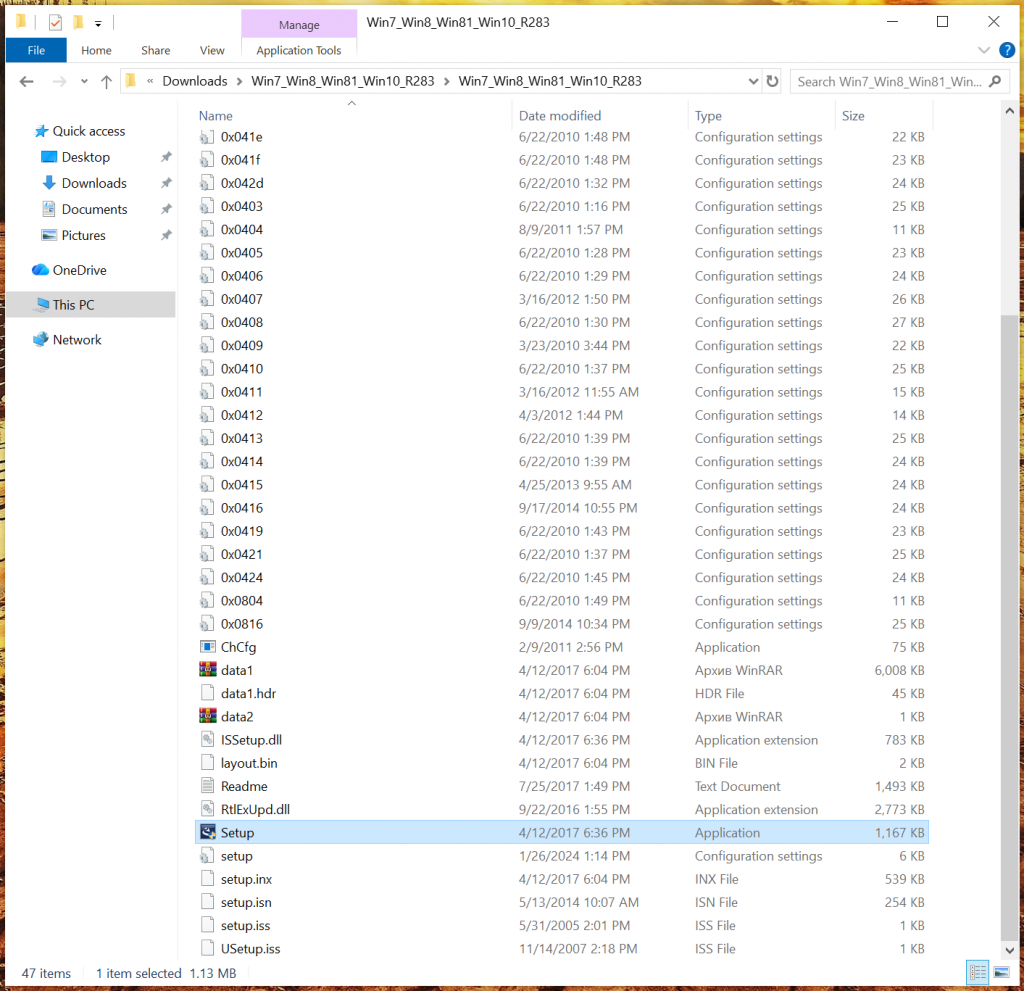
Right-click the downloaded file and click Extract All. Open the extracted folder after the process finishes. Inside the folder you may see many files. This is normal.
Step 3. Run Setup.exe
Look for a file named Setup or Setup.exe.
Double-click this file to start the installation.
Do not open the other files in the folder. The installer must be started from Setup.exe.
Pro Tip
Realtek drivers often come as a full installation package with many files. Always run Setup.exe to start the installer.
Step 4. Follow the installation wizard
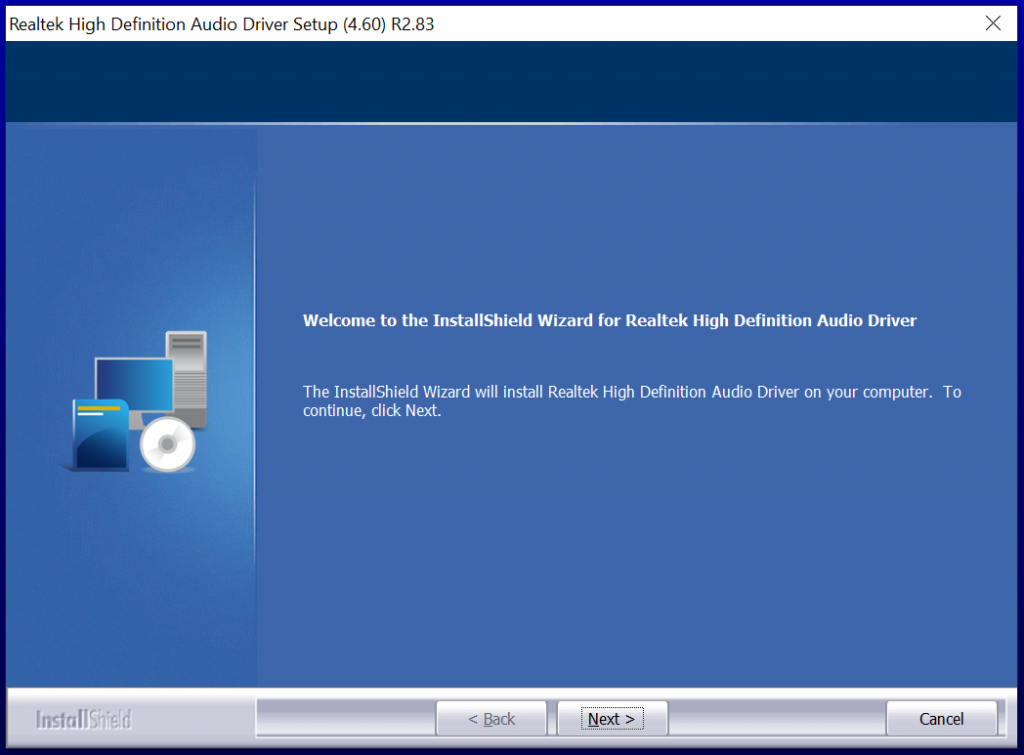
The Realtek installer will open.
Click Next and follow the instructions on the screen.
The installation may take a minute or two.
Step 5. Restart your computer
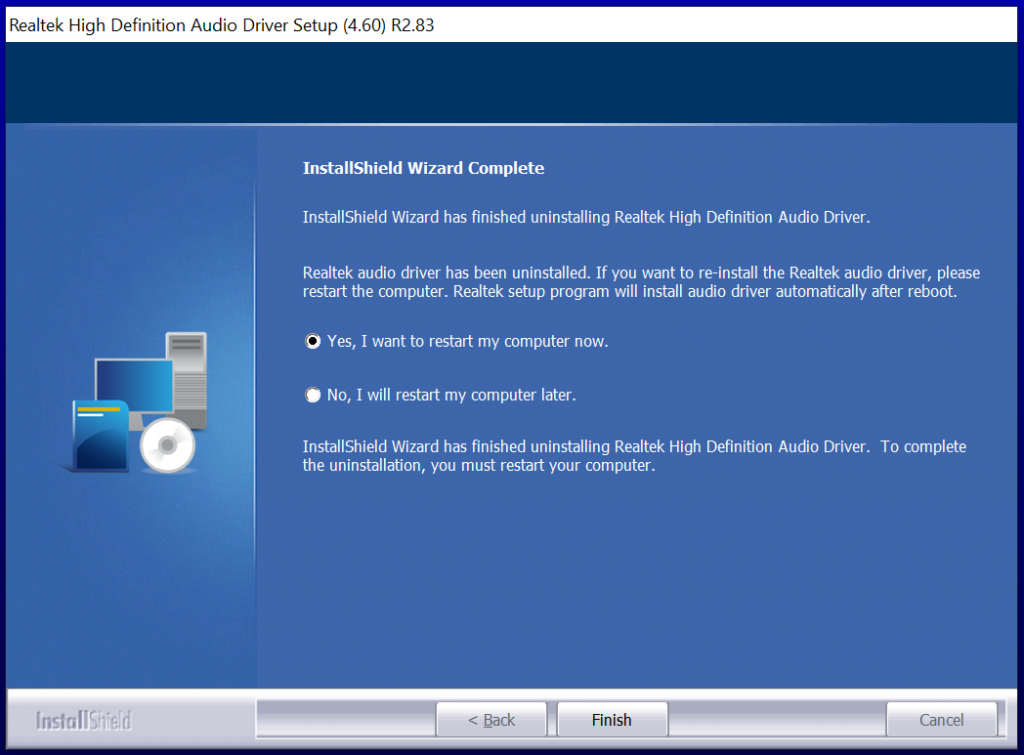
When the installer finishes, restart your computer if Windows asks for it.
This is required for the driver to work correctly.
Step 6. The installer may appear again after restart
Sometimes after restarting, the Realtek installation window appears again. This is normal.
Some Realtek drivers install in two steps. Just click Next again and let the installer finish.
You may need to restart the computer one more time.
Safety Note
Do not worry if the installation runs more than once. This is common with Realtek audio drivers and does not mean something is wrong.
How to Reinstall Realtek Audio Driver on Windows
If installing the driver did not fix the problem, reinstalling it can help.
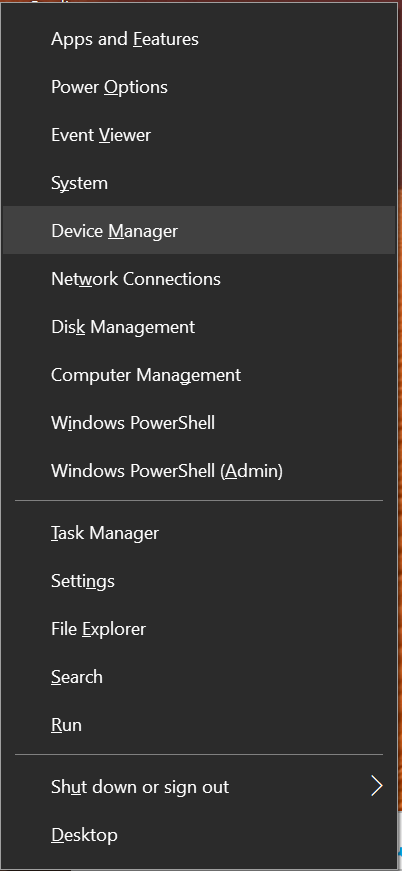
Step 1. Open Device Manager
Press Windows + X
Select Device Manager
Step 2. Find the audio device
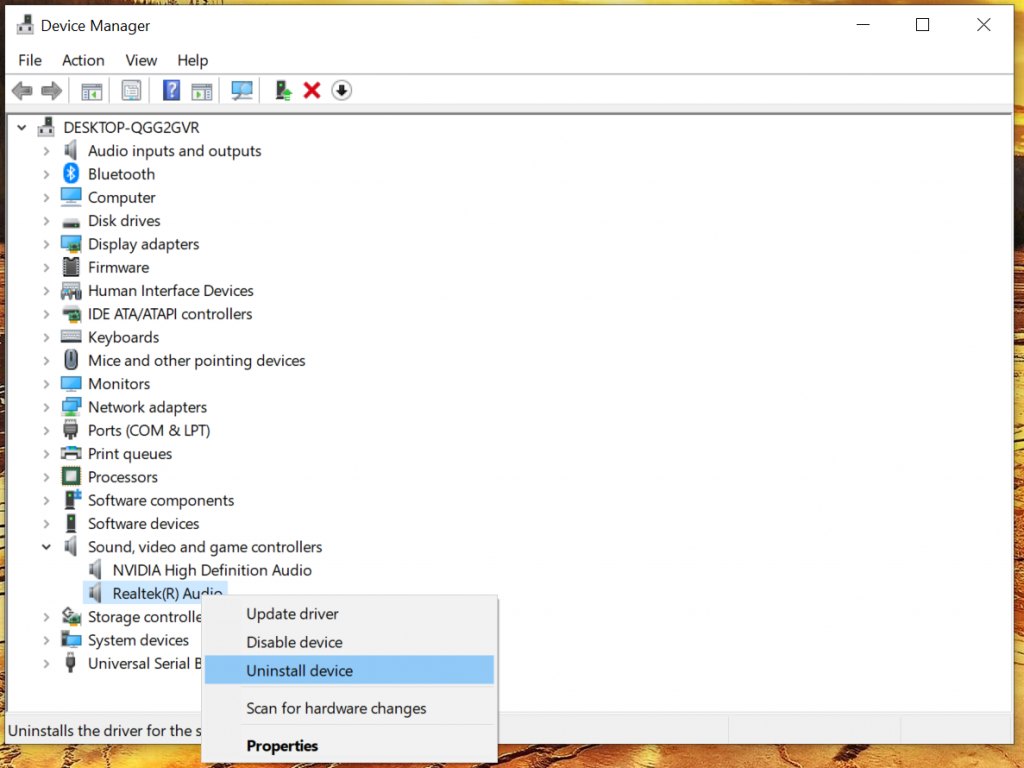
Expand the section Sound, video and game controllers.
Look for Realtek High Definition Audio.
Step 3. Uninstall the driver
Right-click the Realtek device.
Click Uninstall device.
If you see the option Delete the driver software, you can leave it unchecked.
Step 4. Restart the computer
After restarting, Windows will reinstall the driver automatically.
In many cases, this alone fixes sound issues.
How to Fix Realtek Audio Not Working
If the driver is installed but sound still does not work, try these quick checks.
Check the default playback device
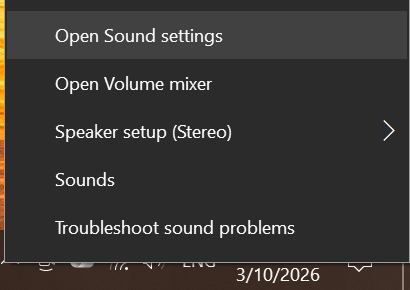
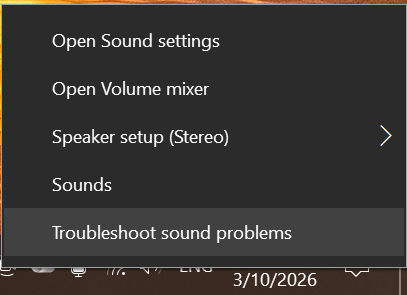
Right-click the speaker icon in the taskbar.
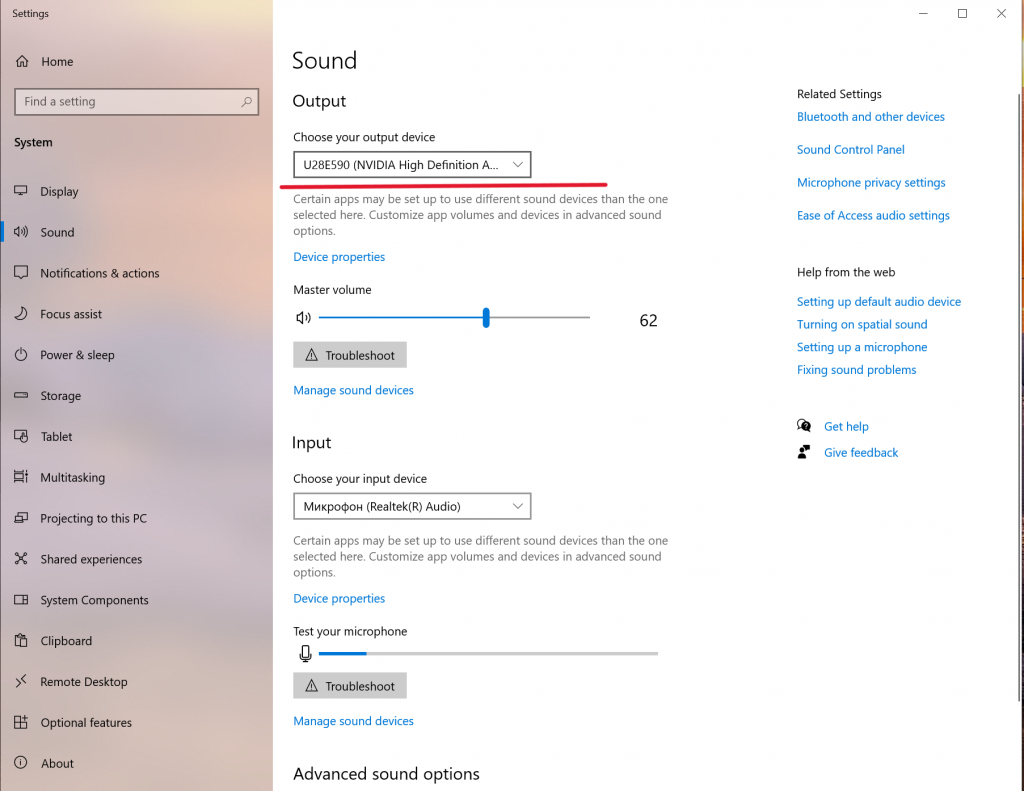
Select Sound settings.
Make sure your speakers or headphones are selected as the Output device.
Run the Windows sound troubleshooter
Right-click the speaker icon in the taskbar.
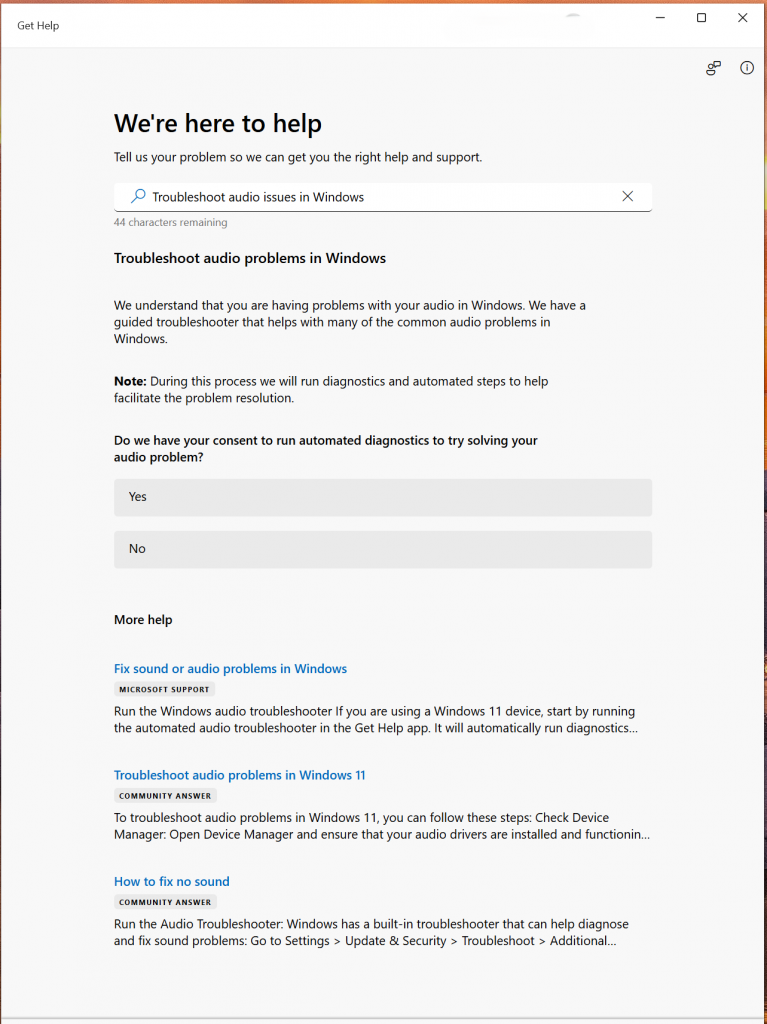
Click Troubleshoot sound problems .
Follow the instructions on the screen.
Windows will automatically check common audio problems.
Check if the device is disabled
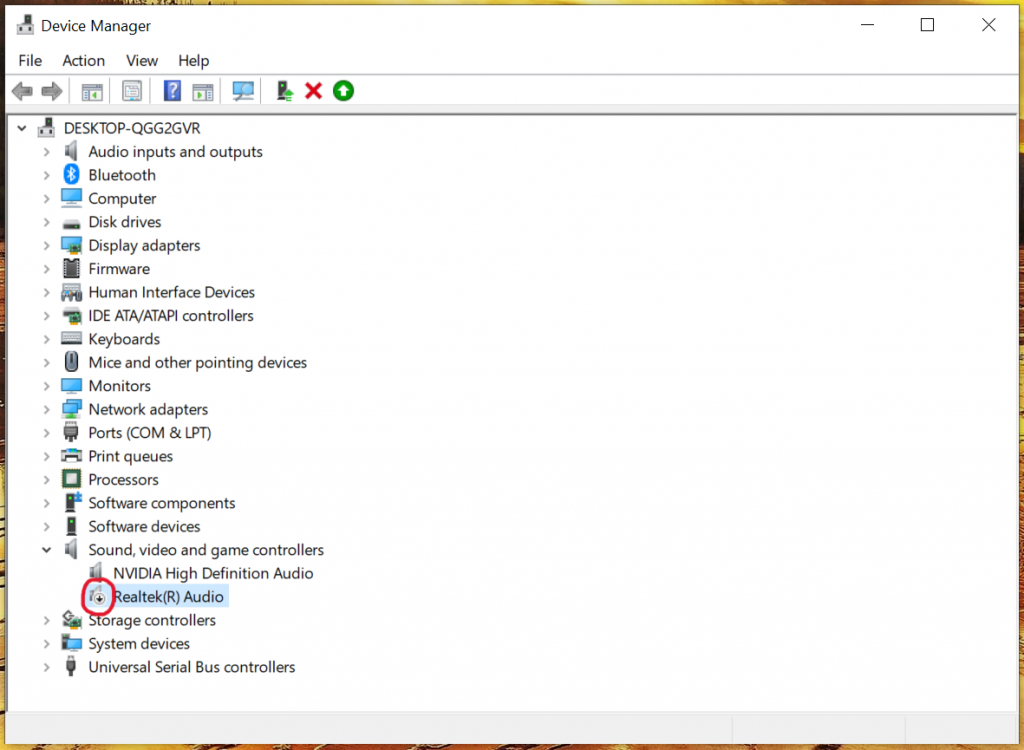
Open Device Manager again.
If the Realtek device has a small arrow icon, it may be disabled.
Right-click it and choose Enable device.
Safety Note
Avoid downloading drivers from unknown websites. Some driver packages online may include unwanted software.
If you want to learn more about updating drivers in Windows, you can read our guide on how to update drivers on Windows step by step.
What If the Realtek Driver Downloads Very Slowly or Looks Too Complicated?
Sometimes downloading the Realtek driver from the official website can take a very long time. The servers are often slow, and the download may even stop halfway.
I see this quite often when helping people fix sound problems. A driver that should take a minute to download sometimes takes 20 or 30 minutes, and sometimes even longer.
In addition, the driver often comes as a large archive with many files inside.
For beginners, this can be confusing because it is not always clear which file should be opened, and the installation may even continue after restarting the computer.
I see this situation quite often when helping people fix sound problems. What should be a simple driver install sometimes turns into a long and confusing process.
If you want an easier way, you can use a special driver update tool that installs the correct drivers automatically.
One example is Outbyte Driver Updater. The program scans your system, finds outdated or missing drivers, and installs the correct versions in a few clicks.
This can be helpful if:
- you are not sure which driver your computer needs
- the official driver download is very slow
- you want to update multiple drivers at once
Pro Tip
If you decide to use a driver updater tool, make sure you download it from the official website to avoid unwanted software.
You can open the official page or download the installer directly here using the button below.
A small real-world note
see this problem quite often when helping friends or family with their computers. After a Windows update, the system sometimes installs a different audio driver, and the sound suddenly stops working.
In many cases, reinstalling the Realtek driver fixes the problem. But sometimes the download is slow, the archive contains many files, or the installation runs more than once, which can be confusing for beginners.
When that happens, using a driver update tool can save a lot of time, because it finds the correct driver automatically and installs it in a few clicks.
Both methods work, but the automatic way is usually easier if you are not comfortable installing drivers manually.
Final Thoughts
Sound problems can be frustrating, but most Realtek audio driver issues are quick to fix once you know where to look.
Hope this helped you get your sound working again.
Take care, and remember that most computer problems have simple solutions once you break them down step by step.

I’m a computer technician who helps people fix everyday Windows problems, driver issues, and device errors.I focus on simple step-by-step solutions designed for beginners and people who are not very confident with computers.My goal is to make computer troubleshooting clear, practical, and easy for everyone.