
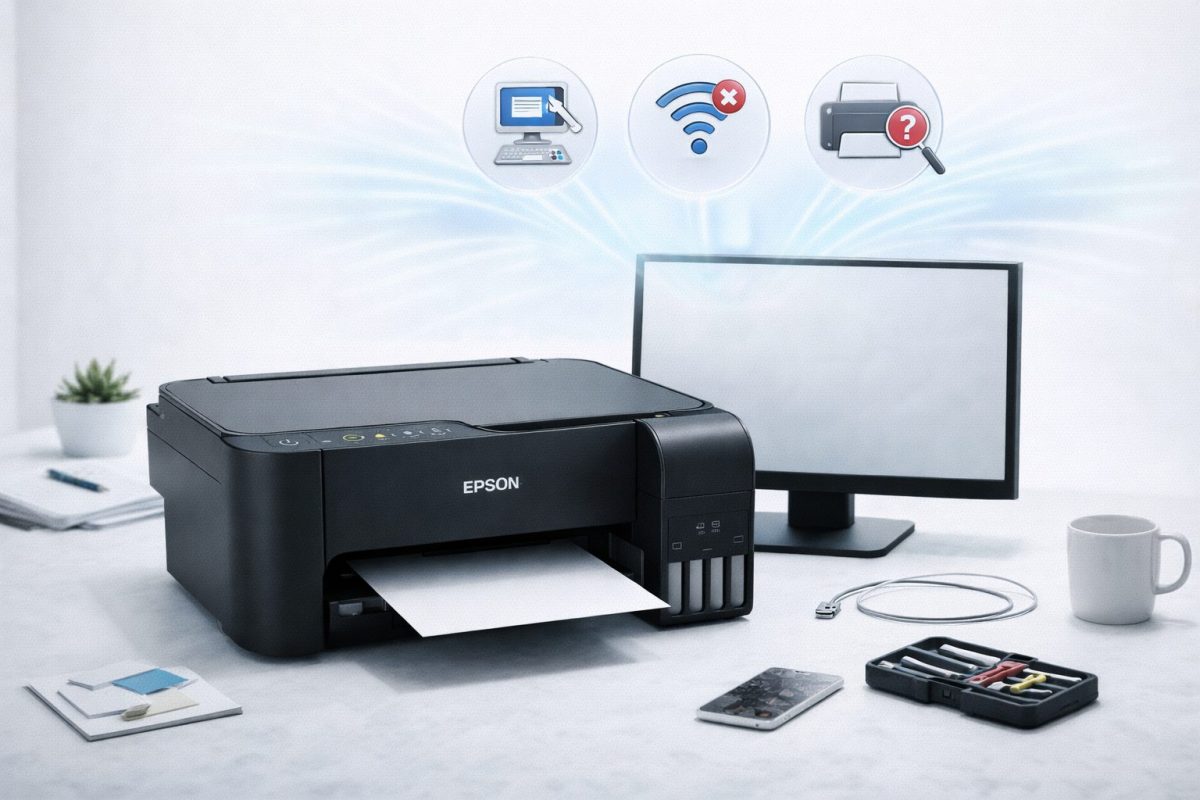
Hey there! I’m Jimmy, and if you are dealing with your Epson L3250 not working, I’m here to help you fix it quickly. It can be frustrating when technology doesn’t play nice, but we will get through this together.
Quick Answer
Most of the time, your Epson L3250 stops working because of a simple connection glitch or an outdated driver. Usually, a quick restart of your devices or a fresh software update from Epson will fix the problem right away.
Table of Contents
Common Causes
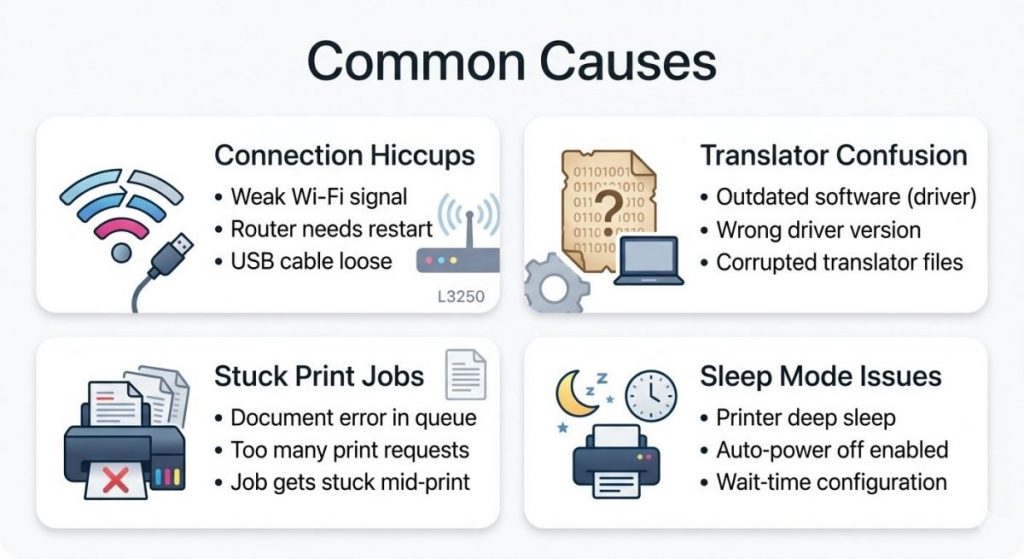
Printers are a bit like cars. Sometimes they just need a little tune-up to keep running smoothly. Here are the most common reasons your Epson L3250 might be acting up:
- Connection hiccups: Your Wi-Fi might have blinked, or a USB cable might be a little loose.
- The «Translator» is confused: Computers use «drivers» to talk to printers. If that driver is old, they stop understanding each other.
- Stuck print jobs: Sometimes one document gets stuck in line and blocks everything else from printing.
- Sleep mode: Occasionally, the printer falls into a deep sleep and forgets to wake up when you click «Print.»
Sometimes, the reason is even simpler. If you want to know more about general printer issues, check out my guide on Why Is My Printer Not Working?
Step 1: Check the Basics
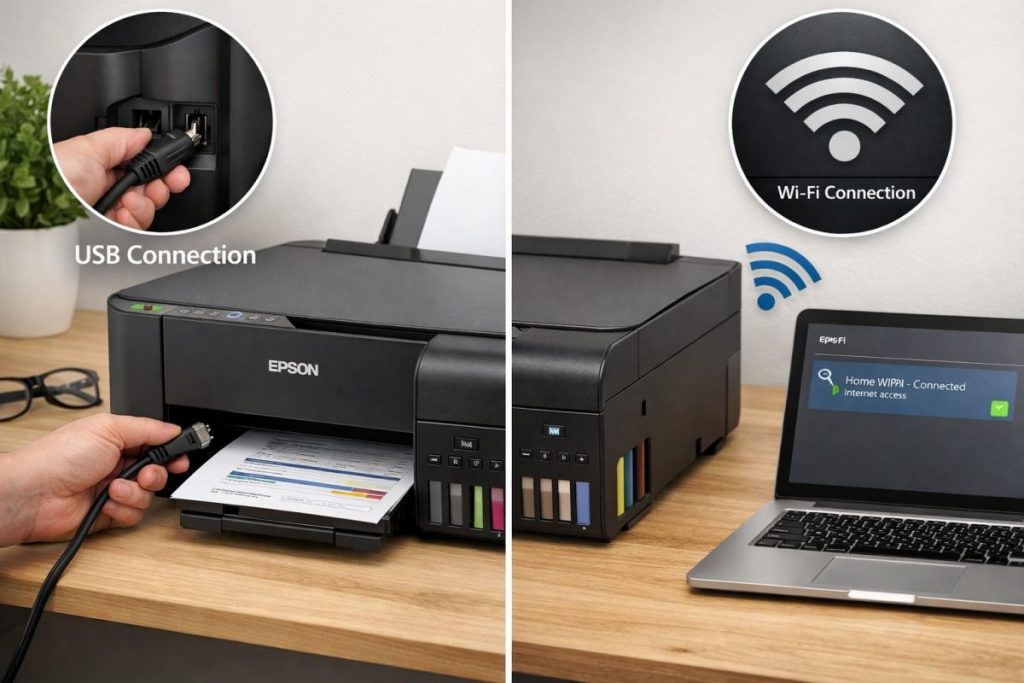
Before we change any settings, let’s look at the printer itself. It sounds simple, but I’ve seen many «broken» printers that just had a loose plug.
- Check the lights. Look at the control panel on your Epson L3250. If you see flashing red lights, it usually means you’re out of paper or ink.
- Unplug and wait. Turn the printer off. Unplug the power cord from the wall. Wait about 30 seconds.
- Plug it back in. Turn it on and wait for the green power light to stay solid.
Safety Note: Always grab the plug itself when pulling it out of the wall. Never pull on the thin black cord, as that can damage the wires inside over time.
Step 2: Fix the Wi-Fi Connection
If you use your printer without wires, the connection can sometimes drop. This is very common if you recently moved your router or changed your internet password.
- Check the Wi-Fi light. On the front of your printer, look at the Wi-Fi symbol. If it is flashing, it isn’t connected to your home network.
- Restart your router. Sometimes the router gets «tired.» Unplug it for 10 seconds and plug it back in.
- Use the «i» button. Press and hold the i button on your printer for about 7 seconds. It will print a status sheet. Look for the part that says «Connection: OK.»
Step 3: Update Your Printer Driver
Think of a driver as a translator. It translates your Word document into a language the printer understands. If the translator is using old rules, the printer gets confused.
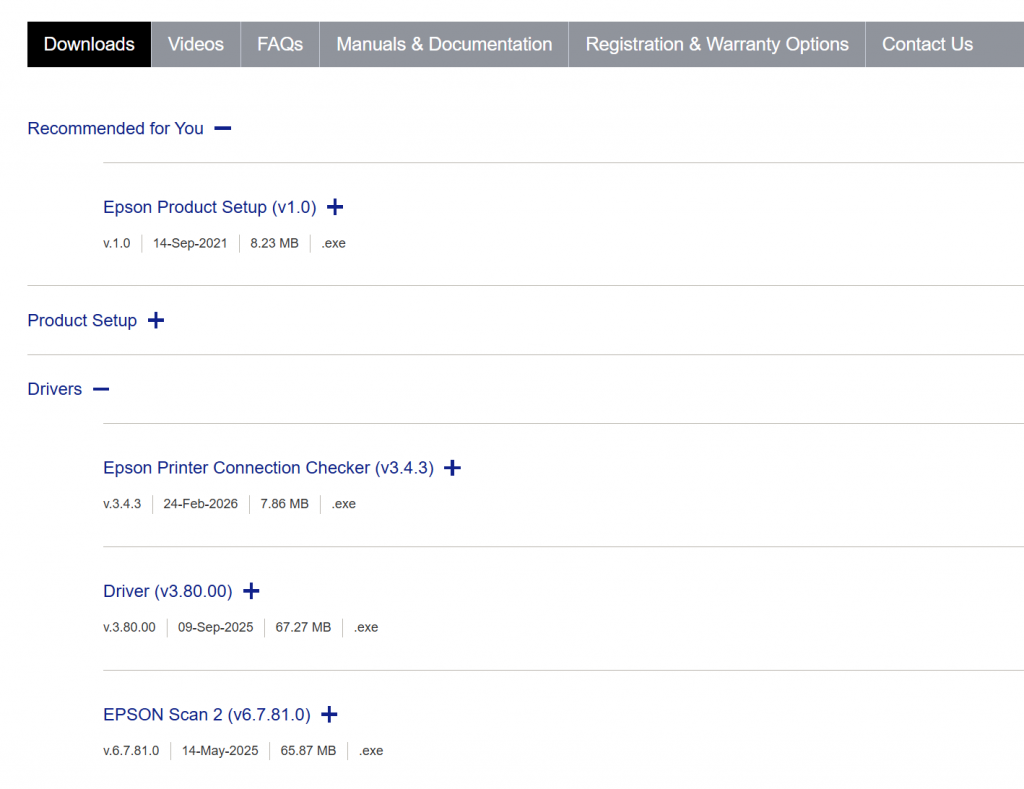
- Go to the official Epson support website.
- Type L3250 into the search bar.
- Download the Drivers and Utilities Combo Package.
- Run the file you just downloaded. It will automatically find your printer and refresh the connection.
Pro Tip: If you visit the Epson website and don’t see a file named «Combo Package,» don’t panic! Simply download and run the Epson Product Setup instead. I always recommend starting with this little program. It acts like your own «smart assistant»—it scans your system, figures out exactly what your Epson L3250 is missing, and automatically installs the correct drivers for you. It is much easier than downloading everything one by one!
Step 4: Clear the Print Queue
Sometimes a document gets «stuck» in the computer’s memory. This creates a traffic jam.
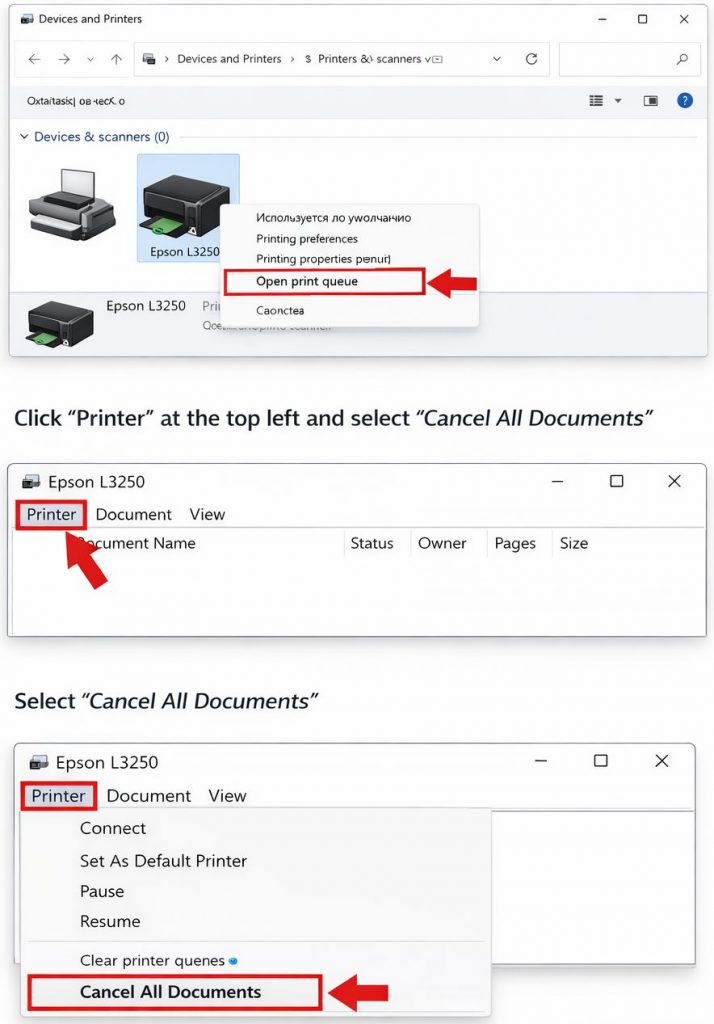
- On your computer, click the Start button and type «Printers.»
- Click on Printers & scanners.
- Find your Epson L3250 and click Open print queue.
- Click Printer at the top left and select Cancel All Documents.
I once spent an hour helping a neighbor with this. We found ten different documents all trying to print at the same time! Once we cleared the list, it started working instantly.
Step 5: Restart the Print Spooler Service
Sometimes, a specific part of Windows that handles your print jobs gets «stuck.» This is called the Print Spooler. If this service stops running, your computer will completely ignore your printer, even if the cables are perfectly connected.
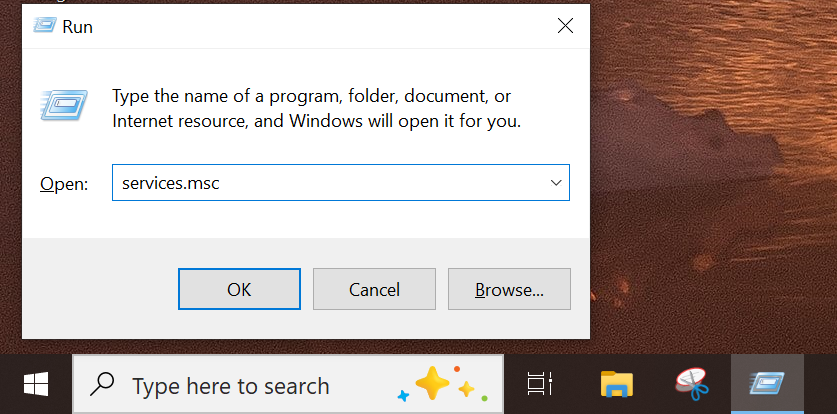
- On your keyboard, press the Windows key and the R key at the same time.
- In the small box that appears, type services.msc and press Enter.
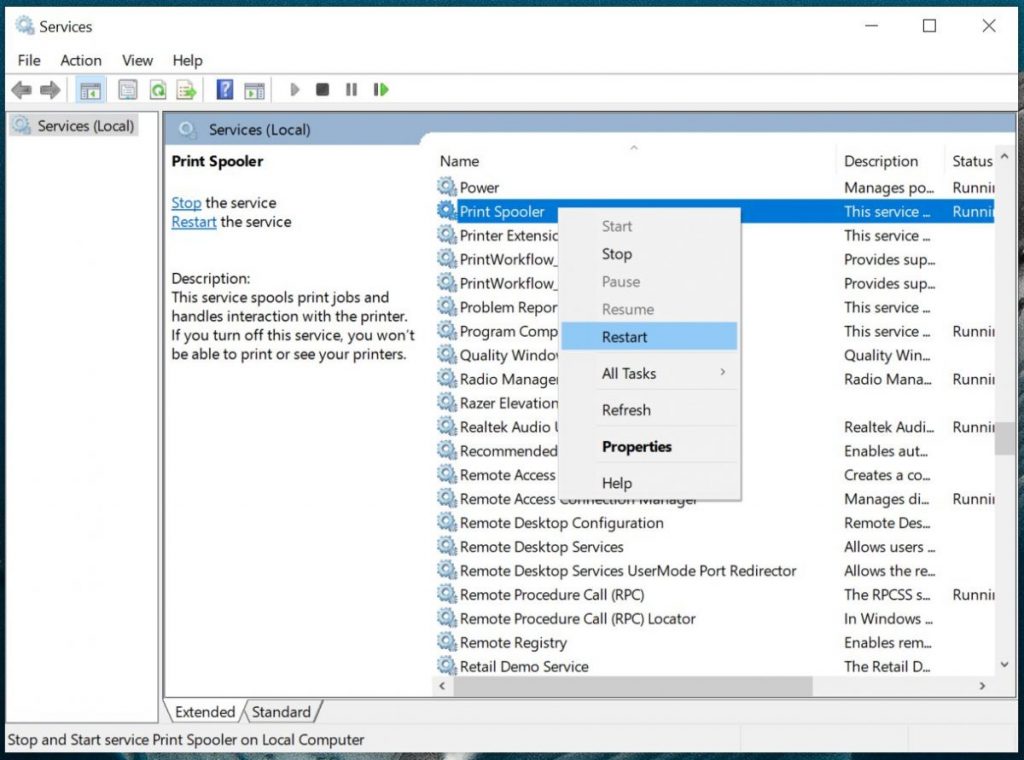
- You will see a long list of names. Scroll down until you find Print Spooler.
- Right-click on Print Spooler and select Restart.
- Wait a few seconds for the status bar to finish, then try printing your document again.
Pro Tip: If the «Restart» option is grayed out, click Start instead. Occasionally, a Windows update might accidentally turn this service off, and you just need to flip the switch back on.
Now your Epson L3250 not working problem should be solved
Real-World Note
I see this exact problem very often with Epson printers.
Usually Windows installs a basic driver, and printing stops working after an update.
Reinstalling the correct driver fixes the issue in most cases.
Final Thoughts
Printer problems are very common, especially on Windows 10 and 11, but they are usually easy to fix once you know where to look.
If your Epson L3250 is not working, go step by step, and you will almost always get it working again.

I’m a computer technician who helps people fix everyday Windows problems, driver issues, and device errors.I focus on simple step-by-step solutions designed for beginners and people who are not very confident with computers.My goal is to make computer troubleshooting clear, practical, and easy for everyone.