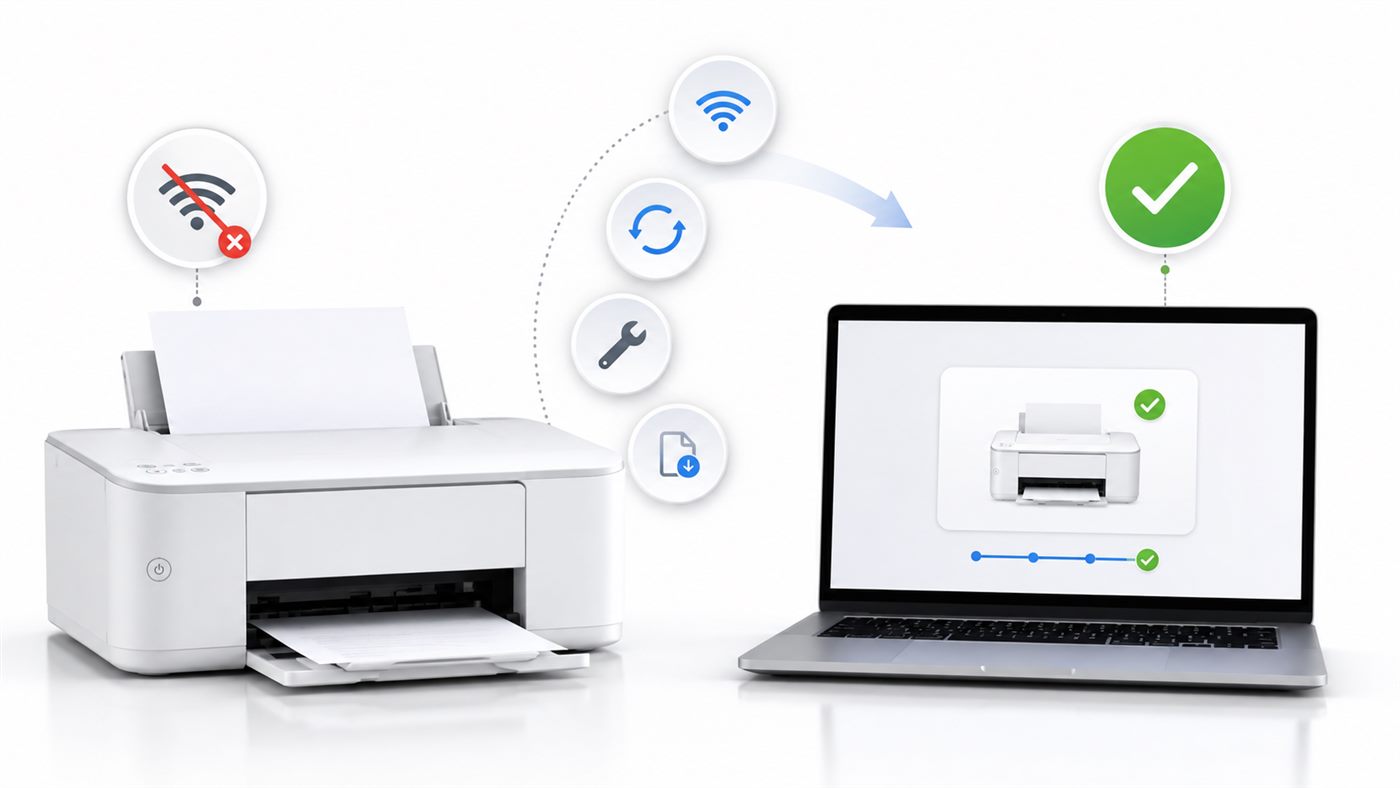
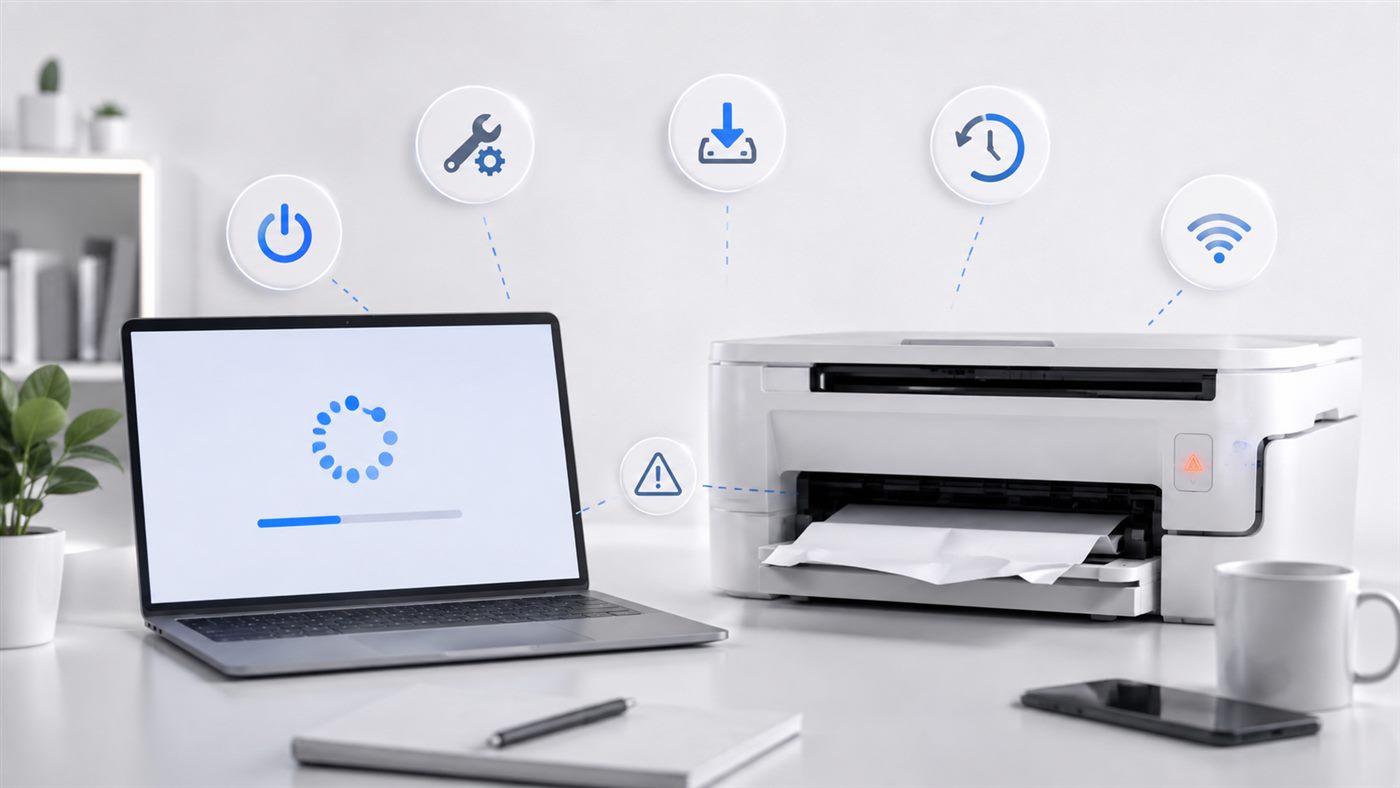
If your printer is not working, don't worry. This is a very common issue and it is usually easy to fix.
If your printer is not working, it is usually caused by connection issues, outdated drivers, or the printer being paused or offline. In many cases, the fix is simple. Checking the cable or Wi-Fi connection, restarting the printer, or updating the printer driver can often solve the problem in just a few minutes.
Table of Contents Common Causes of a Printer Not Working
Before we fix the issue, it helps to understand what might be going wrong.
Here are the most common reasons printers stop working:
The printer is turned off or not connected properly
The printer is set to Offline or Paused in Windows
The printer driver is missing, outdated, or corrupted
There is a paper jam or empty ink cartridge
Windows cannot communicate with the printer over Wi-Fi or USB
The print queue is stuck with a failed document
The good news is that most of these problems are easy to fix.
Let's go step by step.
Fix 1: Check the Basic Things First
It sounds obvious, but this solves many printer problems.
Check the following:
Make sure the printer is turned on.
Check that the USB cable is plugged in securely, or confirm the printer is connected to Wi-Fi.
Look for warning lights on the printer.
Make sure there is paper in the tray.
Check that the ink or toner is not empty.
Sometimes printers simply lose connection after the computer wakes from sleep.
Pro Tip:
Fix 2: Restart Your Computer and Printer
Small software glitches can prevent Windows from talking to the printer.
Restarting both devices clears these temporary errors.
Steps:
Turn off your printer.
Restart your computer.
When Windows starts again, turn the printer back on.
Then try printing a test page.
Many people are surprised how often this simple step works.
Fix 3: Check if the Printer Is Set to Offline
Sometimes Windows sets the printer to Offline by itself, and printing stops even though the printer is fine.
Open the printer in Printers & scanners , click Open queue , then open the Printer menu and remove the tick from Use Printer Offline .
If the printer keeps going offline, or it says Offline while it still prints from your phone, we have a full guide on what to do when your printer says Offline .
Fix 4: Clear the Print Queue
A failed document can block all other print jobs.
Clearing the queue often fixes the problem.
Steps:
Open Settings .
Go to Printers & Scanners .
Select your printer.
Click Open print queue .
Cancel all pending documents.
After that, send a new document to print.
Safety Note:
Fix 5: Update or Reinstall the Printer Driver
Drivers allow Windows to communicate with your printer.
If the driver is outdated or damaged, the printer may stop working.
To update the driver:
Press Windows + X .
Click Device Manager .
Expand Printers .
Right-click your printer.
Select Update driver .
You can also download the latest driver directly from the printer manufacturer's website.
This often fixes strange printing errors. Sometimes the problem is related to outdated drivers. If you're not sure what drivers are or how they work, you can read our guide about how to update drivers on Window s.
You can also download the latest driver from the official support pages of the printer manufacturers. Here are a few popular printer brands:
HP Canon Brother Epson
Pro Tip: Printers & Scanners , then adding it again. Windows will reinstall the driver automatically.
Fix 6: Check the Wi-Fi Connection (For Wireless Printers)
Wireless printers sometimes disconnect from the network.
Make sure:
The printer is connected to the same Wi-Fi network as your computer
Your router is working normally
The printer shows a Wi-Fi signal
If needed, reconnect the printer to Wi-Fi using the printer's control panel.
Many wireless printing issues come down to simple network disconnects.
Final Thoughts
Printer problems happen to almost everyone at some point. Most of the time the fix is simple once you check the connection, clear the queue, or update the driver. If your printer not working even after these fixes, restarting the printer and reinstalling the driver usually solves the problem.
If your all-in-one prints but refuses to scan, that is a different problem with its own fix - see our guide on Canon IJ Scan Utility not working .
Hope this helped you get things printing again.