

Hi, I’m Jimmy. I’m a computer technician, and today I’ll help you download, install, and fix the Bluetooth Driver for Windows 10 and 11 step by step.
Quick Answer
If Bluetooth is not working on your Windows 10 or Windows 11 computer, the most common reason is a missing, outdated, or corrupted Bluetooth driver. Updating or reinstalling the Bluetooth driver usually fixes the problem. You can do this through Device Manager or the manufacturer’s website.
Table of Contents
Common Causes of Bluetooth Driver Problems
Bluetooth issues usually happen because Windows cannot properly communicate with the Bluetooth hardware. This communication depends on a small piece of software called a driver.
Here are the most common reasons Bluetooth stops working.
1. Missing Bluetooth driver
Sometimes Windows installs without the correct Bluetooth driver. When this happens, the Bluetooth device may not appear in settings at all.
2. Outdated driver
Drivers become outdated over time. Windows updates or new devices can create compatibility problems.
3. Corrupted driver
Drivers can become damaged during updates, crashes, or incomplete installations.
4. Disabled Bluetooth device
Sometimes Bluetooth is simply disabled in Device Manager or turned off in Windows settings.
5. Hardware manufacturer driver required
Some laptops require a specific driver from the manufacturer, especially for brands like Intel, Realtek, or Qualcomm Bluetooth adapters.
Now let’s go through the easiest fixes step by step.
Fix 1: Check if Bluetooth Is Turned On
Before dealing with drivers, check the simple things first.
Steps
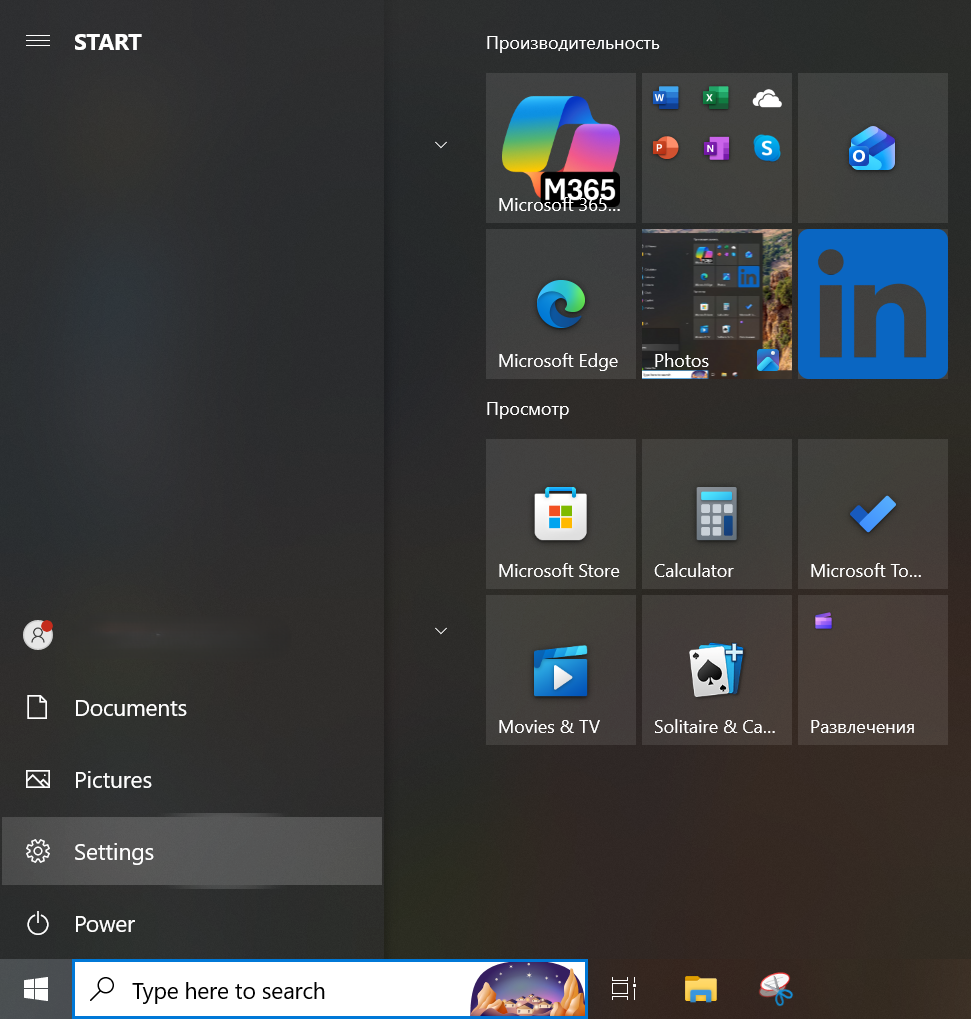
- Click Start
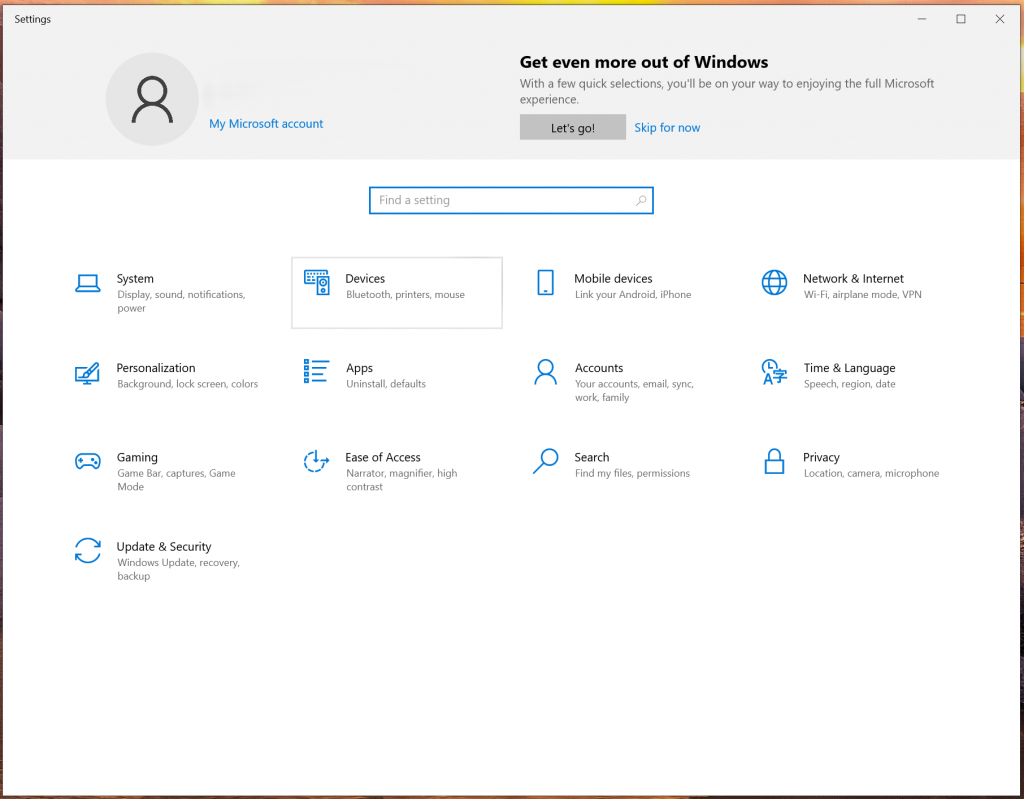
- Open Settings
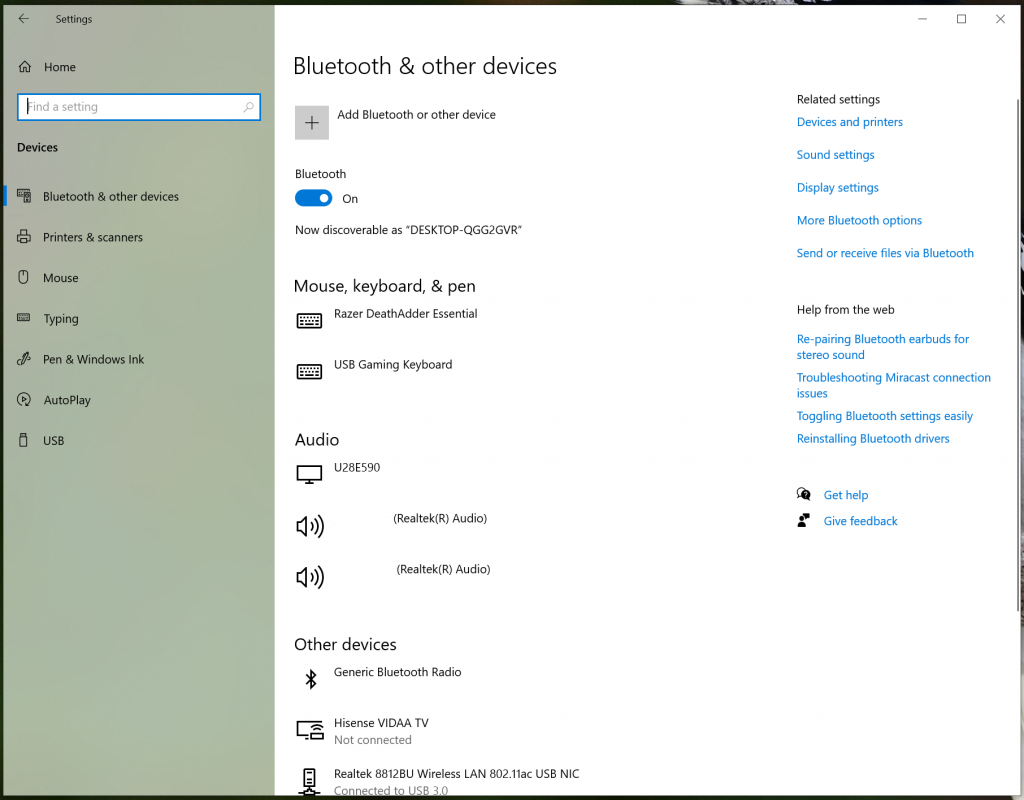
- Go to Bluetooth & devices
- Make sure Bluetooth is turned ON
If Bluetooth does not appear at all, the driver is likely missing.
Fix 2: Check Bluetooth in Device Manager
Device Manager shows whether Windows detects your Bluetooth hardware.
Steps
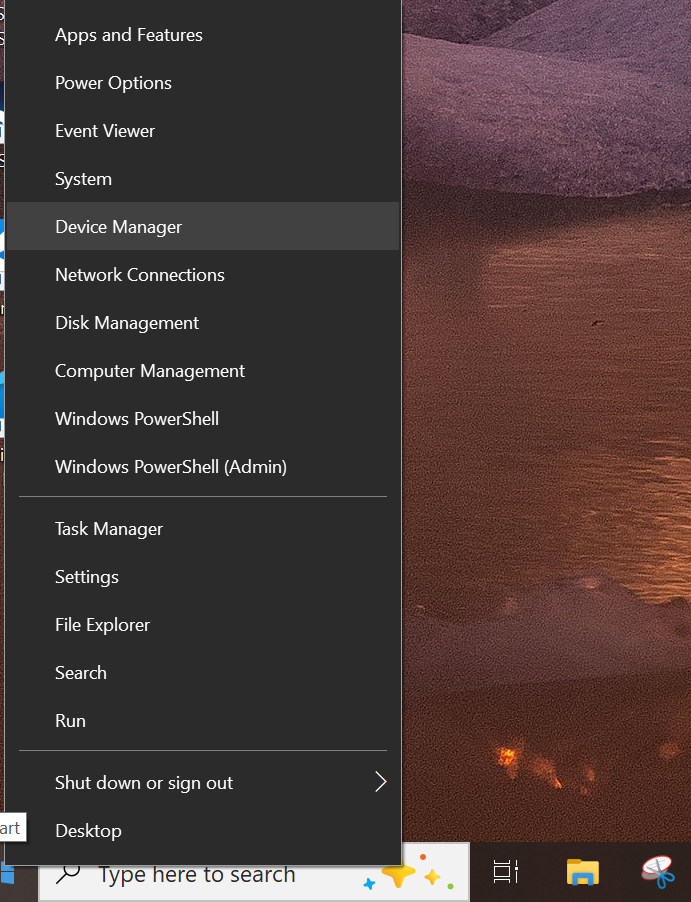
- Press Windows + X
- Click Device Manager
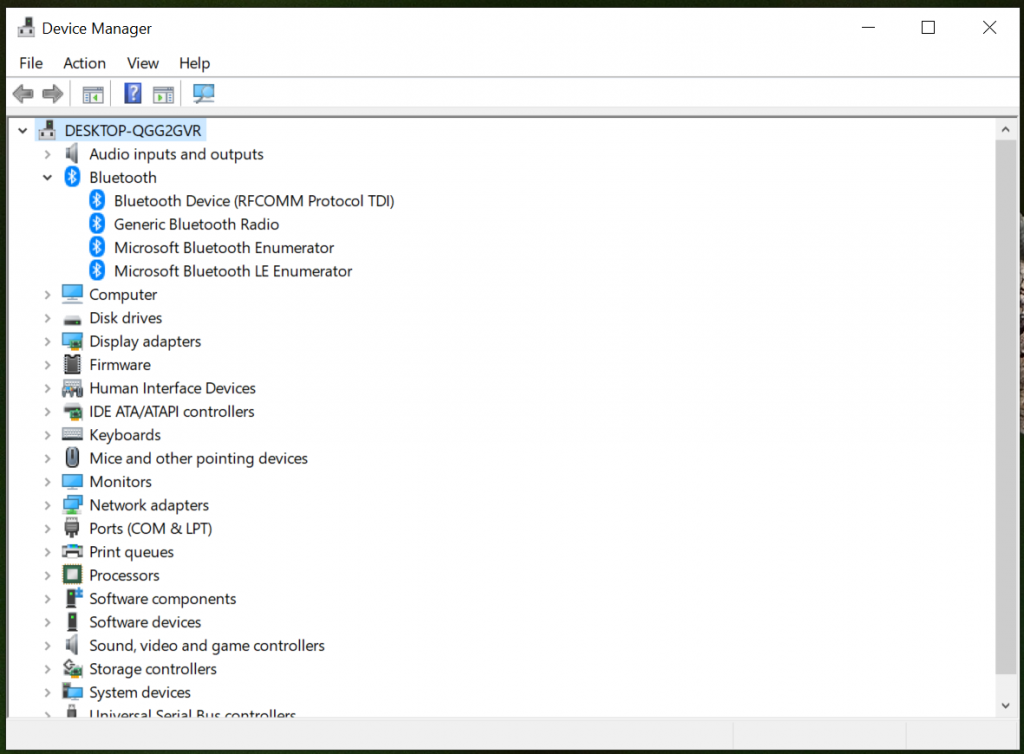
- Look for Bluetooth in the list
You may see entries such as:
- Intel Wireless Bluetooth
- Realtek Bluetooth Adapter
- Generic Bluetooth Radio
If you see a yellow warning icon, the driver is broken or missing.
Fix 3: Download and Update Bluetooth Driver for Windows 10 and 11
Updating the driver is often the fastest fix.
Steps
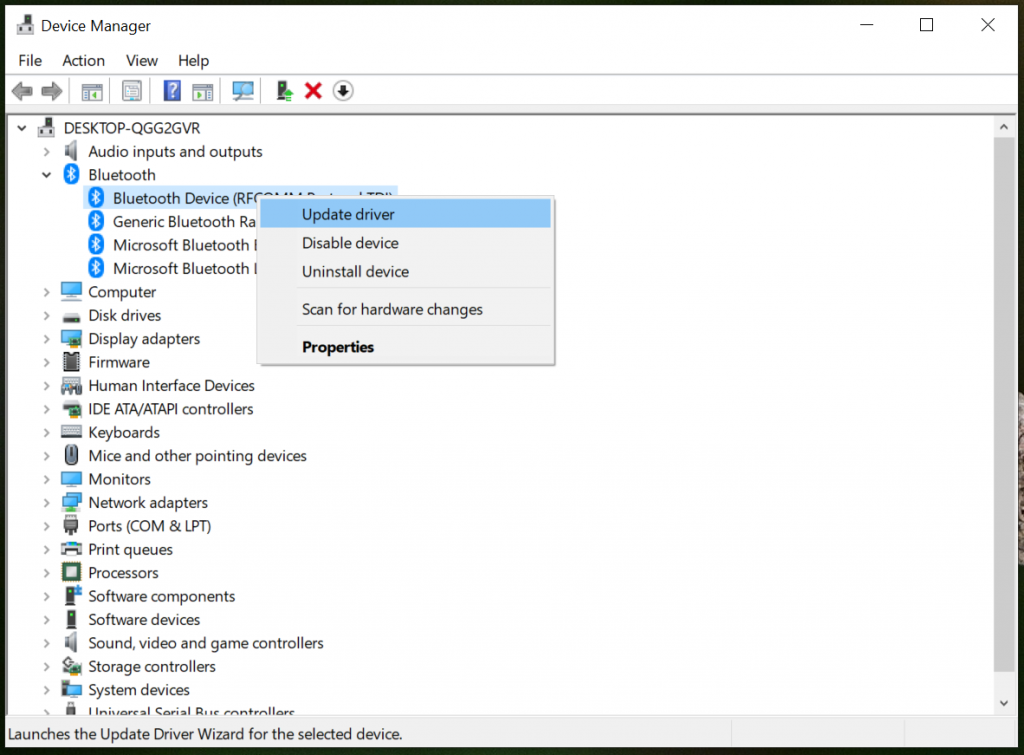
- Open Device Manager
- Expand Bluetooth
- Right-click your Bluetooth device
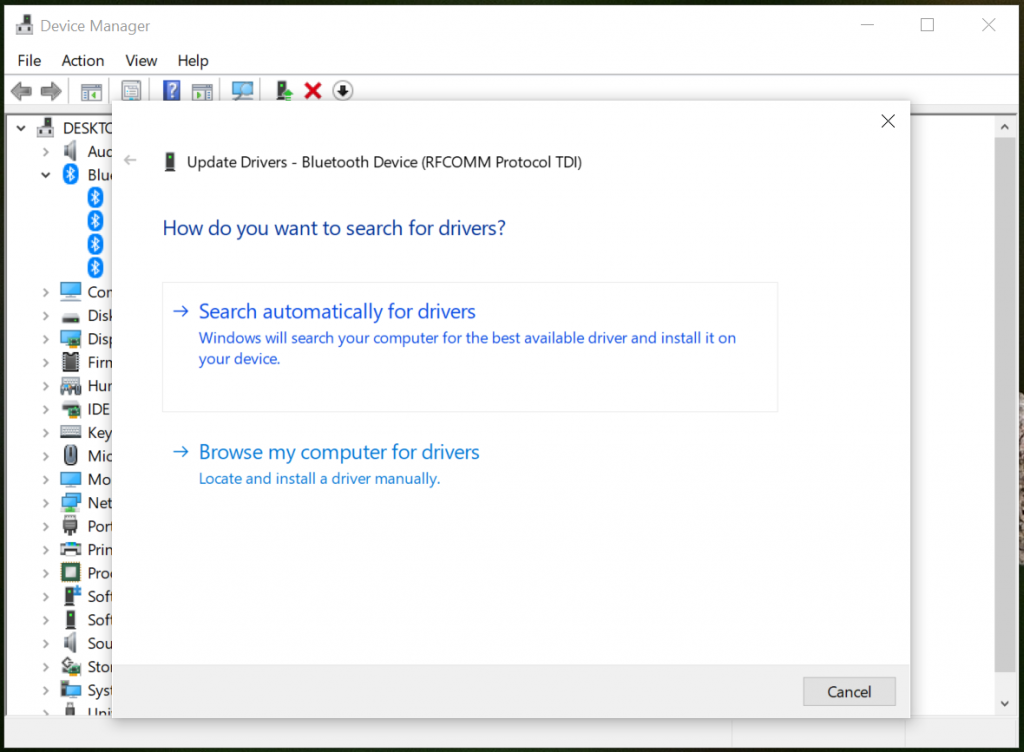
- Click Update driver
- Select Search automatically for drivers
Windows will search for the latest compatible driver.
Sometimes Windows already thinks the driver is up to date even when it is not. That happens quite often.
If you’re not sure how driver updates work in Windows, you can also read our simple guide on how to update drivers on Windows. It explains the process step by step for beginners.
Fix 4: Reinstall the Bluetooth Driver
Reinstalling the driver can fix corrupted driver files.
Steps
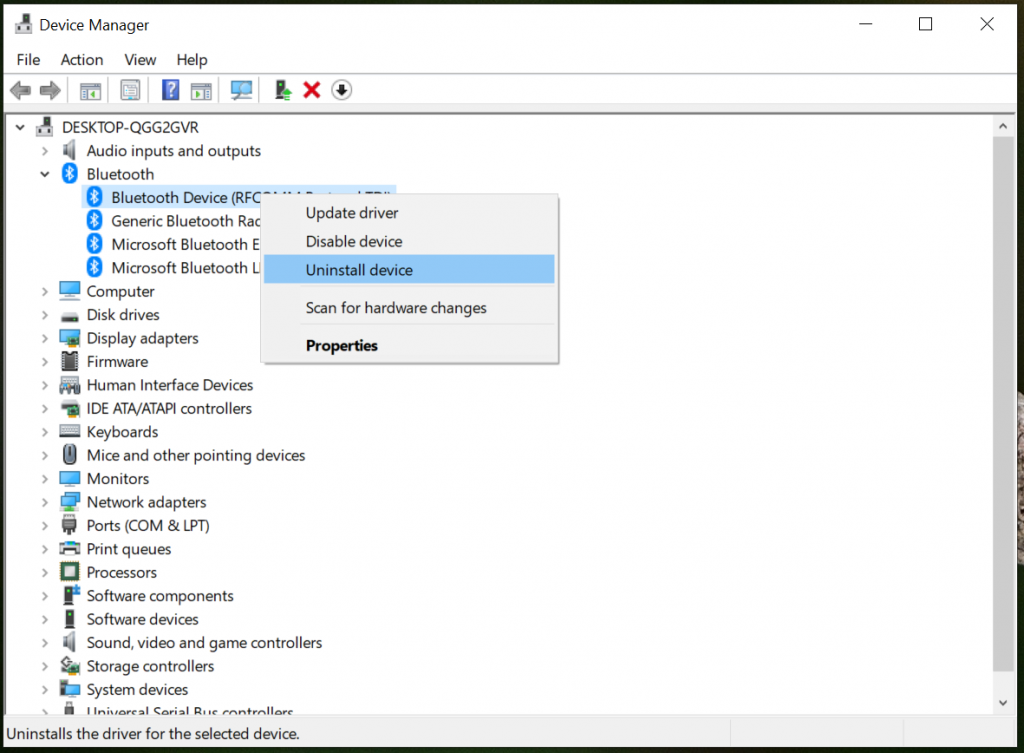
- Open Device Manager
- Expand Bluetooth
- Right-click your Bluetooth adapter
- Click Uninstall device
- Restart your computer
When Windows restarts, it will reinstall the Bluetooth driver automatically.
Fix 5: Download the Driver From the Manufacturer
If Windows cannot find the correct driver, downloading it manually usually works.
Common manufacturers include:
You can download Bluetooth drivers from your laptop manufacturer’s website or from the chipset manufacturer. Make sure you download the correct Bluetooth Driver for Windows 10 and 11 from the manufacturer website.
Pro Tip
Sometimes the Bluetooth driver is included inside the WiFi driver package. If Bluetooth is missing completely, try installing the wireless driver from your laptop manufacturer.
Safety Note
Always download drivers from trusted sources. Installing drivers from random websites can cause malware or system instability.
When Bluetooth Still Does Not Work
If none of the fixes help, the issue may be hardware related.
This can happen when:
- the Bluetooth adapter is disabled in BIOS
- the wireless card is damaged
- the laptop uses a combined WiFi/Bluetooth module that failed
In that case, a small USB Bluetooth adapter can often solve the problem quickly.
Final Thoughts
Bluetooth driver problems are very common on Windows computers, but they are usually easy to fix with a driver update or reinstall.
Hope this guide helped you get Bluetooth working again.
I’m Jimmy, and I’ll see you in the next fix.

I’m a computer technician who helps people fix everyday Windows problems, driver issues, and device errors.I focus on simple step-by-step solutions designed for beginners and people who are not very confident with computers.My goal is to make computer troubleshooting clear, practical, and easy for everyone.