
Chipps Review: We Tested the AI Assistant That Fixes Your PC
Most PC repair tools scan your computer, show you a scary list of "problems", and ask for money. So when we first heard about Chipps - an AI assistant that promises to fix your PC when you ask it in plain language - we were skeptical.
So we installed it on our own Windows 10 desktop and spent several days giving it real tasks: a slow PC, a disk full of junk, a missing DLL error, a printer question, a sound problem, a driver check, a messy Downloads folder, a weekly cleanup schedule, a screen full of virus warnings and a program crashing with a raw Windows error code. This review is based on what actually happened - including the parts that did not go perfectly.
Quick Verdict
The download starts right away - no signup required. Everything below is from our own hands-on testing.
What Is Chipps?
Chipps is a Windows app with a chat window. You type what you need - in your own words, in any language - and Chipps figures out what to do.
It is not just a repair tool. Think of it as an all-round assistant that lives on your PC:
- Fixing - it diagnoses slowdowns, errors and crashes, then repairs them with your approval.
- Organizing - it sorts files into folders and finds documents when you describe them in your own words.
- Automating - it runs routine tasks on a schedule, like a weekly cleanup or a regular report.
There is also a Diagnostics dashboard that shows your PC's health at a glance.
You do not need to know anything about computers to use it. That is the whole point.
How It Works: Plan, Approve, Undo
This is the part that makes Chipps different from every PC tool we have tested before.
When you ask Chipps to do something, it does not just start changing your system. It works in three steps:
- 1. It investigates. Chipps scans the relevant part of your system - read-only, nothing changes.
- 2. It shows you a plan. In plain English: what it found, what it wants to do, and what the risk level is. The exact command it will run sits behind a Show command link - there if you want to check it, out of the way if you do not.
- 3. It waits for your OK. Every change needs you to click Allow. There is a Deny button right next to it.
Here is what that looked like when we asked about our slow PC:
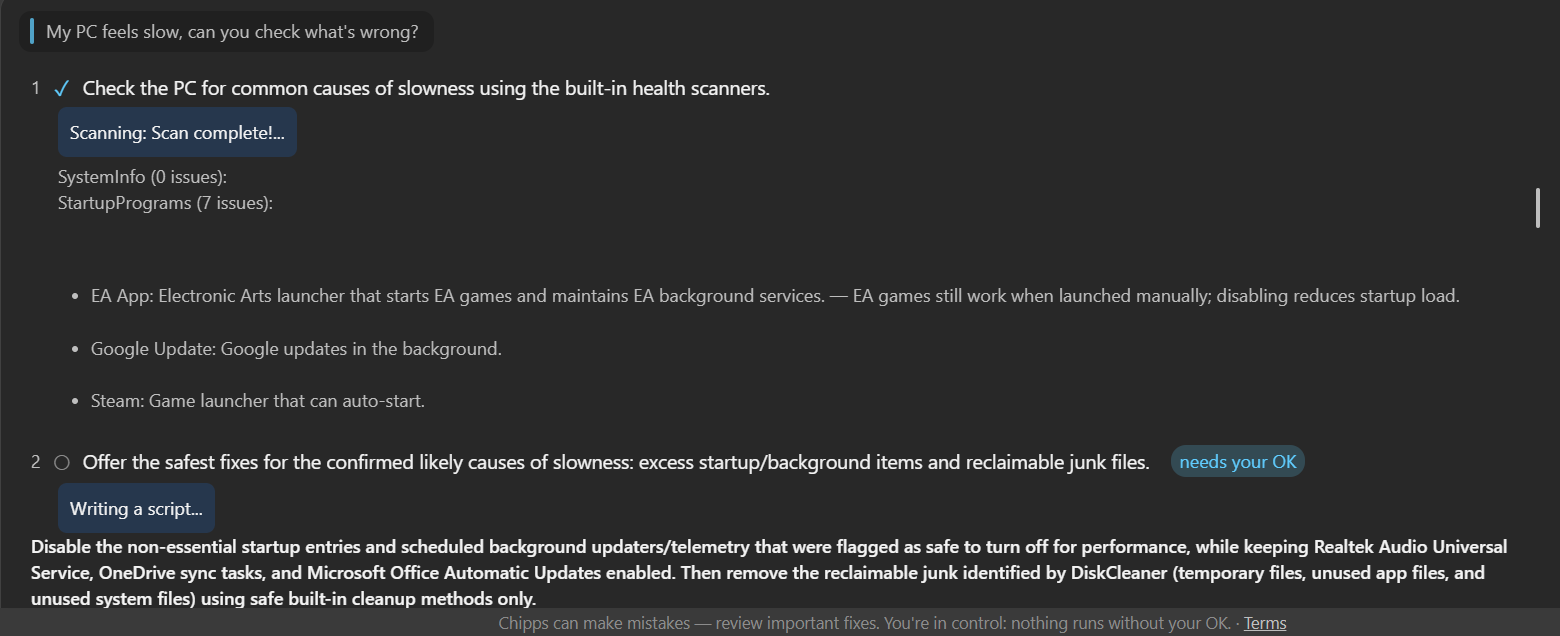
Notice the details. It does not just say "10 issues found!!!" like a classic cleaner. It explains each item: "EA App: Electronic Arts launcher... EA games still work when launched manually; disabling reduces startup load."
And changes can be reversed. When we asked Chipps to bring back one of the startup entries it had disabled - it restored it exactly as it was.
What We Tested on Our Own PC
Test 1: "My PC feels slow"
Chipps scanned the system, found 7 startup items slowing things down, explained each one, and proposed a fix. After we clicked Allow, it disabled the unnecessary entries, cleaned up temporary files, and reported the result:
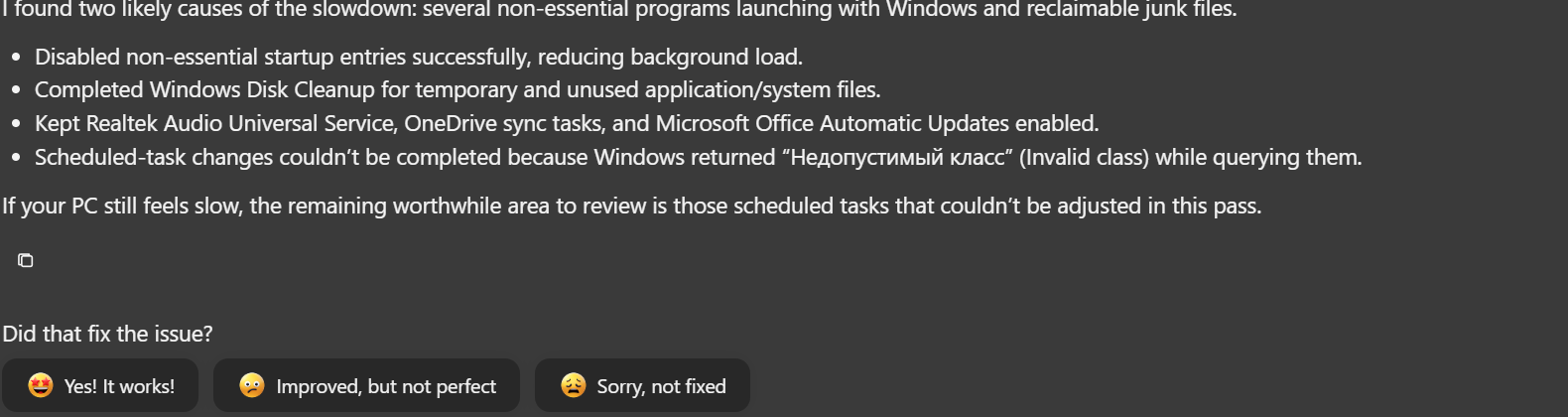
Two things impressed us here. First, it kept important things enabled - audio services, OneDrive sync, Office updates - and said so. Second, when one step failed with a Windows error, it did not pretend everything was fine. It reported the failure and suggested what to review next.
Test 2: Cleaning up the disk
As part of the slow PC session, Chipps ran a disk cleanup - temporary files, unused application files, Windows Update leftovers:

It deleted only safe categories, skipped files that were in use, and did not touch a single personal document. This matches how we recommend cleaning a PC in our safe cleanup guide.
Test 3: A missing DLL error
We told Chipps: "I get a VCRUNTIME140.dll missing error when I open a program." Watch what it did:

It verified that Visual C++ Redistributables were installed, and then asked a clarifying question: "Which program shows the error when you open it?" A good technician asks before acting. Most tools just run a generic "repair".
Test 4: "My printer is not working"
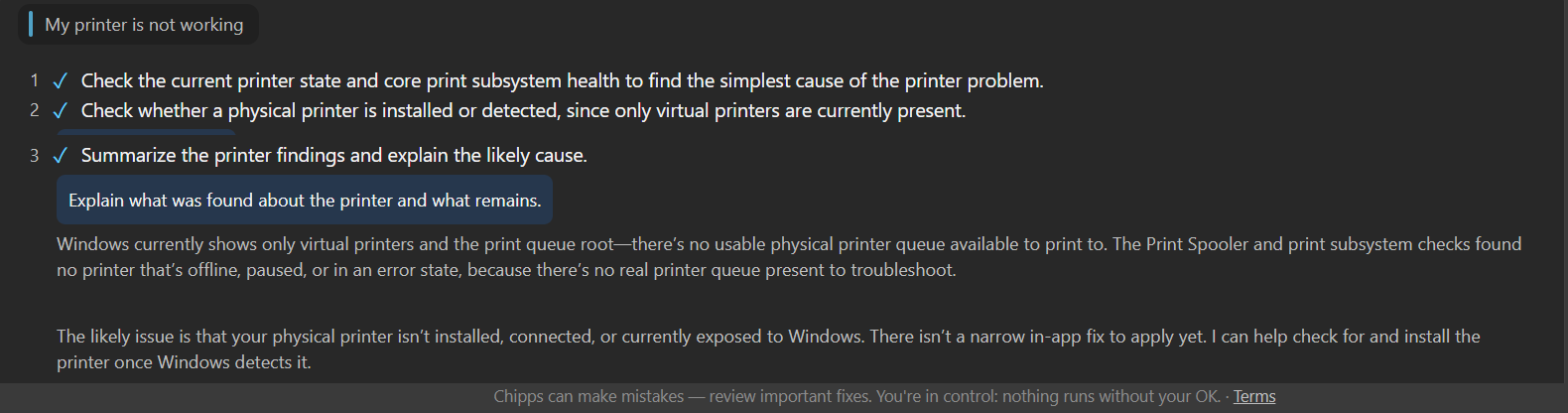
Our test machine has no physical printer, and Chipps figured that out correctly: it checked the printer queues and the Print Spooler, then explained that no physical printer was connected - and offered to help set one up once Windows detects it. No fake fixes, no invented problems.
Test 5: Sound and drivers
When we asked about sound, Chipps ran a read-only audio snapshot first and found a genuinely disabled Realtek service. When we asked it to check drivers, it listed what needed updating. The Diagnostics panel goes further - it can update drivers through Windows Update, the official Microsoft channel:

Test 6: Sorting a messy Downloads folder
We asked: "Sort my Downloads folder by file type and show me a report." Chipps looked at what was inside first, then moved the loose files into new folders - Images, Installers, Spreadsheets, Archives - and reported exactly what went where:
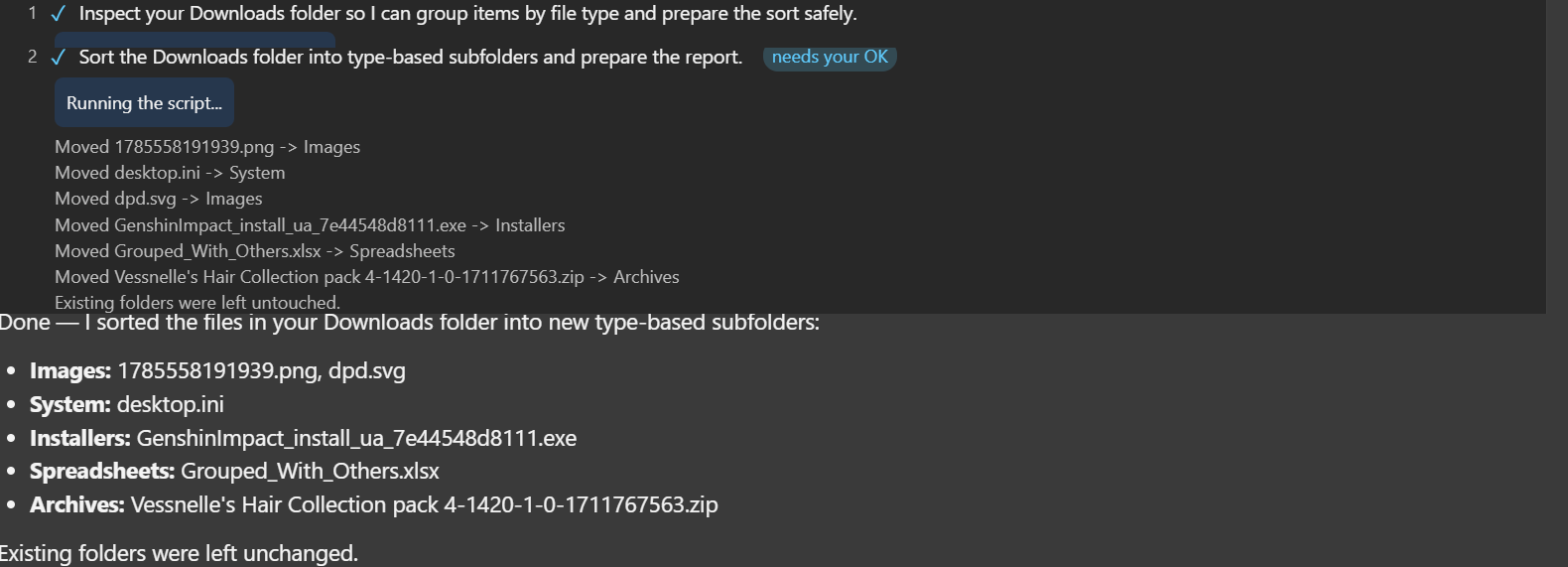
We checked the folder afterwards: every file was where the report said, our existing folders were untouched, and nothing was lost.
Test 7: A cleanup that runs itself
We typed: "Every Friday at 6 pm, clean my temporary files." Chipps created a scheduled task in Windows - and cleverly, it used the built-in Windows Disk Cleanup tool rather than anything exotic:

We verified in Windows Task Scheduler: the task was real, set for Fridays at 6:00 PM. When we later asked Chipps to remove the schedule, it removed it - confirmed again.
Test 8: A screen full of virus warnings
We typed: "A website keeps showing virus warnings."
This is exactly the moment where a classic PC cleaner finds a dozen frightening “threats”. Chipps did the opposite. It checked the browser notification settings, which browser was set as default, and whether a proxy had been configured - and then told us the warnings matched abusive browser notifications rather than anything wrong with the system:
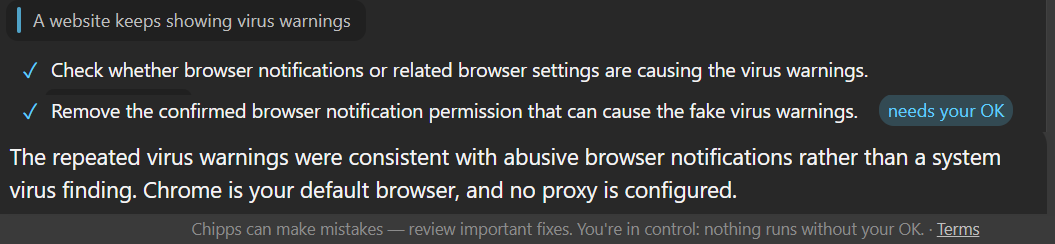
It found the one site that had been allowed to send notifications, removed that single permission after we approved it, and left every other browser setting alone. We wrote up the manual version of this fix in our guide on fake virus warnings.
Test 9: A program crashing with an error code
For the last test we gave Chipps a raw Windows error code, the kind that means nothing to most people: "A program crashes with error 0xc0000005 when I open it."
Instead of guessing, it asked which program was crashing. We answered "Steam". It then read Steam's own launch log - twice, in two different places - to work out whether the failure came from repeated download errors or from something blocking the program locally.
Then came the part we did not expect:
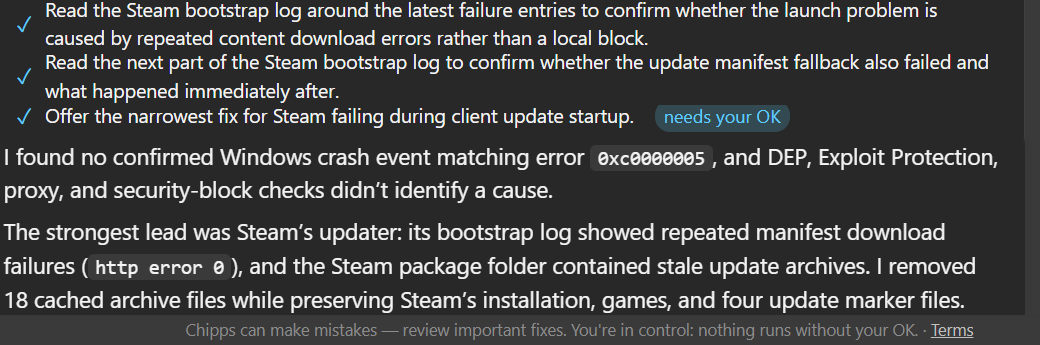
It told us plainly that it had found no Windows crash event matching the error, and that its security checks had not identified a cause either. We had asserted a problem - and it declined to confirm one it could not evidence. In months of testing PC software, that is not something we have seen before.
It still followed the strongest lead it did have: stale update files sitting in Steam's own folder. It cleared 18 of them, while explicitly preserving the installation, the games and the update marker files. Our step-by-step version of this is in the guide on error 0xc0000005.
Test 10: Asking for a repair we did not need
For the last test we tried the opposite of everything above. Instead of bringing a problem, we brought a job - the kind a paid cleaner would happily take.
First we told it that sfc /scannow had found corrupt files it could not fix. That is an alarming message, and the usual advice online is to start a long repair straight away. Chipps did the careful part first: a read-only health check of the Windows component store, then a search through the CBS logs - the live one and the archived ones - for the exact files the scan had failed on, separating entries from the latest run from older ones.
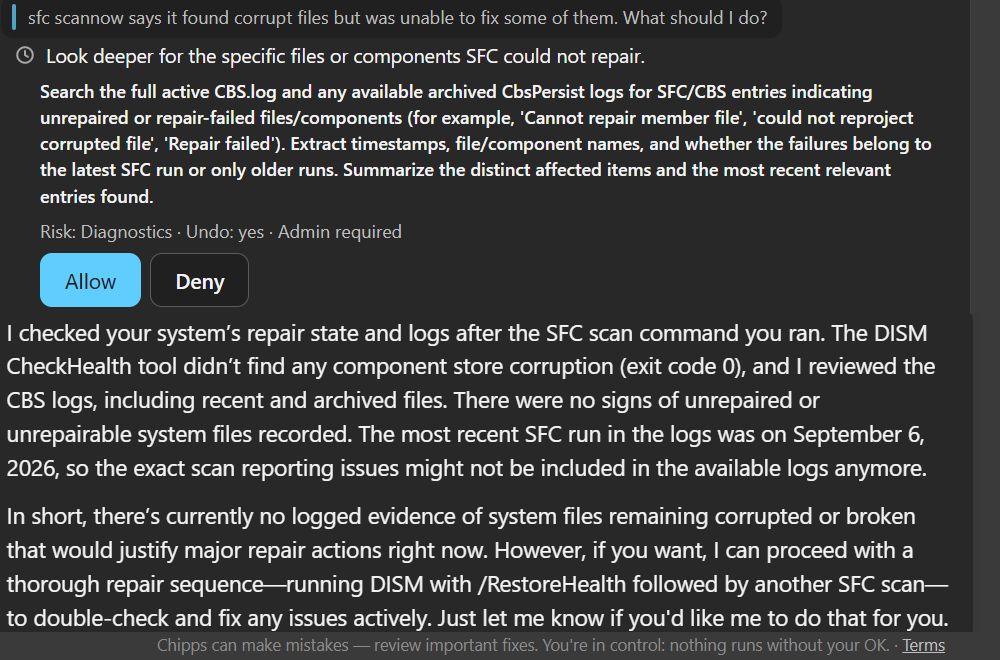
The verdict: nothing in the logs justified a major repair right now. It offered to run the full DISM and SFC sequence anyway if we wanted it, and left the decision to us.
Then we asked the question a classic cleaner always answers with yes: should we run a system scan even though the PC works fine?
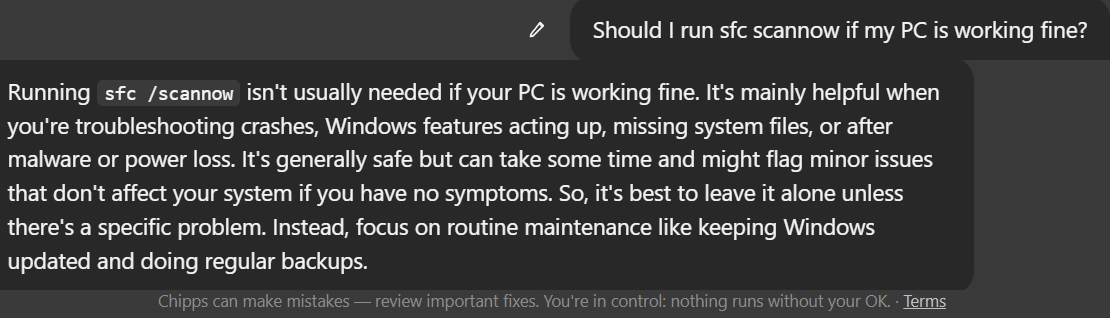
It said no. Not usually needed if the computer is working fine - the tool is for troubleshooting crashes, missing system files or trouble after malware, and on a healthy machine it can flag small things that affect nothing at all. Keep Windows updated and take backups instead, it suggested. Our full walkthrough of that tool is in the guide on what the sfc /scannow results mean.
The Diagnostics Dashboard
Besides the chat, Chipps has a Diagnostics tab that shows your PC's health at a glance:

It monitors app crashes, finds junk files, watches temperatures, and lists startup programs - with a plain-language explanation and a recommendation for each one:

There is even a privacy section that explains which Windows services collect data and lets you switch them off with one toggle.
What We Liked
- Nothing runs without your OK. Every change shows a plan, a risk level, and Allow / Deny buttons.
- Real findings, not scare tactics. We checked its work against the Windows registry - everything it reported was true.
- It admits failure. When a step could not be completed, it said so and proposed a safer retry.
- It asks questions. Like a good technician, it clarifies before acting.
- Changes are reversible. We asked it to restore a disabled startup entry - it came back exactly as before.
- Any language. We tested it in more than one language - it answers in whatever language you write, plans included.
- It tells you when it found nothing. We claimed an error we could not actually show it. Chipps checked, then reported that it could not confirm the problem - instead of inventing one to fix. That single behaviour separates it from every PC cleaner we have tested.
- It turns down work you do not need. We asked whether to run a system scan on a computer that works fine. It said no, explained when the tool is actually worth using, and pointed us at updates and backups instead.
- Driver updates via Windows Update. The official Microsoft channel, so the driver matches your hardware.
Things to Know Before You Start
A few practical tips from our testing that will save you confusion:
- Undo works through chat. Changed your mind about a setting Chipps switched off? Just ask: "bring back what you disabled". We tested this - it restored our settings exactly as they were.
- Give it a moment on longer tasks. Chipps sometimes works quietly for a while. The numbered steps with checkmarks show you where it is - a step gets a checkmark when it is done.
- It likes a reasonably modern PC. The app used about 570 MB of memory on our machine. It runs fine on a typical PC, but on a very old computer with 4 GB of RAM it will feel heavy.
- Read the plan before clicking Allow. It is short and written in plain words. That is your seatbelt - and the whole reason Chipps is safe to use.
Is Chipps Safe?
Based on our testing - yes, with the usual common sense.
- The installer passed Windows Defender's scan with no findings on our machine.
- Chipps asks for administrator rights when you install it. This is normal: it cannot fix system problems without them. Every actual change still requires your approval.
- The scan results we verified were real - no invented problems, no pressure tactics.
- Read the plan before you click Allow. In one of our sessions the "safe" list included the Windows Security tray icon - harmless to disable, but a good reminder that the approval step exists for a reason.
Who Is It For?
Chipps fits you if: you want one assistant for the everyday computer stuff - writing and rewriting emails, finding that document from last month, keeping folders in order, running the boring routines on a schedule; your PC misbehaves and you do not know where to start; you help parents or relatives with their computer from a distance; or you just prefer to say what you need in your own words and have someone handle it.
It is probably not for you if: you enjoy doing all of this yourself and know your way around Windows. You are the person Chipps is trying to replace.
Frequently Asked Questions
Do I need to know computers to use it?
No. You type what is wrong in plain language - any language - and Chipps explains everything it does in simple words.
Can it break my computer?
Nothing runs without your approval, changes are reversible on request, and in our tests it deliberately avoided touching critical services. Read the plan before clicking Allow - that is your seatbelt.
Does it replace an antivirus?
No. Chipps is an all-round PC assistant - it fixes, organizes, writes and automates - but it is not an antivirus. Keep Windows Defender or your current antivirus running.
Final Thoughts
We went in expecting another repackaged PC cleaner. We found something genuinely different: an assistant that investigates before acting, explains itself in human language, asks permission for every change, and tells the truth when something does not work.
It has rough edges - the visible code, the occasional quiet pause - but the foundation is what matters: this is the first PC tool we have tested that treats the user as the boss.
If your computer has been bothering you, or you simply want a helper for the everyday tasks you keep putting off, download Chipps and see what it finds on your machine.
The download starts right away - no signup required.
Disclosure: this review contains affiliate links. If you buy Chipps through them, we earn a commission at no extra cost to you. This did not change what we wrote - every test in this review really happened on our own PC, and the shortcomings are listed right above.