Fake Virus Warning on Your Screen? How to Stop It Safely
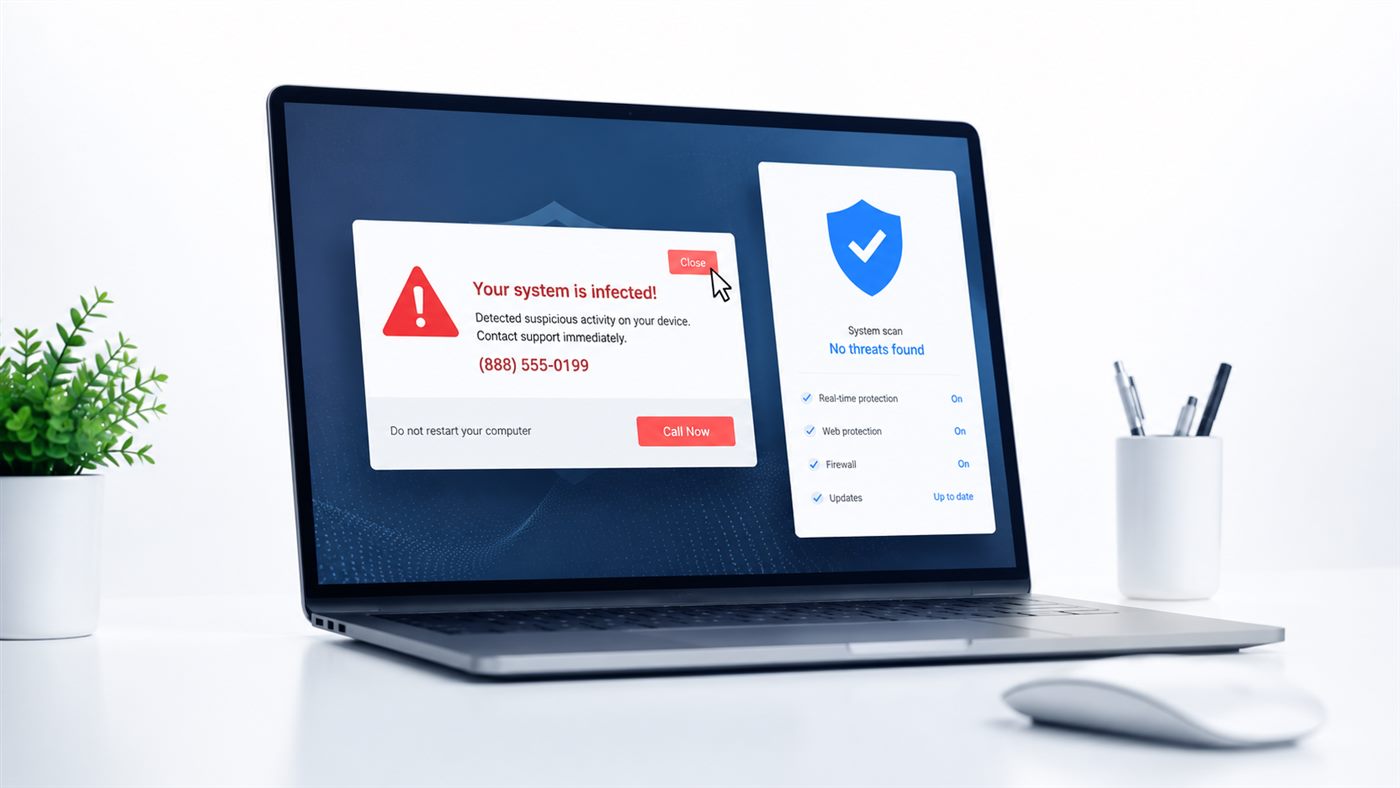
A message suddenly takes over your screen. It says your computer is infected, that your photos and passwords are at risk, and that you must act right now.
Take a breath. In almost every case this is not a real virus. It is a web page pretending to be one.
You are not alone. This is one of the most common things people see on a Windows PC, and it is usually easy to stop for good.
Quick Answer
A fake virus warning is a scam web page or a browser notification, not a real infection. Real Windows security warnings never fill your whole screen, never show a countdown, and never ask you to call a phone number.
Close the page without clicking anything inside it, then take away that site's permission to send you notifications. This stops the warnings for most people in just a few minutes.
Common Causes
- You once clicked "Allow" when a website asked to show notifications, often without noticing
- A page opened from an advert, a search result or a link someone sent you
- A browser extension you installed a long time ago started showing adverts
- A free program you downloaded changed your browser settings
- You closed the tab, but the site keeps sending notifications in the background
None of these mean your computer is broken or that someone has your files. In most cases nothing was installed at all. The page only looks frightening.
Fix 1: Close the Warning Safely
Everything inside that page is part of the scam, including the buttons that look like a way out. The "X" or "Close" button can open another page or start a download.
So close it from outside the page instead.
Steps:
- Press Ctrl + W to close the tab
- If the page will not let go, press Ctrl + Shift + Esc to open Task Manager
- Find your browser in the list (Chrome, Edge, Firefox)
- Click it once, then click End task
- Open your browser again, and if it offers to restore the pages, say no
The screen is yours again.
Never call a phone number shown in a warning, and never let anyone connect to your computer to "fix" it. Microsoft does not put phone numbers in security warnings. You can read Microsoft's own page about tech support scams.
Fix 2: Check Whether It Is a Real Windows Warning
Once you know the difference, these messages stop being scary. A real warning comes from Windows itself, not from a web page.
Real Windows Security messages are small, appear in the bottom right corner, and never ask for money or a phone call.
Steps to check for yourself:
- Click Start
- Type Windows Security and open it
- Click Virus & threat protection
- Look at the line underneath it
If it says No current threats, your computer is fine, no matter what the web page claimed.
Fix 3: Stop the Site From Sending Notifications
This is the fix that actually ends the problem. If the warnings keep coming back even when you are not browsing, they are notifications from a site you once allowed.
Taking that permission away stops them for good.
Steps in Google Chrome:
- Open Chrome and click the three dots in the top right corner
- Choose Settings
- Click Privacy and security, then Site settings
- Click Notifications
- Look at the list under Allowed to send notifications
- Next to any site you do not recognise, click the three dots and choose Remove
Steps in Microsoft Edge:
- Open Edge and click the three dots in the top right corner
- Choose Settings
- Click Cookies and site permissions, then Notifications
- Under Allow, click the three dots next to the unknown site and choose Remove
Close the browser, open it again, and the warnings should be gone.
Fix 4: Remove Browser Extensions You Do Not Recognise
Extensions can show adverts and pop-ups long after you have forgotten installing them. Removing one you never use costs you nothing.
Steps:
- In Chrome or Edge, click the three dots, then Extensions
- Choose Manage extensions
- Read the list slowly
- Click Remove on anything you did not install on purpose
Then restart the browser and see whether the warnings come back.
Do not remove an extension you actually use, such as a password manager or an ad blocker. If you are not sure what something is, switch it off with the toggle first. You can always turn it back on.
Fix 5: Check Your Proxy Settings
Some unwanted programs change a setting called a proxy, which quietly sends your pages through someone else's server. It is rare, but it takes ten seconds to rule out.
Steps:
- Press Windows + I to open Settings
- Click Network & internet
- Click Proxy
- Check that Use a proxy server is set to Off
If this is a work or school computer, leave the setting alone and ask your IT team first.
Fix 6: Run One Real Scan to Be Sure
By this point the warnings have almost certainly stopped. One proper scan puts the worry to rest, and Windows already has everything you need.
Steps:
- Open Windows Security from the Start menu
- Click Virus & threat protection
- Click Scan options
- Choose Microsoft Defender Antivirus (offline scan)
- Click Scan now and let the computer restart
The scan takes about fifteen minutes and runs before Windows fully starts, which is where it catches the stubborn things. Microsoft explains the rest of the tools on its page about Windows Security.
One More Thing Most People Forget
The permission can still be alive somewhere else.
If you use two browsers, or more than one profile in Chrome, the same site may still be allowed in the one you did not check. The warnings then look like they came back on their own.
Go through every browser and every profile you actually use. It takes a minute and saves a lot of confusion.
While you are tidying up, you may also like our guide on how to clean up Windows safely.
Final Thoughts
A fake virus warning is built to make you panic and act quickly. That is the whole trick.
Once you close the page properly and take away the site's permission to send notifications, it has nothing left to work with.
And your computer was most likely never infected at all.