Chkdsk: What It Does, How to Run It, and When Not To
Something is wrong with the computer, you searched for help, and the answer came back in two words: run chkdsk. Nobody explained what it does, how long it takes, or what happens if it finds something.
It is a good tool. It is also the one piece of advice handed out most carelessly on the internet - including in the one case where it is genuinely the wrong first move.
So this page covers the order to do things in, not just the command.
Quick Answer
Chkdsk checks the filing system on a drive - the index Windows uses to find your files - and repairs it when you ask it to. It is not a health check of the drive itself, and those are two different things.
Start with chkdsk C: /scan. It runs while Windows is working normally, needs no restart, and changes nothing. Only move on to the repairing versions if that finds something, and only after your important files are copied somewhere else.
What Chkdsk Actually Checks
Picture a library. The books are your files. The card index at the entrance says which book sits on which shelf.
Chkdsk checks the card index. If a card points to an empty shelf, or two cards claim the same one, or a card went missing after the power cut, chkdsk finds that and can put it right.
What it does not do is tell you whether the building is falling down.
That difference matters more than anything else on this page. A drive can have a perfect filing system and still be dying, and a drive in fine physical health can have a scrambled index after an unexpected shutdown. Chkdsk speaks to the second problem.
There is one exception. Run with the /r option, chkdsk also reads every sector of the drive to find damaged ones. That is a physical check - and it is also the slowest and most demanding thing you can ask of a drive, which is why it comes last, not first.
Before You Run It: Is the Drive Itself Healthy?
Here is the case where "just run chkdsk" is bad advice.
If the drive is failing, a full surface scan makes it work hard for hours, reading every sector it has. On a drive that is already struggling, that is the worst possible moment to give it the heaviest job of its life. Copy your files first.
So spend two minutes finding out what state it is in.
Ask Windows what it thinks of the drive.
- Click Start, type powershell, right-click Windows PowerShell and choose Run as administrator
- Type Get-PhysicalDisk and press Enter
- Look at the HealthStatus column - it should say Healthy
Then look for the warning most people never see. When a piece of a drive stops reading, Windows quietly writes it down in its own log. Nothing pops up on screen.
- Press Windows + R, type eventvwr.msc and press Enter
- Open Windows Logs, then System
- Click Filter Current Log on the right
- In the Event sources list choose disk, then click OK
- Look for Event ID 7 - that one means a bad block was found
Now read what you found, because the dates decide everything:
- Nothing at all. Good. Carry on to the next section.
- A few entries from years ago and nothing since. The drive hit a rough patch, marked the damaged piece as unusable and has been fine ever since. Common, and not a reason to panic.
- Entries from the last few weeks, especially several. Stop. Copy everything that matters off that drive before you run anything at all. A drive that keeps finding bad blocks is telling you something.
You may have read that you should check the drive's SMART data - the self-diagnosis built into the drive itself. It is good advice when it works, but on a lot of computers Windows cannot read it, and the built-in commands come back with an error rather than an answer. If that happens to you, nothing is broken. Use the free tool from the company that made the drive instead.
How to Run It, in the Right Order
Three stages, from gentlest to heaviest. Stop as soon as one of them comes back clean.
Stage 1: look without touching. This is the one almost every guide skips, and it is the one to start with. It runs while you carry on working, and it changes nothing.
- Click Start, type cmd, right-click Command Prompt and choose Run as administrator
- Type chkdsk C: /scan and press Enter
- Read the last few lines when it finishes
If it reports no problems, you are done. There is nothing to repair, and the two heavier stages below would find nothing either.
Stage 2: repair the filing system. Only if stage 1 found something.
- In the same window, type chkdsk C: /f and press Enter
- Windows will say it cannot do this while the drive is in use and ask to run at the next restart - press Y
- Restart the computer and let it work. Do not press a key to skip it
Stage 3: check the surface. Only if the problem persists, and only once your files are backed up.
- Type chkdsk C: /r and press Enter, then Y, then restart
- Set aside several hours - on a large drive Microsoft says runtimes of many hours are normal
Microsoft's full reference for all of this is on its chkdsk command page.
/scan, /f and /r: What the Letters Mean
Four things, in plain words.
chkdsk C: - on its own, with no letters after it, chkdsk only looks and reports. It repairs nothing. If you run it this way on the drive Windows is running from, it can even report problems that are not really there, because it cannot get the drive to hold still.
chkdsk C: /scan - the modern version of looking without touching. It works properly while Windows is running, so it does not need a restart and does not give false alarms. This is your starting point.
chkdsk C: /f - fixes what it finds in the filing system. It needs the drive to itself, which is why it asks to run at restart.
chkdsk C: /r - everything /f does, plus reading every single sector to find physically damaged ones and rescue what can still be read from them. This is the long one.
You do not need both /f and /r. The /r option already includes everything /f does, so chkdsk C: /r on its own is the complete job.
"Chkdsk Cannot Run Because the Volume Is in Use"
This message is not an error, and you have not done anything wrong.
To repair the index, chkdsk needs the drive to stop changing underneath it. That is impossible on the drive Windows itself is running from, because Windows is writing to it constantly. So it offers the only way round: do the job at the next restart, before Windows loads.
Press Y, restart, and let the check run. It appears on a plain screen before the desktop shows up.
Changed your mind before restarting? Type chkntfs /x C: and press Enter, and the scheduled check is cancelled.
It Looks Stuck and Has Not Moved for Hours
This is the single most common panic around this command, so here is the straight answer.
It is almost certainly working. Chkdsk moves through several stages, and some of them sit on one percentage for a very long time while the drive grinds through millions of small records. On a large drive, several hours with no visible change is normal, not frozen.
So the answer is to leave it alone. Start it in the evening if you can.
And if you genuinely cannot wait any longer, here is what Microsoft itself says on the subject, which is worth reading twice: interrupting chkdsk is not recommended, but cancelling or interrupting it should not leave the drive any more damaged than it was before you started. Running it again afterwards picks up where things stand.
That is a more reassuring answer than the internet usually gives. Pulling the plug is still the worst option and not something to do casually - but it is not the catastrophe it is often made out to be.
One genuine warning sign is the opposite case: a check on a large, full drive that finishes suspiciously fast. That can mean it never really scanned, and on a drive with a failing read head it can mean the drive gave up rather than reported.
Where the Results Went
The check ran at restart, the screen flashed past, Windows loaded, and you have no idea what it found. This catches everybody.
The report is not lost. It goes into the Windows log.
- Press Windows + R, type eventvwr.msc and press Enter
- Open Windows Logs, then Application
- Click Filter Current Log on the right
- In Event sources, tick Chkdsk and Wininit, then click OK
- Open the newest entry - the whole report is in the message
Look for the line about bad sectors. 0 KB in bad sectors is what you want to see.
One More Thing Most People Forget
Chkdsk is not maintenance. It is a repair tool, and there is nothing to gain from running it on a computer that is behaving itself.
On an SSD there is even a small reason not to. Microsoft notes that repeated full-surface scans, /r especially, add write and erase cycles the drive did not need to spend, which very slightly shortens its life. One check when you have a reason is nothing. A standing habit is pointless wear.
What actually protects your files is duller and far more effective: keep a copy of anything you would hate to lose somewhere other than that drive, and glance at the drive's health now and then. Microsoft's guide to backing up your PC covers the built-in options.
Run chkdsk when something is actually wrong. That is what it is for.
Frequently Asked Questions
How long does chkdsk take?
A /scan check takes minutes. A /f repair at restart usually takes 20 minutes to an hour. A full /r surface scan reads every sector, and on a large hard drive Microsoft says runtimes of several hours are normal. Start that one in the evening.
Chkdsk is stuck at the same percentage. Can I cancel it?
It is almost certainly still working - some stages sit on one number for a long time. Microsoft says interrupting chkdsk is not recommended, but that cancelling it should not leave the drive any more damaged than it was before. So waiting is right, and stopping it is not the disaster it is made out to be.
What is the difference between chkdsk /f and /r?
/f repairs the filing system - the index Windows uses to find your files. /r does all of that and also reads every sector to find physically damaged ones. You never need both: /r already includes /f.
Does chkdsk delete files?
It is not designed to, and normally it does not. It repairs the index rather than the files themselves. But it does change that index, which is exactly why anything you cannot afford to lose should be copied elsewhere before you run a repair.
Final Thoughts
The command itself is easy. The judgement around it is the part worth having.
Check the drive's health before you make it work hard. Start with the scan that changes nothing. Let it finish. Read the log afterwards instead of guessing.
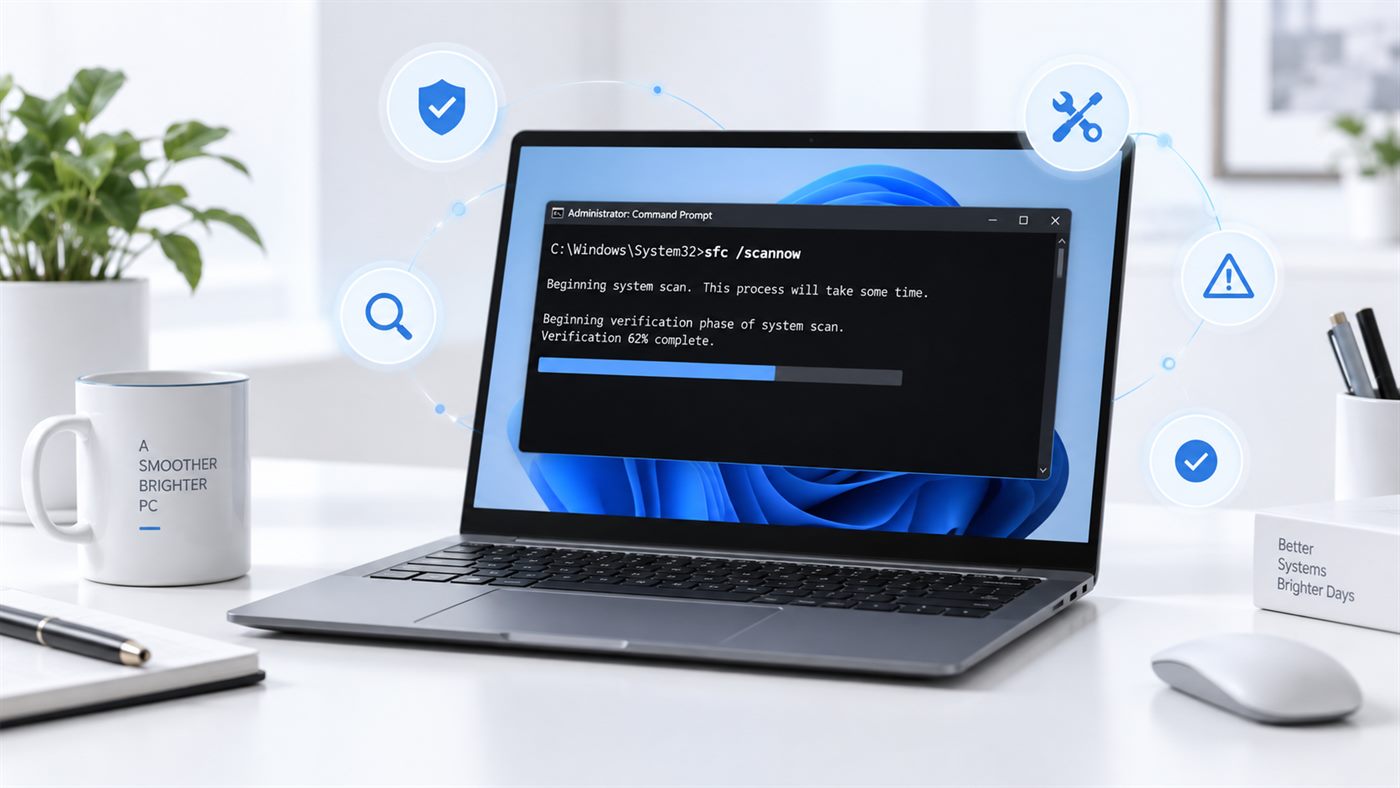
And if the trouble turns out to be Windows rather than the drive, the other repair pair is the place to go - our guide on what the sfc /scannow results mean covers that side.