Error 0x80070643: How to Fix a Failed Windows Update
Windows tries to install an update, thinks about it for a while, then gives up with Error code: 0x80070643. The next day it tries again and fails again, exactly the same way.
This is one of the most common update errors there is, and it almost never means your computer is damaged. It means one particular install did not finish.
The way out is not a magic command. It is finding out which update is failing - because the same code covers four completely different problems, and each one has its own short fix.
Quick Answer
0x80070643 simply means "install failed". It is a general code, so on its own it tells you nothing about the cause.
Open your update history and read the name of the update that failed. If it mentions Microsoft Defender, .NET Framework or the Recovery Environment, go straight to that section below. Anything else is an ordinary Windows update, and the standard repair steps clear it in a few minutes.
What 0x80070643 Actually Means
Windows reports problems with numbered codes. Most of them are specific: not enough disk space, file not found, access denied. Those tell you what to do next.
0x80070643 is not one of those. Its meaning is short and unhelpful: the installer started, ran, and failed. That is the whole message.
Which is why searching the number alone leads to pages of unrelated advice. The number is the same whether Defender could not refresh its threat list or a system update ran out of room.
The useful information is sitting right next to the code - in the name of the update that failed.
Step One: See Which Update Is Failing
Two minutes here decides everything else on this page.
Steps:
- Click Start, type update history and open View update history
- Look for entries marked Failed and read the full name, not just the code
- Note the KB number in the name - the part that looks like KB2267602 or KB5034441
Only entries marked Failed matter. Anything marked Successfully installed is done, even if the same update appears in the list more than once.
Now match the name against the sections below.
The name tells you how urgent this is. A failed Defender definition refreshes several times a day, so it is a small thing repeating loudly. A failed cumulative update is the one actually worth your evening.
If the Update Mentions Microsoft Defender
This is the most common version of the error. The name usually reads Security Intelligence Update for Microsoft Defender Antivirus - KB2267602.
Security intelligence is just Defender's list of known threats. It refreshes several times a day, which is why one failure can turn into a dozen red lines in a single afternoon. It looks far worse than it is.
Start by checking what Defender actually has:
- Click Start, type Windows Security and open it
- Go to Virus & threat protection
- Under Virus & threat protection updates, look at the date next to Last update
If that date is today or yesterday, the list is current and the failing entry in your history is noise. If it is weeks old, the update really is not getting through, and the fix below is the one Microsoft recommends.
Install the definitions by hand. The file is on Microsoft's own site, it is small, and it takes under a minute.
- Open Microsoft's security intelligence updates page
- Download the file that matches your Windows - 64-bit for almost every computer made in the last ten years
- Run it. There is no window and no progress bar, it simply finishes
- Check the Last update date again
There is one more cause worth knowing, and it explains the cases where nothing else helps. If you installed another antivirus, Windows switches Defender off - two programs cannot both guard the same computer. A switched-off Defender cannot install anything, so its update fails every time it is offered. Microsoft says the same thing in its own guidance on security intelligence not updating.
In that situation the error is not a problem to solve. Your other antivirus is doing the protecting, and Defender is standing aside as designed.
If the Update Mentions .NET Framework
.NET Framework is a set of shared parts that a lot of Windows programs are built on. When its update fails, the usual reason is that the copy already on the computer is damaged, so the new one has nothing solid to attach to.
Microsoft publishes a repair tool for exactly this case.
- Download the .NET Framework Repair Tool from Microsoft
- Run it and let it check the installation
- Apply the fixes it offers
- Restart, then check for updates again
There is also a Microsoft troubleshooter aimed specifically at .NET components, which is worth running if the repair tool finds nothing.
If the update still refuses, install the full package straight from Microsoft's .NET Framework download page. A full install replaces the damaged files instead of trying to patch them, and that is often what clears it.
If the Update Mentions the Recovery Environment
Less common, but easy to recognise: the name contains Windows Recovery Environment or WinRE.
The recovery environment is the small rescue system Windows starts when it cannot start normally. It lives in its own tiny partition on your disk, and the size of that partition was decided when the computer was first set up. If there is no room left in it, the update cannot be written, and the same failure comes back every month.
Two honest things about this one.
- Windows itself is not affected. The failed update only means your rescue tools stay at the version they already are. Everything you use day to day carries on exactly as before.
- The proper fix is real work. It means resizing a partition from the command line. Microsoft publishes the exact steps in KB5028997, and they involve deleting and recreating a partition - not something to start ten minutes before you need the computer.
Those instructions work on the partition table of your disk. Read them through completely before typing the first command, and back up anything you would hate to lose first. If the rest of your updates install normally, this one can safely wait until you have an unhurried afternoon.
If It Is an Ordinary Windows Update
Names that begin with Cumulative Update for Windows or Security Update for Windows belong here. Work through these in order and stop as soon as the update goes in.
Run the built-in troubleshooter.
- Click Start, type troubleshoot and open Troubleshoot settings (in Windows 11 the list is under Other troubleshooters, in Windows 10 under Additional troubleshooters)
- Find Windows Update and click Run
- Let it finish, then restart and check for updates again
Check your free space. An update downloads as a compressed package and unpacks before it installs, so it needs several times its own size in room. A nearly full drive is a common and completely invisible cause of this code. Aim to have at least 10 GB free on C:. Our guide on cleaning up Windows safely covers how to get there without deleting anything you need.
If you are not sure what is safe to remove, the companion guide on what files you can safely delete sorts it into two plain lists.
If you are not sure what is safe to remove, the companion guide on what files you can safely delete sorts it into two plain lists.
Repair the Windows system files.
- Click Start, type cmd, right-click Command Prompt and choose Run as administrator
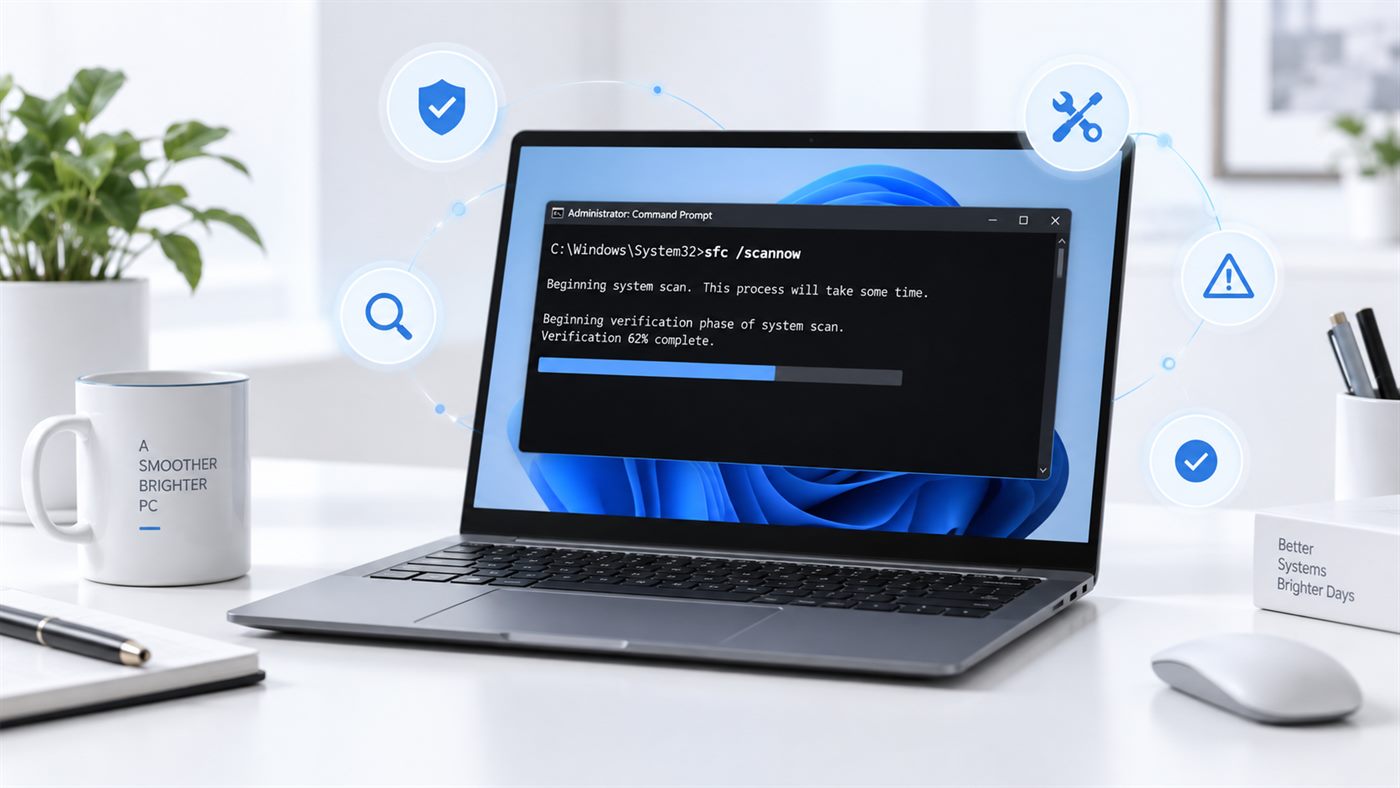
- Type sfc /scannow and press Enter, then wait for it to reach 100%
- Type DISM /Online /Cleanup-Image /RestoreHealth and press Enter
- Restart the computer and check for updates again
Both commands only inspect and repair Windows' own files. They do not touch your documents, photos or installed programs. It is normal for them to sit at one percentage for several minutes - leave them alone until they finish.
If the scan answers with something you cannot make sense of, our guide on what the sfc /scannow results mean goes through all four of its possible answers.
Clear the downloaded update files. If a previous download was damaged, Windows keeps trying to install the broken copy. Removing it forces a clean download.
- Press Windows + R, type services.msc and press Enter
- Right-click Windows Update and choose Stop
- Open C:\Windows\SoftwareDistribution\Download and delete everything inside it
- Go back to Services, right-click Windows Update and choose Start
- Check for updates again
Windows rebuilds that folder by itself, so emptying it is safe.
If the Same Update Keeps Failing
When one specific update refuses no matter what, you can install it yourself and skip the part of Windows Update that keeps breaking.
- Take the KB number from your update history
- Open the Microsoft Update Catalog
- Search for that KB number
- Download the version that matches your Windows - x64 for almost every computer
- Run the downloaded file and restart when it asks
The update installs the same content by a different route, and quite often it goes in without a word of complaint.
One More Thing Most People Forget
A red line in your update history is a record of one attempt. It is not a live status.
Windows retries failed updates on its own schedule, and when a later attempt succeeds, the old failed entry stays in the list exactly where it was. So the list can show a failure that has already been sorted out.
Before you spend an evening on this, check the thing itself rather than the history: the Last update date in Windows Security for a Defender entry, or the current build under Settings - System - About for a Windows update. If those look current, the error has already resolved itself and the entry is just an old scar.
Frequently Asked Questions
Is error 0x80070643 serious?
No. The code only means one install did not finish - it says nothing about the health of the computer. Windows keeps starting, running and updating everything else normally while this one update keeps retrying.
Why does 0x80070643 keep coming back every day?
Because of what is failing, not how badly. Microsoft Defender refreshes its list of known threats several times a day, so a single problem with that one update produces a new failed entry every few hours. One cause, many red lines.
Can I just ignore error 0x80070643?
It depends on the name of the update. A Defender definition or a recovery environment update can wait, and in some cases needs nothing at all. A failed cumulative update should be dealt with, because those carry the security fixes.
Do I need to reinstall Windows to fix 0x80070643?
No. This error is about a single package failing to install, not about a broken Windows. Repairing the system files, clearing the downloaded update files or installing that one update by hand covers almost every case.
Final Thoughts
0x80070643 looks like one problem. It is really four problems sharing a code that describes none of them.
Read the name of the failing update instead of the number, and the whole thing turns into an ordinary, specific task - install a definition file by hand, repair .NET, leave a recovery partition for another day, or run two commands and restart.
If a different code appeared instead, and it was 0x80004005, our guide on error 0x80004005 covers that one - it is another general code that changes meaning with the situation.
Microsoft also keeps a general page on troubleshooting problems updating Windows if you want the official version of the standard steps.