Printer Says Offline? 7 Fixes to Get It Back Online
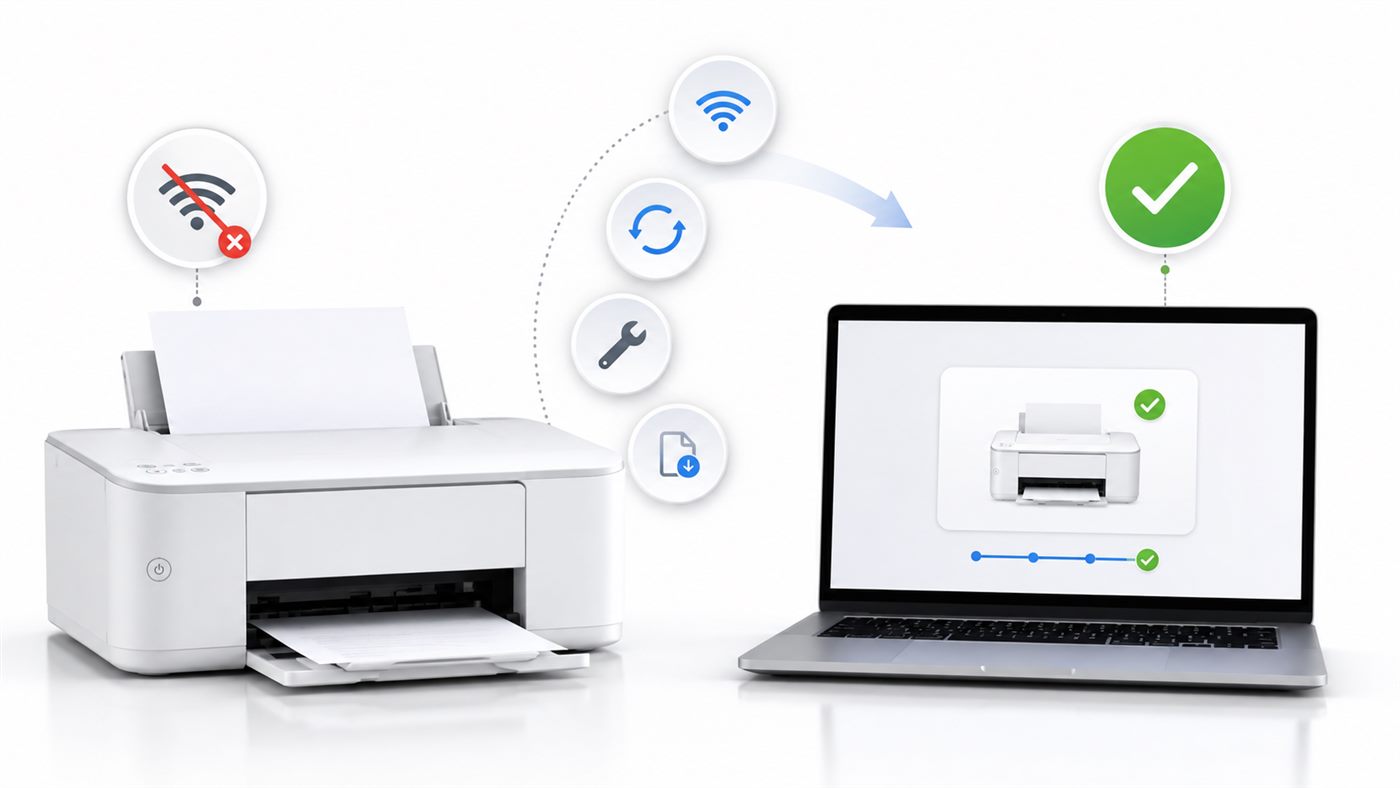
You send a document to print, and nothing happens. You look at the printer in Windows and it says Offline - even though the printer is switched on and looks perfectly fine.
This is one of the most confusing printer problems, because nothing appears to be broken. And it usually is not. In most cases the printer is fine and Windows has simply lost track of it.
Here is how to bring it back, from the quickest check to the ones that fix the stubborn cases.
Quick Answer
"Offline" means Windows cannot reach your printer right now. It does not mean the printer is broken. The most common causes are a setting called Use Printer Offline being switched on, a stuck document in the print queue, or a wireless printer whose address changed after the router restarted.
Start by turning off Use Printer Offline and clearing the print queue. That solves it for most people in a couple of minutes.
What "Offline" Actually Means
Windows checks whether it can talk to your printer. If it does not get an answer, it marks the printer Offline and stops sending documents to it.
That answer can go missing for very ordinary reasons. The printer went to sleep. The router restarted overnight and handed the printer a different address. A document jammed in the queue and Windows stopped trying.
The printer itself is almost never the problem. Which is why the fixes below are mostly about Windows, not about the hardware.
Common Causes
- The Use Printer Offline setting got switched on, sometimes by Windows itself
- A document is stuck in the print queue and blocks everything behind it
- The Print Spooler service has frozen
- Your wireless printer received a new address after the router restarted
- Windows is sending documents to a different printer than the one you are looking at
- The printer went into sleep mode and dropped off the Wi-Fi
The good news is that all of these are quick to check, and none of them mean you need a new printer.
Fix 1: Look at the Printer Itself
Thirty seconds here can save you the rest of the article.
Steps:
- Check that the printer is switched on and the screen is lit
- On a wireless printer, look at the Wi-Fi light - it should be steady, not blinking
- On a USB printer, unplug the cable and plug it back in, ideally into a different port
- Look for a warning on the printer's own display, such as a paper jam or an empty cartridge
Then switch the printer off, wait ten seconds, and switch it back on. Give it a minute to reconnect, then check Windows again.
Many people are surprised how often this alone brings the printer back.
Fix 2: Turn Off "Use Printer Offline"
Windows has a setting that tells it to stop talking to the printer on purpose. It is meant for working without a printer nearby, but it sometimes switches itself on and never switches back.
This is the single most common cause, so check it first.
Steps:
- Press Windows + I to open Settings
- Go to Devices, then Printers & scanners (in Windows 11 it is Bluetooth & devices, then Printers & scanners)
- Click your printer
- Click Open queue
- In the window that opens, click the Printer menu at the top
- If Use Printer Offline has a tick next to it, click it to remove the tick
The status should change back to Ready within a few seconds.
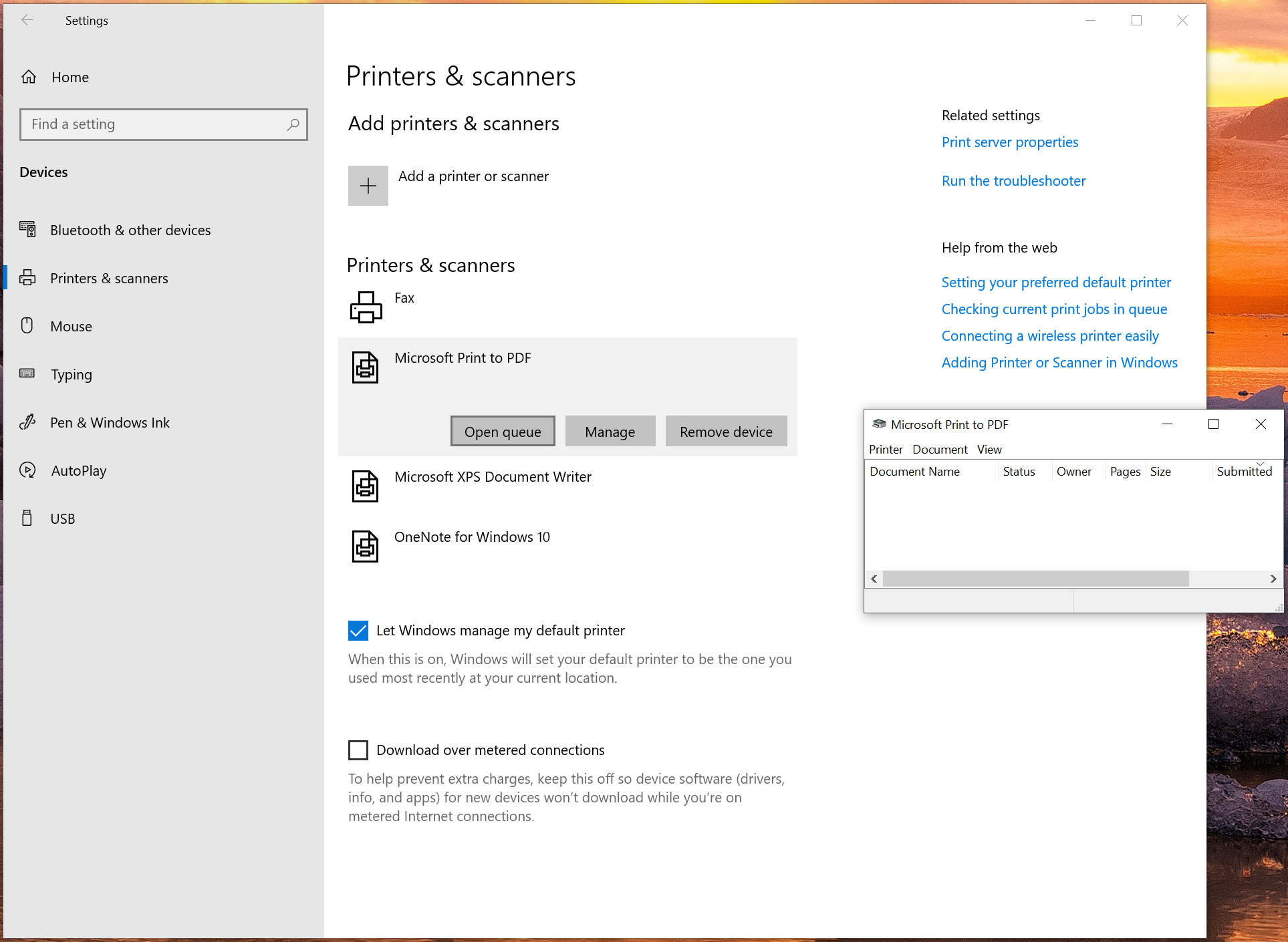
If the tick keeps coming back after every restart, the cause is usually further down this page - a printer that keeps losing its connection. Windows switches the setting on by itself when it repeatedly fails to reach the printer.
Fix 3: Clear the Stuck Print Job
One document that failed to print can block everything behind it and push the printer into Offline.
Steps:
- Open the print queue again, the same way as above
- Look at the list of documents
- Click the Printer menu
- Choose Cancel All Documents
- Confirm
If a document refuses to disappear from the list, do not fight with it. The next fix removes it properly.
Fix 4: Restart the Print Spooler
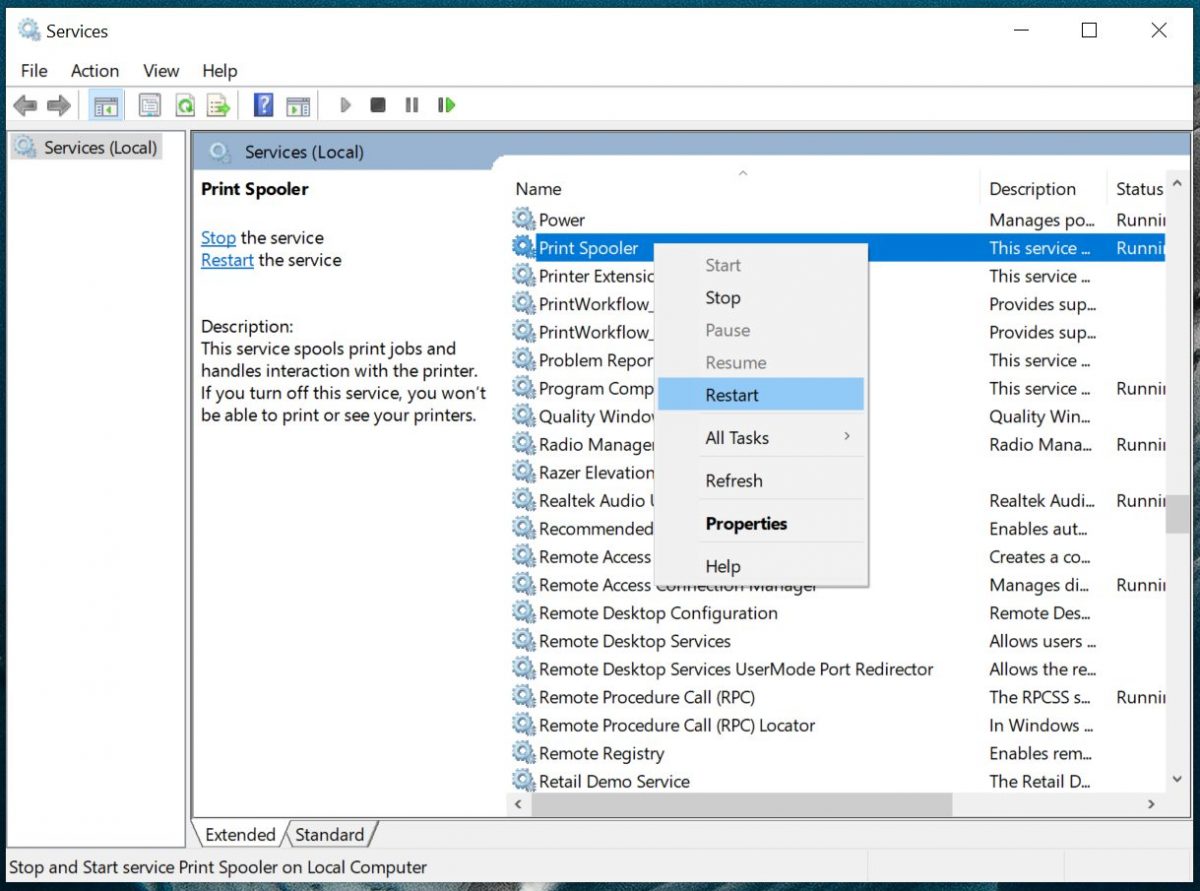
The Print Spooler is the part of Windows that holds documents and hands them to the printer. When it freezes, the printer goes Offline and stuck documents refuse to cancel.
Restarting it is safe. Nothing is deleted except the queue.
Steps:
- Press Windows + R
- Type services.msc and press Enter
- Scroll down to Print Spooler
- Right-click it
- Choose Restart
Then try printing again.
Fix 5: Set the Right Printer as Default
Windows can quietly switch your default printer to whichever one you used last. If it picked a printer that is not there any more, your documents go nowhere while your real printer sits idle.
Steps:
- Open Printers & scanners in Settings
- Turn off Let Windows manage my default printer
- Click your printer
- Click Manage
- Click Set as default
Now Windows will keep sending documents to the printer you chose.
Fix 6: Wireless Printers - the Address Changed
This is the one that catches people out, and it explains the classic "it worked yesterday, and this morning it is offline".
Your router gives each device an address. When the router restarts, it can hand the printer a different one. Windows keeps looking for the printer at the old address, gets no answer, and marks it Offline.
The printer is on, connected, and completely fine. Windows is simply knocking at the wrong door.
The reliable fix is to add the printer again at its current address.
Steps:
- On the printer's own screen, open the network or Wi-Fi settings and write down the IP address - it looks like 192.168.1.45
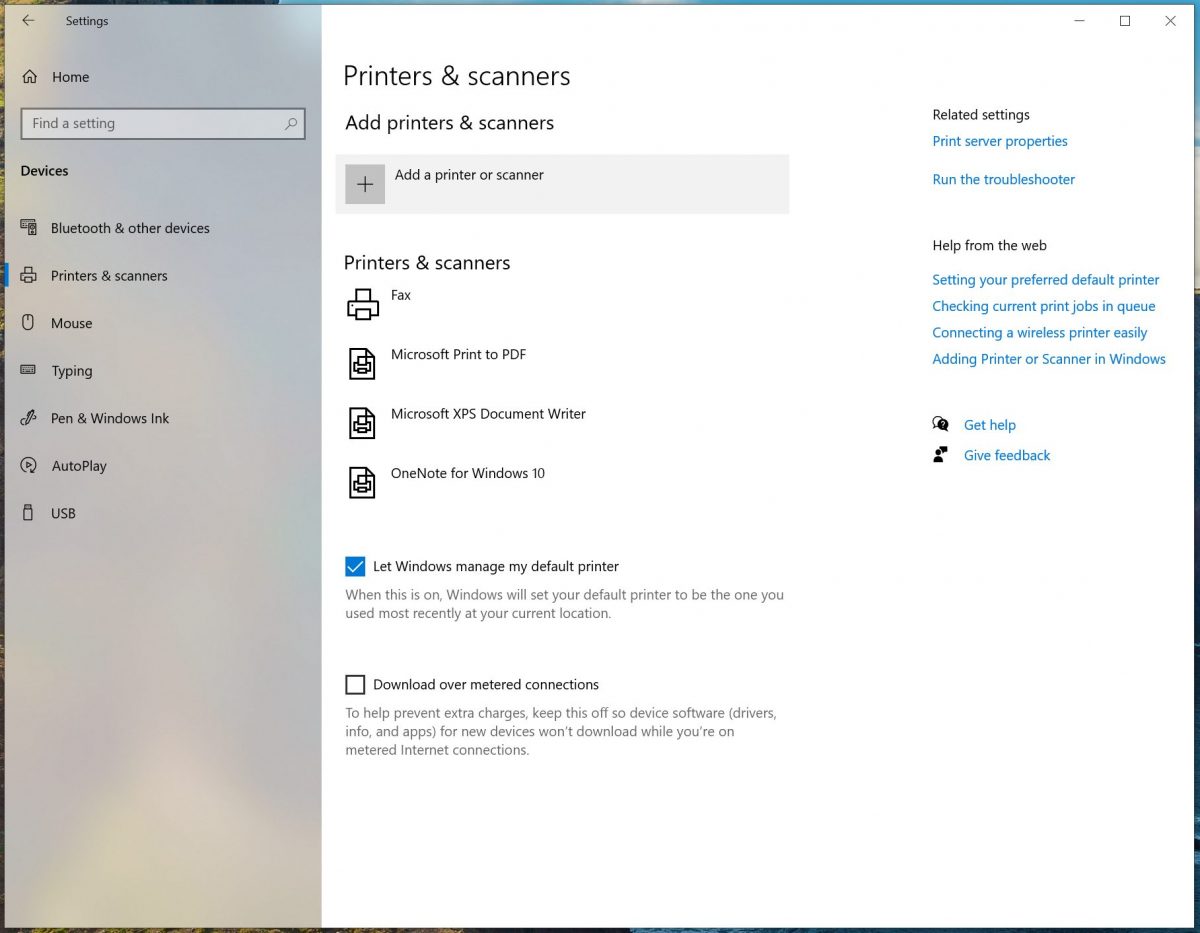
- In Windows, open Printers & scanners
- Click Add a printer or scanner
- Wait a moment, then click The printer that I want isn't listed
- Choose Add a printer using a TCP/IP address or hostname
- Type the address you wrote down
- Follow the remaining steps
Microsoft describes the same wizard on its page about installing a printer in Windows.
To stop this happening every few weeks, give the printer a fixed address. Most printers have a setting for it under Network, often called Static IP or Manual IP. Many home routers can also reserve an address for a device permanently.
Fix 7: Turn Off the SNMP Status Check
If the printer still shows Offline while it prints perfectly from a phone, this last setting is usually the culprit.
Windows asks network printers for their status using something called SNMP. Some printers, especially older ones, do not answer that question properly. Windows takes the silence as a fault and shows Offline, even though printing works.
Steps:
- Open Printers & scanners
- Click your printer, then Manage, then Printer properties
- Open the Ports tab
- Select the port with a tick next to it
- Click Configure Port
- Untick SNMP Status Enabled
- Click OK
The printer usually flips back to Ready straight away.
This only turns off a status check. It does not change how your printer prints, and you can tick it back on at any time.
One More Thing Most People Forget
Many printers go into a deep sleep after a period of inactivity, and some drop off the Wi-Fi when they do. The first document you send wakes the printer, but Windows has already given up and shown Offline.
If your printer is reliable during the day and offline every morning, look for a Sleep or Power Save setting on the printer and set a longer delay.
It is a small change that quietly solves a problem people fight with for months.
Frequently Asked Questions
Why does my printer say Offline when it is switched on?
Offline means Windows cannot reach the printer right now, not that the printer is broken. The usual reasons are the Use Printer Offline setting, a document stuck in the print queue, or a wireless printer whose address changed after the router restarted.
My printer prints from my phone but Windows still says Offline. Why?
The printer is on the network and working - Windows just cannot read its status. This is usually the SNMP status check. Turning it off in the printer port settings normally fixes it.
How do I stop my printer going offline every morning?
Two things usually cause it: the router giving the printer a new address overnight, and the printer sleep mode dropping the Wi-Fi. Give the printer a fixed address and set a longer sleep delay.
Final Thoughts
An offline printer looks like a broken printer, but it almost never is. In most cases Windows just lost the thread - a setting, a stuck document, or an address that changed overnight.
Work down the list and you will usually find it in the first two or three steps.
If your printer is not offline but still refuses to print, our general guide on why your printer is not working covers the other causes. And if the trouble started right after an update, see printer not working after a Windows update.